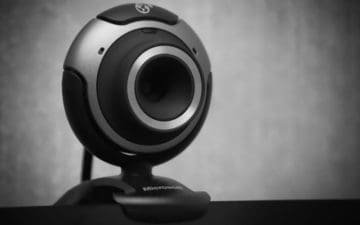
If you landed on this page, most likely you have just purchased a third-party webcam or camera and want to install it onto your Mac computer. Not sure how to do it? No problem! Installing a new camera so it appears on your system report — meaning, installing it successfully — doesn’t take much, especially if your device is a plug-and-play.
No worries if you are having issues getting your webcam/camera to work on your Mac. Cameras act up and break without any apparent reason all the time. It’s relatively well-known that cameras and computers often don’t mix too well.
Moreover, an issue like this doesn’t exclusively happen to Mac users. Windows, Linux, and any other OS’s consumers can potentially face the same problem. Don’t worry. This troubleshooting guide may work for you as well.
Before we begin, if your third-party camera specifies that it needs a driver to work correctly, download the necessary software from the manufacturer’s website before proceeding. You can usually find this by Googling the make/model of the camera and “driver download.” Otherwise, read the user manual that came with the camera to find out where you can download it.
If you have the driver already installed, make sure it’s up to date. For the plug-and-play cameras, you don’t need to download any driver or program.
Connect the camera or webcam to the appropriate USB port on your Mac. USB Type-A ports only go one way, unlike the more modern USB Type-C ports. Try to keep this in mind when you plug in the cable. Don’t force it in if it doesn’t fit. It could just be oriented in the wrong way. Turn it around and try again.
Next, check if the camera is connected correctly. Click the Apple icon at the top-left of your screen, then choose About this Mac.
Click on the System Report button to get an overview of your hardware devices.
From the list of hardware, find your camera model. If the device is not detected for some reason, reconnect the camera. If it still not detected, plug the camera into a different USB port.
At this point, the System Report should be able to detect your third-party camera. If issues persist, make sure your camera driver is installed and up-to-date. Reinstall the driver if necessary. You may want to try restarting your Mac.
Otherwise, there may be a hardware problem with the device.
Check to see if the Camera is Functioning Properly
Oftentimes, there’s no on/off button that will help users instantly check if the camera is working. In this case, simply test out the camera. You can do this using Photo Booth. This application is built-in in all iOS systems.
Open the Finder, then go to the Applications folder. Select the Photo Booth app.
From the menu bar of the app, you can select which camera to use. The default choice is usually the built-in webcam or iSight camera. Choose your external or third party camera. If it’s not detected, reconnect the device.
You should see an indicator light—often a green LED light—informing you that the camera is switched on if everything is working.
Afterward, you can use the camera to record a video or snap a picture. Additionally, clicking the Effects button on the Photo Booth app will provide you with a selection of filters that you can apply to videos and photos.
Summary
Don’t immediately jump to the conclusion that there is a hardware problem if the System Report does not detect your camera. Chances are, a driver issue may be the culprit. Reinstalling your driver or updating is advised. If the camera is still not detected, consult a professional to discuss your problem.








Write a Comment