Restart your Mac: Yes, please restart the device. This simple step can work wonders.
Ensure your macOS is updated: Software updates often feature fixes for hardware-related issues. Go to Settings > General > Software update.
Clean the mouse sensor: Use a soft, dry cloth to clean the mouse sensor. Dirt or debris can affect its performance.
Replace the batteries of your mouse: If you have a Bluetooth mouse, replace its battery. If the battery is low, certain features may stop working. Inspect the metal contacts of your mouse to ensure they’re not damaged.
Avoid connecting extra Bluetooth devices: Don’t connect any other Bluetooth peripherals as they may be causing interference.
Use a different mouse: Try using another mouse to see if the problem is with the mouse or the MacBook.
Fix 1: Change Contrast
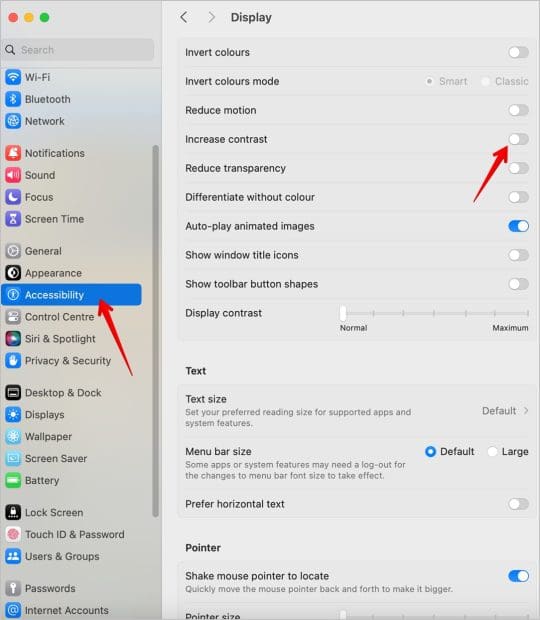
Check your current display contrast settings and tweak them if necessary. Display contrast settings may change after updating macOS, making it impossible to see a color change when you select or highlight text using the mouse.
On your MacBook, go to Settings > Accessibility > Display. Turn off the toggle for Increase contrast.
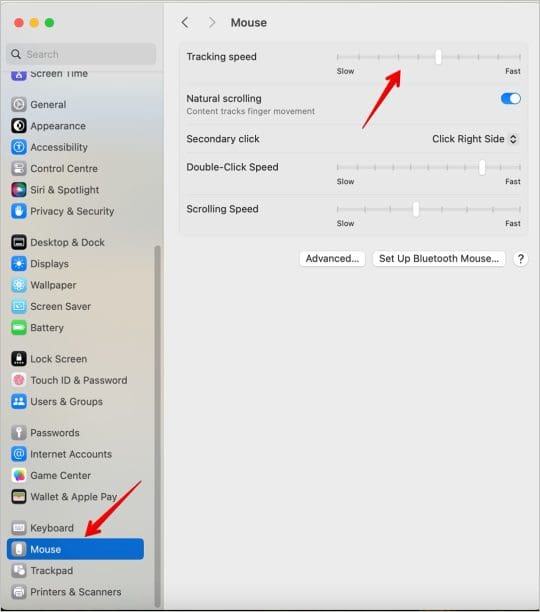
Your cursor speed plays an important role in highlighting the text. If it’s set too low or high, you might have trouble selecting or highlighting text. Set it according to your preference.
For that, go to Settings > Mouse (or Trackpad based on what you are using). Adjust the tracking and click speed to see what works for you.
Fix 3: Change Double-Click Speed
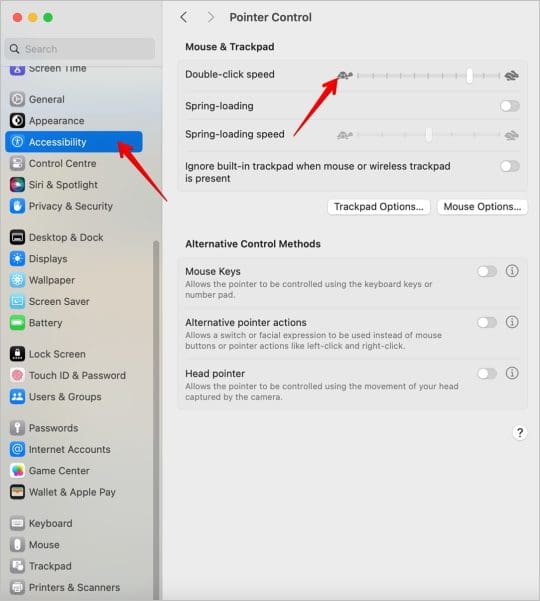
Another parameter that you should check is the double-click speed. Go to Settings > Accessibility > Pointer Control and change the double-click speed to high or low depending on what helps in highlighting the text.
Fix 4: Turn Bluetooth off and on
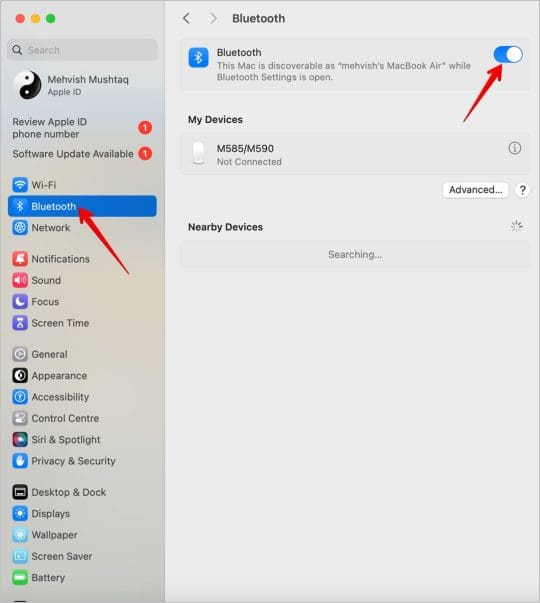
If you are using a Bluetooth mouse, restart the Bluetooth connection. To do so, go to Settings > Bluetooth and turn off the Bluetooth toggle. Then, restart your MacBook and re-enable Bluetooth.
Now, wait a few seconds so that the mouse connects to your Macbook. Now, check if you can highlight the text. Also know how to fix Bluetooth problems on Macbook.
Fix 5: Re-pair Mouse
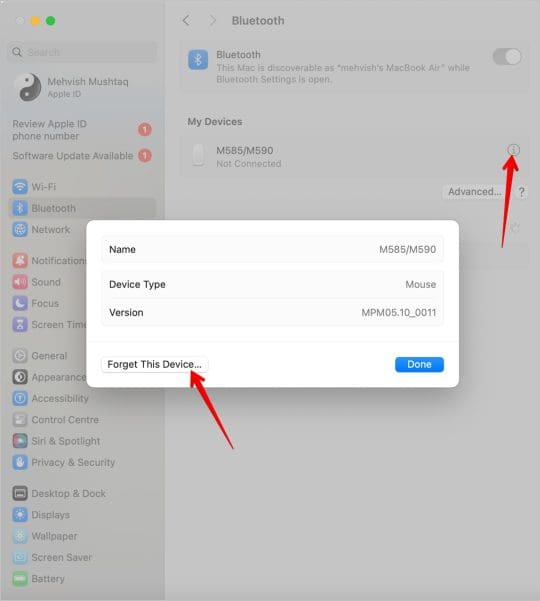
If you have a USB mouse, remove the cable and plug it back in to re-pair the mouse. For a Bluetooth mouse, go to Settings > Bluetooth and click on the (i) button next to the mouse > choose Forget this device to remove the device. Restart your laptop and then pair the mouse again.
Tip: If highlighting the text using the mouse doesn’t work, use the keyboard shortcut temporarily. Press Shift + Up/Down to highlight multiple lines or Shift+ Left/Right keys to highlight left and right.
Madalina has been a Windows fan ever since she got her hands on her first Windows XP computer. She is interested in all things technology, especially emerging technologies — AI and DNA computing in particular.











Write a Comment