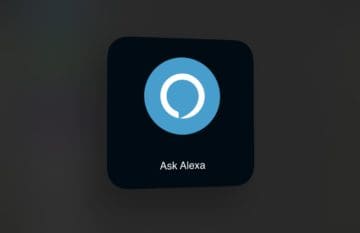
Recently, the Amazon Alexa app for iOS and iPadOS was updated with a pretty awesome feature. Starting now, you can summon Alexa with just a tap of a widget on your Home Screen. The “Ask Alexa” widget was included in the latest Alexa update.
This is one of those highly-requested features that Amazon Alexa users have been asking for. Ever since iOS 14 introduced Home Screen widgets, the inclusion of an Alexa widget has not been available. Instead, you would have to just open the app, prompt Alexa, and then go from there.
How To Add Amazon Alexa Widget to Home Screen
Before you can add the Alexa widget to your Home Screen, you’ll first need to download the latest update. According to the listing on the App Store, this means version number 2.2.430030.0.
Once the update is completed, you can proceed with adding the Alexa widget. If this is your first time downloading the Alexa app, be sure to open the app first and sign in with your proper Amazon account credentials. Once completed, follow these steps to add Amazon Alexa widget to Home Screen:
Unlock your iPhone or iPad’s Lock Screen.
From empty space on the Home Screen, tap and hold.
Alternatively, you can tap and hold on any app icon, then select Edit Home Screen.
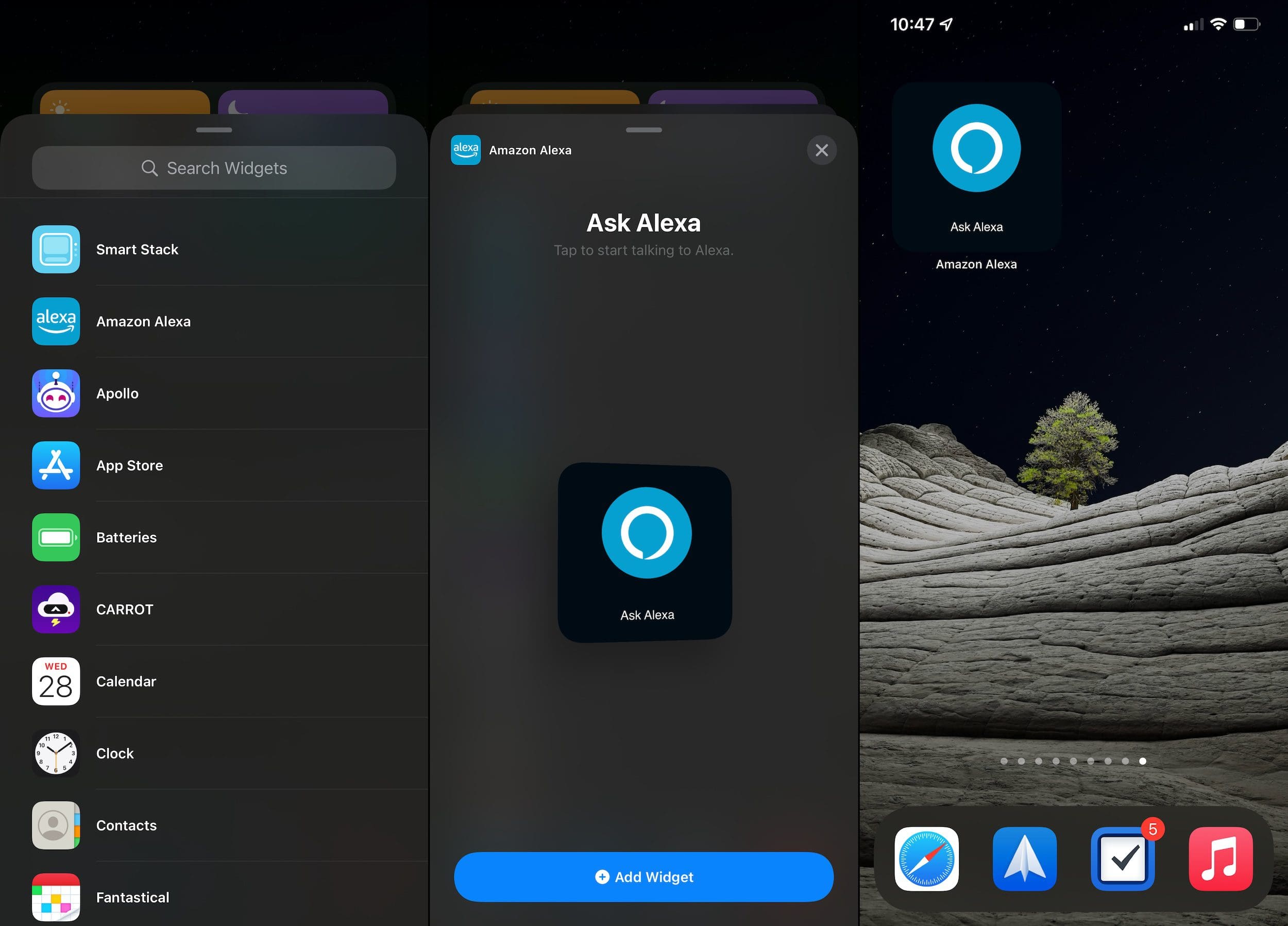
When in edit mode, tap the “+” icon in the top left corner.
From the list of available widgets, select Amazon Alexa.
Tap the Add widget button at the bottom.
That’s it!
The new Amazon Alexa widget will appear on your Home Screen and can be moved around just like any other widget. Simply follow the steps above to enter Home Screen “edit mode”, and then drag and drop the Alexa widget where you want it. Perhaps the only “downside” to this new widget is that it’s only available on one size. So you will be unable to use it in a Stack with other Medium or Large-sized widgets.
Conclusion
Provided that you’re running at least iOS 14, the addition of the Amazon Alexa can prove rather useful. This is doubly true for those who are entrenched in the Amazon Alexa ecosystem, and opt to use Amazon Echo smart speakers over the HomePod mini or Google Assistant speakers.
It’s been almost a year since iOS 14 and iPadOS 14 were made available to the masses. But in this case, it’s a “better later than never situation”. We hope to see new widgets made available for other popular apps, so maybe Amazon jumping on board will help spark other app developers to do the same.
Andrew Myrick is a freelance writer based on the East Coast of the US. He enjoys everything to do with technology, including tablets, smartphones, and everything in between. Perhaps his favorite past-time is having a never-ending supply of different keyboards and gaming handhelds that end up collecting more dust than the consoles that are being emulated.









Write a Comment