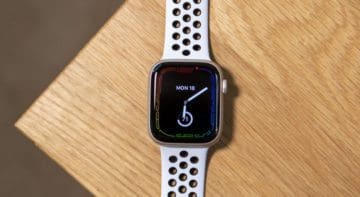
Most of the time when you see someone wearing an Apple Watch, the watch itself is on the left wrist with the Digital Crown facing towards that person’s hand. This is an obvious design choice by Apple as the company wanted to emulate the feeling of a traditional watch as much as possible.
However, Apple makes it possible for you to switch things around, regardless of whether you’re left or right-hand dominant. You can change the screen orientation on Apple Watch to fit your needs or preferences.
How to Change Screen Orientation on Apple Watch
As you might expect, there are multiple ways for you to change screen orientation on Apple Watch. The first of which allows you to do so right from your iPhone, and here’s how you can do it:
Open the Watch app on your paired iPhone.
Tap the My Watch tab in the bottom toolbar.
Tap General.
Scroll down and tap Watch Orientation.
Under the Wear Apple Watch On section, select one of the following:
Left Wrist
Right Wrist
Tap one of the following:
Digital Crown on Left Side
Digital Crown on Right Side
Tap the < General button in the top left corner to save your changes.
The other method for changing your Apple Watch screen orientation can be done right from your wrist and the Apple Watch itself. Here’s how to do so:
Open the Settings app on your Apple Watch.
Scroll down and tap General.
Tap Orientation.
Under the Wrist section, tap Left or Right.
Under the Digital Crown section, tap Left or Right.
Tap the < Orientation button in the top left corner to save your changes.
Push the Digital Crown to exit the Settings app.
There are a few things to keep in mind when you go through the steps to change the screen orientation on your Apple Watch. For one, you’ll want to make sure that the watch band is installed in such a way that is comfortable for the new position. This includes actually putting bands like the Sport Loop or Leather Band on correctly. Of course, if you have one of the Solo Loops, then it likely won’t matter all that much.
Something else you might notice is that the different UI elements and buttons might not adopt the changed orientation. For the most part, many of your favorite Apple Watch apps will work just fine, but you might come across some that try to put the “Back” button in the “traditional” position.
Use Apple Watch Comfortably
The biggest benefit if you want to change screen orientation on Apple Watch, at least for those who wear it on their left wrist, is that you have less of a chance of accidentally pushing the Digital Crown. This happens to many people whenever bending their wrists back, causing accidental Siri activations, which can just be annoying. But flipping the Digital Crown to the other side will alleviate those potential irritations.
And while it may seem natural to use your index finger to push the buttons on your Apple Watch, flipping things around might change your mind. We found that having the Digital Crown and Side button on the left side, as opposed to the right, resulted in us actually using Siri more. When you place your index finger and thumb on your Watch, you’ll likely notice that your thumb goes right where the Digital Crown is (when facing towards your elbow). It’s just something different and worth considering if you want to try changing your screen orientation.
Andrew Myrick is a freelance writer based on the East Coast of the US. He enjoys everything to do with technology, including tablets, smartphones, and everything in between. Perhaps his favorite past-time is having a never-ending supply of different keyboards and gaming handhelds that end up collecting more dust than the consoles that are being emulated.










Write a Comment