• Skip to primary navigation
  • Skip to main content
  • Skip to primary sidebar
  • Skip to footer

AppleToolBox

Tools and Fixes for Mac, iPad, iPhone & iWatch

Search posts

  • About
  • Contact

CONNECT WITH US

CATEGORIES

  • iPhone
  • iPad
  • iPod
  • Apple Watch
  • Mac/MacBook
  • AirPods
  • Apple TV
  • News
  • Apple Services
  • HomePod
  • Reviews

SITE

  • Home
  • About Us
  • Contact
  • Advertise

Search posts

You are here: Home / AirPods / How to Connect AirPods to Windows Laptop

How to Connect AirPods to Windows Laptop

By Louis Roundtree 0 comments Last updated October 16, 2024

Things to Know:
  • AirPods are Apple’s proprietary Bluetooth/wireless earbuds designed for use with iOS devices.
  • Despite being an Apple product, you can connect AirPods to your Windows laptop.
  • You’ll need to manually add them using the Bluetooth settings area on your laptop, so check that your laptop has Bluetooth capability.

How to Connect AirPods to Windows Laptop — Step-by-Step Guide

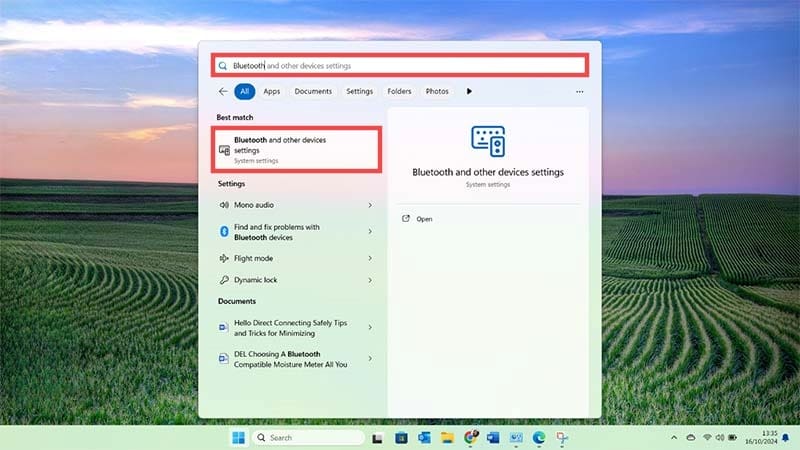
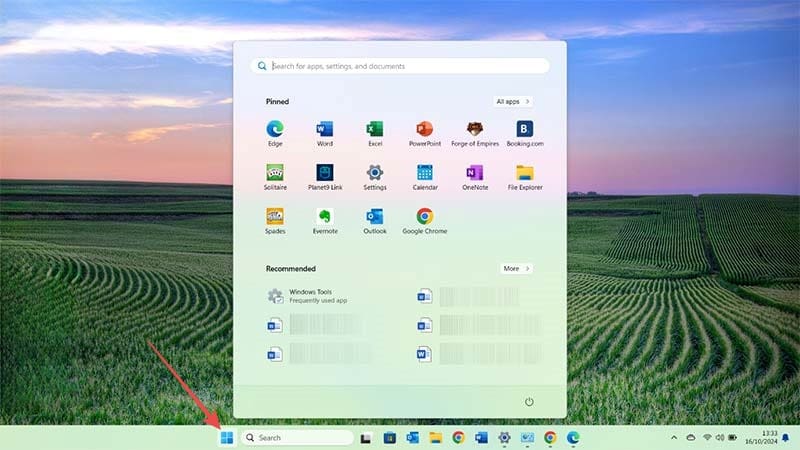
Step 1: Click Start on your Windows laptop — it looks like a blue, square window at the bottom of the screen. This will open a pop-up window with commonly used apps and a search bar.

How to Connect AirPods to Windows Laptop 1

Step 2: In the search bar at the top of the pop-up screen, start typing the word “Bluetooth.” This will quickly show the Bluetooth and other devices settings option.

How to Connect AirPods to Windows Laptop 2

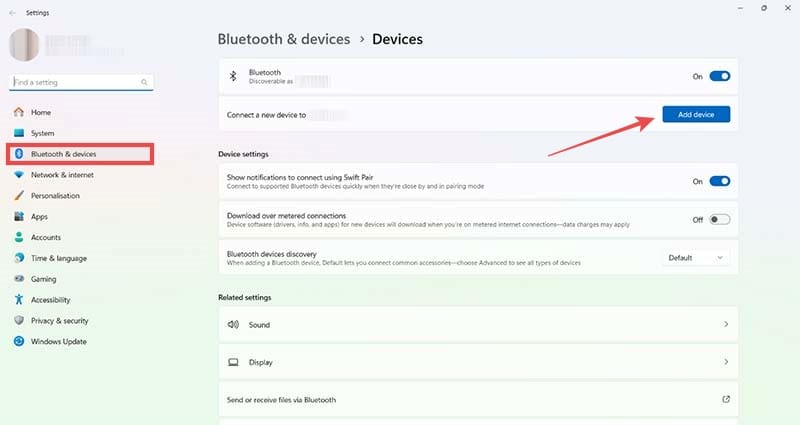
Step 3: Click on “Bluetooth and other devices settings” at the left of the pop-up screen to open the Bluetooth settings menu. Meanwhile, check that your AirPods are charged up and switched on. Hold the “Setup” button on the back of the AirPods charging unit to put them in pairing mode.

How to Connect AirPods to Windows Laptop 3

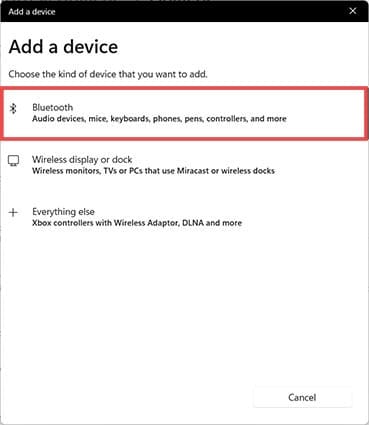
Step 4: Click “Add device.” This opens another pop-up window asking what type of device you would like to add to this laptop.

How to Connect AirPods to Windows Laptop 4

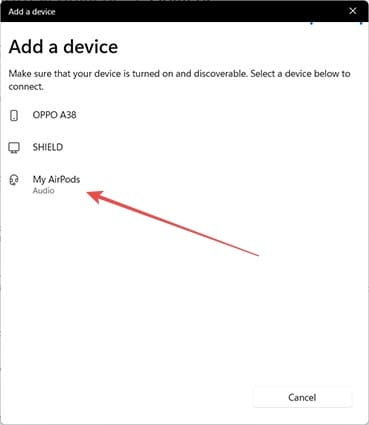
Step 5: Click the first option, “Bluetooth,” to start adding your AirPods as a connected device to this laptop. This will prompt the laptop to search for available Bluetooth devices. You should see a list that includes your AirPods.

How to Connect AirPods to Windows Laptop 5

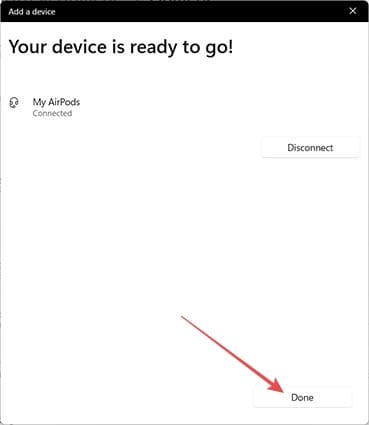
Step 6: Click on the device labeled AirPods and wait a few seconds until you see a message that says, “Your device is ready to go!”

How to Connect AirPods to Windows Laptop 6

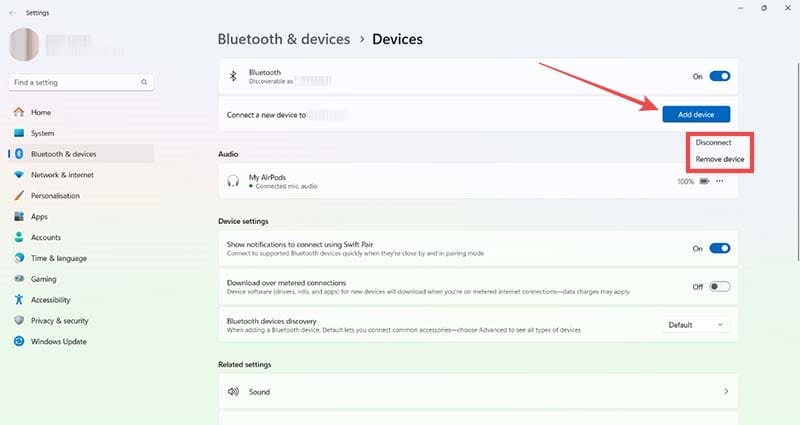
Step 7: Click “Done” to return to the Bluetooth settings screen where you should now see your AirPods as a connected Bluetooth audio device. Play some audio on your laptop to confirm that your AirPods are working.

How to Connect AirPods to Windows Laptop 7

Bonus Tips: Disconnecting Your AirPods and Troubleshooting

Now that you know how to connect AirPods to Windows laptop devices, you can listen to music, podcasts, videos, and more while in Bluetooth range of your laptop. If you decide you no longer want to use the connection, it’s easy to disconnect your AirPods:

  • You can simply switch the AirPods off which will disconnect any connection between them and the laptop.
  • However, when you switch them back on, they may automatically reconnect to the Windows machine.
  • To prevent this, return to the Bluetooth settings menu on your laptop using the above steps.
  • Click the three dots visible to the right of your AirPods in the Bluetooth settings screen.
  • Click “Remove device” to prevent automatic reconnection.
  • If you want to re-connect your AirPods to the laptop at any point, simply work through the steps in this guide again.

If your AirPods won’t connect, try switching them off and on again. Double-check that they have plenty of charge. If you’re not sure, leave them on charge for 30 minutes then try again.

Make sure the Bluetooth connection is on in the Bluetooth settings menu of your laptop. This is the very top option on the Bluetooth settings screen and should show a blue toggle button slid to the right. If it’s grey or slid to the left, just left-click with the mouse once to repair this.

Related Posts:

  • How to Recover Unsaved Word Document on Mac in 5 Best Ways
    How to Recover Unsaved Word Document on Mac in 5 Best Ways
  • How to Find Lost AirPods Pro 2 with Precision Finding - Locate earbud
    I Lost My AirPods! How To Find Your Lost AirPods or…
  • AirPods Pro 2 - 1
    AirPods Max vs AirPods Pro 2: Making The Right Purchase
  • How to Add Grammarly to Word on Mac 4 Best Methods in 2023
    How to Add Grammarly to Word on Mac: 4 Best Methods in 2023
  • Screen Shot 2021-07-12 at 4.52.12 AM
    AirPods Max Review: How They Look Six Months Later
  • How to Turn Off Dark Mode on Word on Mac 2 Best Methods
    How to Turn Off Dark Mode on Word on Mac: 2 Best Methods
  • AirPods Pro not working Hero
    AirPods Pro Not Working? Here Are Some Tips and Tricks
  • pexels-cottonbro-6889216
    How To Recycle And Replace AirPods For Just $60
  • How to Sign up for Twitter Blue hero
    How to Sign up for Twitter Blue
Louis Roundtree
Louis Roundtree

As an avid gamer, I’ve run into my fair share of error codes and weird faults that have forced me to find fixes to problems I never anticipated. That gave me a passion for sharing those fixes with others so we can all game without feeling like our hardware is rebelling against us.

Reader Interactions

Write a Comment Cancel reply

Primary Sidebar

Recent Posts

  • How to Set Up iCloud Passwords on a Windows PC?
  • How to Turn Off Apple Music’s Dark Mode
  • How to Disable Predictive Text in iOS 26
  • How to Stop Sharing Analytics in iOS 26
  • How to Manage Your iPhone Call Log
  • Are Apple’s Safety Precautions Enough for AirTags?

Connect with us

Footer

ABOUT

  • About Us
  • Contact us
  • Advertise
  • Privacy
  • Terms of Use

GUIDES

  • iOS & iPadOS
  • Apple ID
  • iCloud
  • App Store
  • iTunes
  • FaceTime
  • iMessage
  • Siri
  • Books and iBooks
  • Game Center
  • AirPlay

CONNECT

  • Facebook
  • Twitter
  • FeedBurner
  • YouTube

© Copyright 2010-2024 Guiding Tech Media · All Rights Reserved

This site and its content are in no way affiliated or endorsed by Apple, Inc. · Reproduction without explicit permission is prohibited

Last Updated on October 17, 2024 by Louis Roundtree