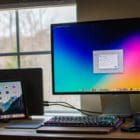
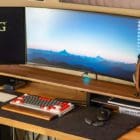
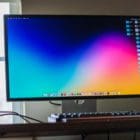
If you need that extra screen room, it can help to plug your Mac into an additional monitor. The larger monitor can help with gaming, work where you have many screens open at once or it could even just be personal preference to have a bigger screen to look at.
But one problem Mac users report experiencing is that the sound controls become difficult when using another display, especially with DisplayPort monitors. Below we’ll detail the issue and look at how to control sound.
When A New Display Becomes a Worse Way to Control Sound
The core of this issue is that plugging a Mac into a DisplayPort monitor with loudspeakers actually just straight disables the Mac’s volume controls.
It may seem straightforward to use the volume control on additional monitors or speakers. But users report having issues with volume control on the monitors and speakers, being that they might be buried in more inconvenient menus and the buttons on the display might be located in truly terrible places, like the direct back of the monitor.
Another problem with the volume being disabled on the Mac itself is that when users are in an app that allows them to select the audio device, and they select the Mac’s speakers, the volume controls remain disabled. They are forced to use the external speaker in all instances.
So How Do You Control Sound When Your Mac Is Connected to a Display?
The root of the issue is that Apple computers do not support Consumer Electronics Control (CEC). What that means is that the macOS does not allow you to control end devices that are attached using an HDMI cable or DisplayPort hookup. If you changed the volume, that would be controlling another device.
Part of what got caught up in this policy is that since the macOS does not control external devices, you cannot control any volume once the device is hooked up. Apple disabled all ability to control volume when an external display is hooked up to avoid affecting the external device.
Sadly, this issue has an almost primitive workaround: you’d unhook the external monitor so that sound is once again enabled on the Mac and then do what you need to with the sound levels. Then once the sound is the way you want it on the internal speakers, you can hook up the external display once more. If you tend not to adjust your volume often, this can be the easiest way to go about controlling volume on the internal speakers while a display is set up.
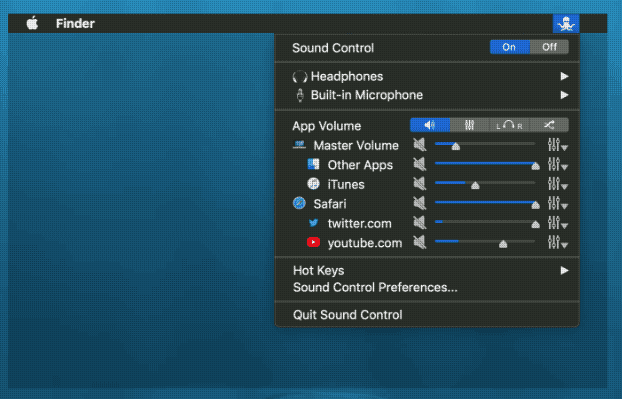
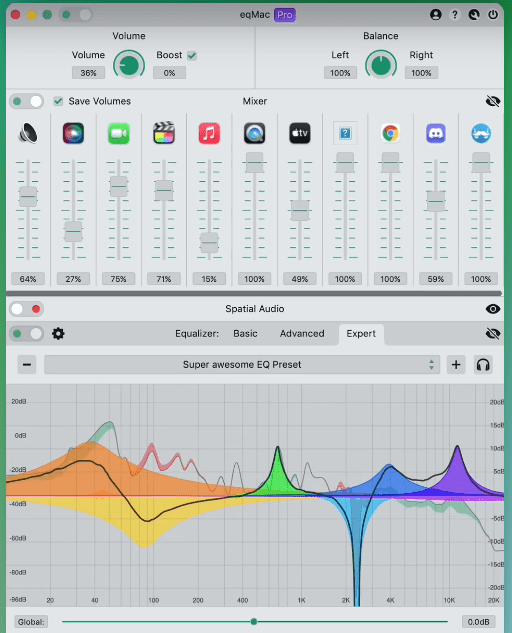
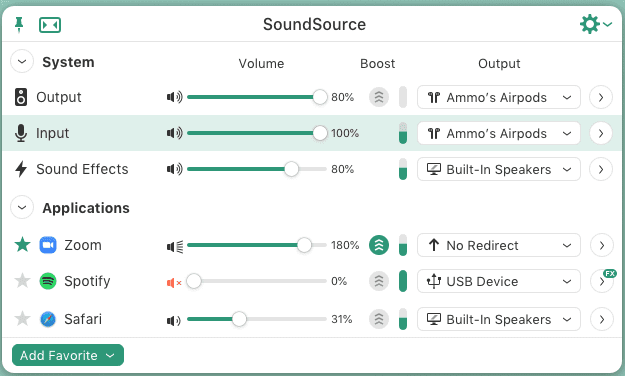
If you cannot stand the idea of manually hooking and unhooking a monitor every time you need to adjust the sound, there are some apps and extensions that can help you control the volume on the Mac. Some of the options to download include:
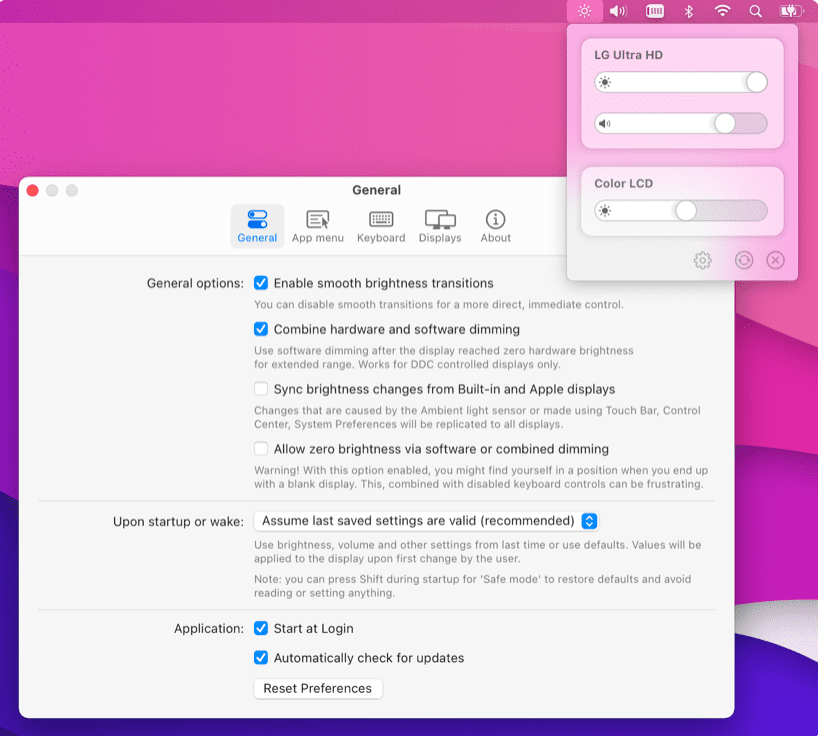
MontiorControl for controlling the brightness and volume on the Mac.
Not sure CEC licensing/compliance is the root cause. When I select my display port monitor, it disables volume controls for general audio but still allows for control of ‘alert’ audio volumes. Also some apps, such as Spotify, still allow for volume control and why not? There is no need to ‘control’ the volume of the monitor just the signal outputted to it. It seems a strange choice from Apple to disable control within the OS and to pass off volume control to individual apps. I guess not all apps are compliant with this practice.







Proxy Audio Device is work well for me.
It also helped me, and now I can control the sound on an external monitor.
Not sure CEC licensing/compliance is the root cause. When I select my display port monitor, it disables volume controls for general audio but still allows for control of ‘alert’ audio volumes. Also some apps, such as Spotify, still allow for volume control and why not? There is no need to ‘control’ the volume of the monitor just the signal outputted to it. It seems a strange choice from Apple to disable control within the OS and to pass off volume control to individual apps. I guess not all apps are compliant with this practice.
If the Apple Thunderbolt to HDMI conversion cable was used, would that solve the volume issue?