If you’re an aspiring developer looking to design a groundbreaking iOS app, but fear that having a Windows PC might not make it easy, then never fear. There are several ways to design iOS apps in Windows, ranging from virtual machines to specialized design apps.
In this article, we’ll show you four ways to get this done.
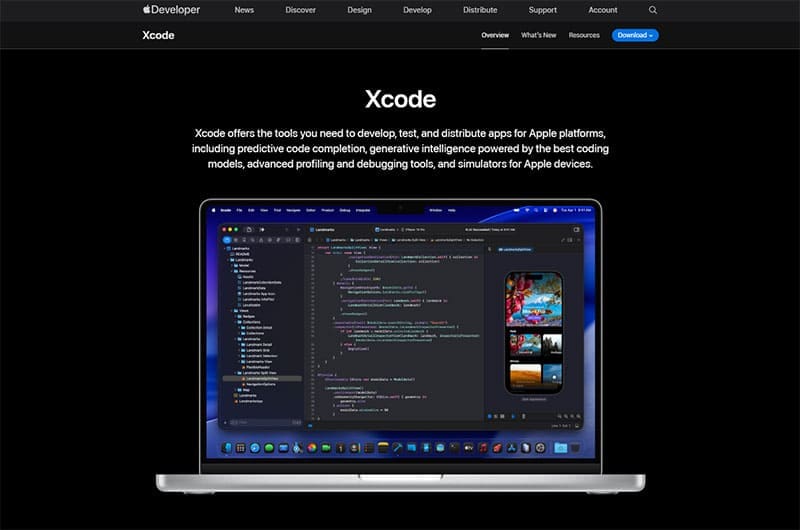
iOS apps are developed using Xcode, an integrated development environment designed exclusively for Apple, and aren’t natively supported on Microsoft machines. As such, Xcode will always require some form of macOS to function properly. That said, there are still many ways to use this code in Windows. Let’s look at your options:
Using a Virtual Machine
You can bring the functionality of macOS into Windows by using a virtual machine. These software-based emulation tools use a combination of hardware and software to provide the exact experience you’d have with an operating system on another machine. This is an excellent way for developers to build and test their apps.
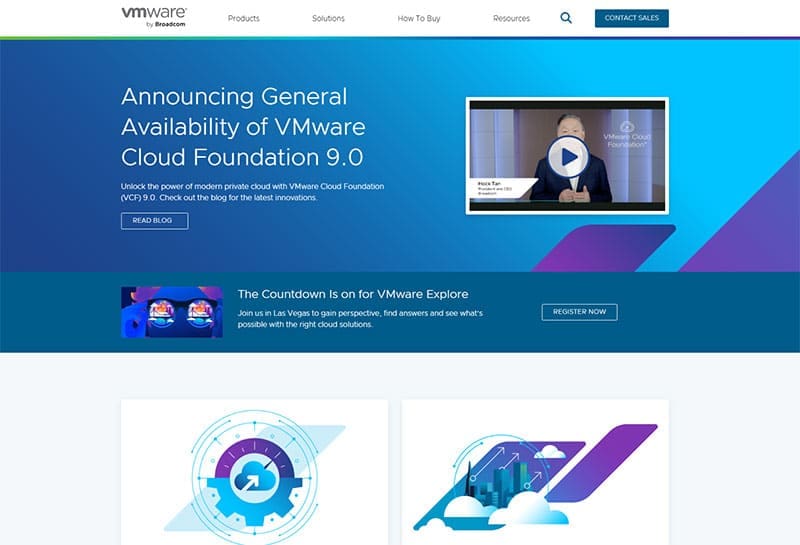
MacOS can be virtualized on a Windows machine with the help of third-party software. Some of the leading names include VMWare, VirtualBox, and Microsoft Hyper-V. You’ll need to ensure your machine can meet the hardware requirements of running another OS. In the case of simultaneous operating systems, this may require a powerful PC.
Macs in the Cloud
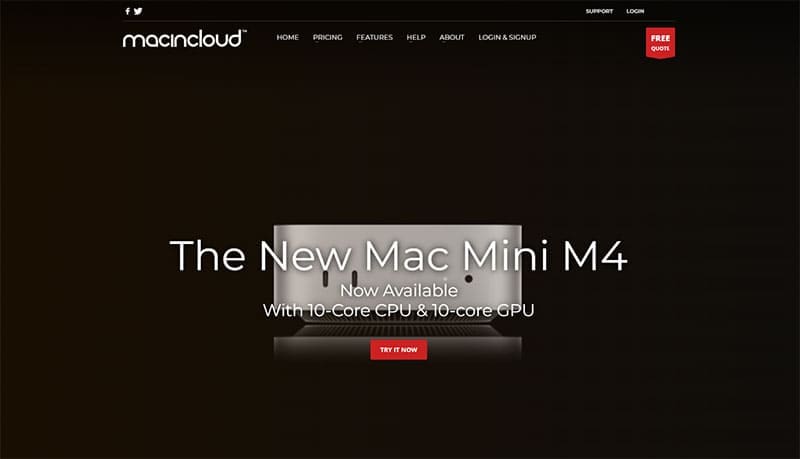
Remote accessing a desktop is a well-established function of connected PCs by now, but did you know that this functionality can also extend to developing and testing apps on a Mac? For a monthly fee, you can rent a Mac through the cloud and do all your work in the Apple sphere. These machines can either be physical or virtual, but will require Remote Desktop Access.
MacStadium, MacinCloud, or Xcode Club are all established cloud access names.
Use a Cross-Platform Framework
If you’re looking to develop apps for both iOS and Android, or work without the constant need for macOS, then cross-platform frameworks provide a common language that can speak to both. Using a common language saves you the need to work in macOS and can increase your reach. To do that, though, you need to be savvy with other languages.
These tools range from full-on integrated development environments to smaller structures. Different languages, like C# and HTML5, are used. Some leading names in this space are Xamarin, React Native, and Flutter.
Hackintosh
If you want to design for iOS, why not bring the entire macOS over to your PC? A “Hackintosh” is a non-Apple PC that has macOS installed on it, something made possible after the company’s switch to Intel processors. It’s not the easiest thing to do, but there are many “Hackintosh” tutorials you can turn to. You can either do a clean install of the OS on your Windows PC or simply install it on a partition.
As an avid gamer, I’ve run into my fair share of error codes and weird faults that have forced me to find fixes to problems I never anticipated. That gave me a passion for sharing those fixes with others so we can all game without feeling like our hardware is rebelling against us.













Write a Comment