• Skip to primary navigation
  • Skip to main content
  • Skip to primary sidebar
  • Skip to footer

AppleToolBox

Tools and Fixes for Mac, iPad, iPhone & iWatch

Search posts

  • About
  • Contact

CONNECT WITH US

CATEGORIES

  • iPhone
  • iPad
  • iPod
  • Apple Watch
  • Mac/MacBook
  • AirPods
  • Apple TV
  • News
  • Apple Services
  • HomePod
  • Reviews

SITE

  • Home
  • About Us
  • Contact
  • Advertise

Search posts

You are here: Home / iPhone / How to Disable Battery Optimization

How to Disable Battery Optimization

By Michelle Honeyager 0 comments Last updated January 31, 2024

Battery Optimization is a feature on the iPhone that is available on iOS 13 and later. It makes your battery charge faster initially, but then slows down after it hits 80% charge.

You’ll see a message when battery optimization kicks in, usually overnight, when the message will tell you what time the battery will be fully charged. This time may be in the early morning, as the phone adapts to your low-use schedule.

The point of the feature is to preserve battery life over time. It can be useful if you just need a quick charge to boost the battery a bit, or if you have a very routine sleep schedule that measured charging can work around overnight.

The feature is on by default. Some people may find it annoying, however. If your schedule is more erratic or you can’t wait for a slower full 100% charge, you might choose to turn off Battery Optimization. Just know this could shorten the life of your battery over the long term.

How to Turn Off Battery Optimization

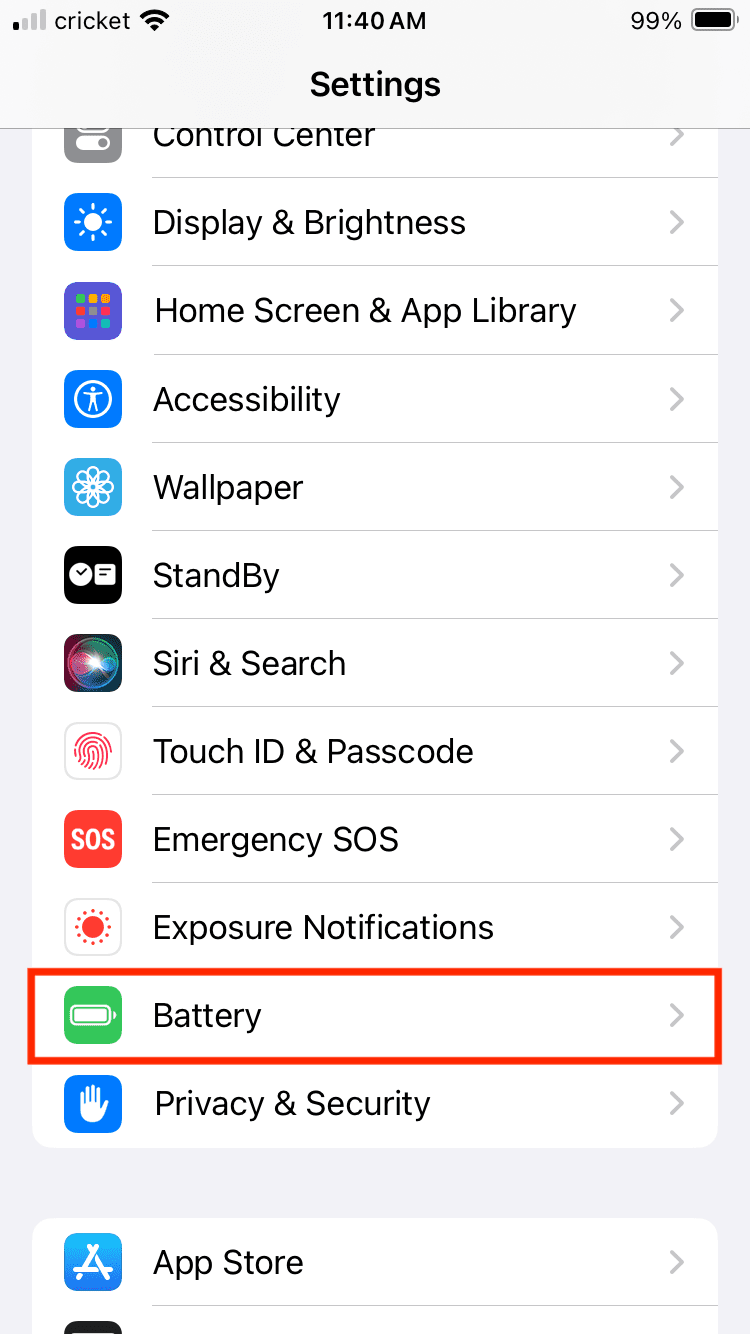
  1. Go to Settings, the icon with the cogwheel.
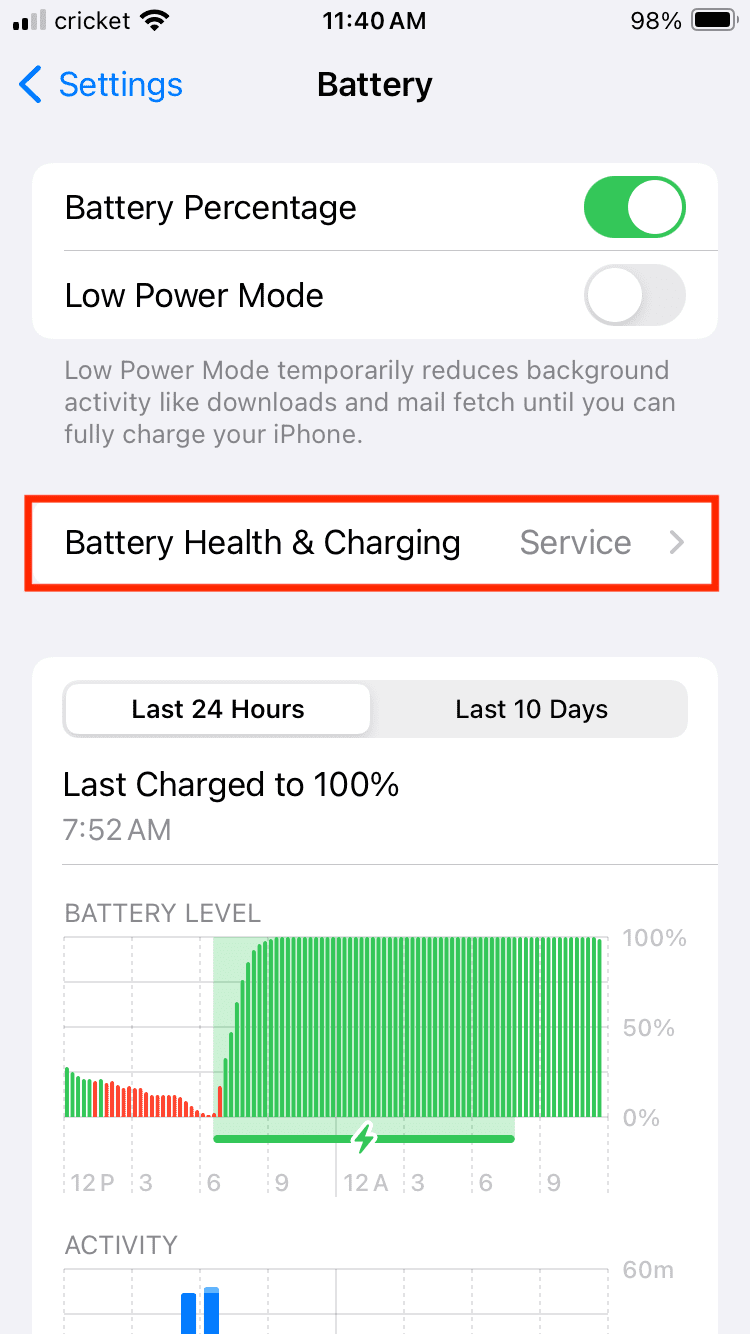
  2. Tap Battery.

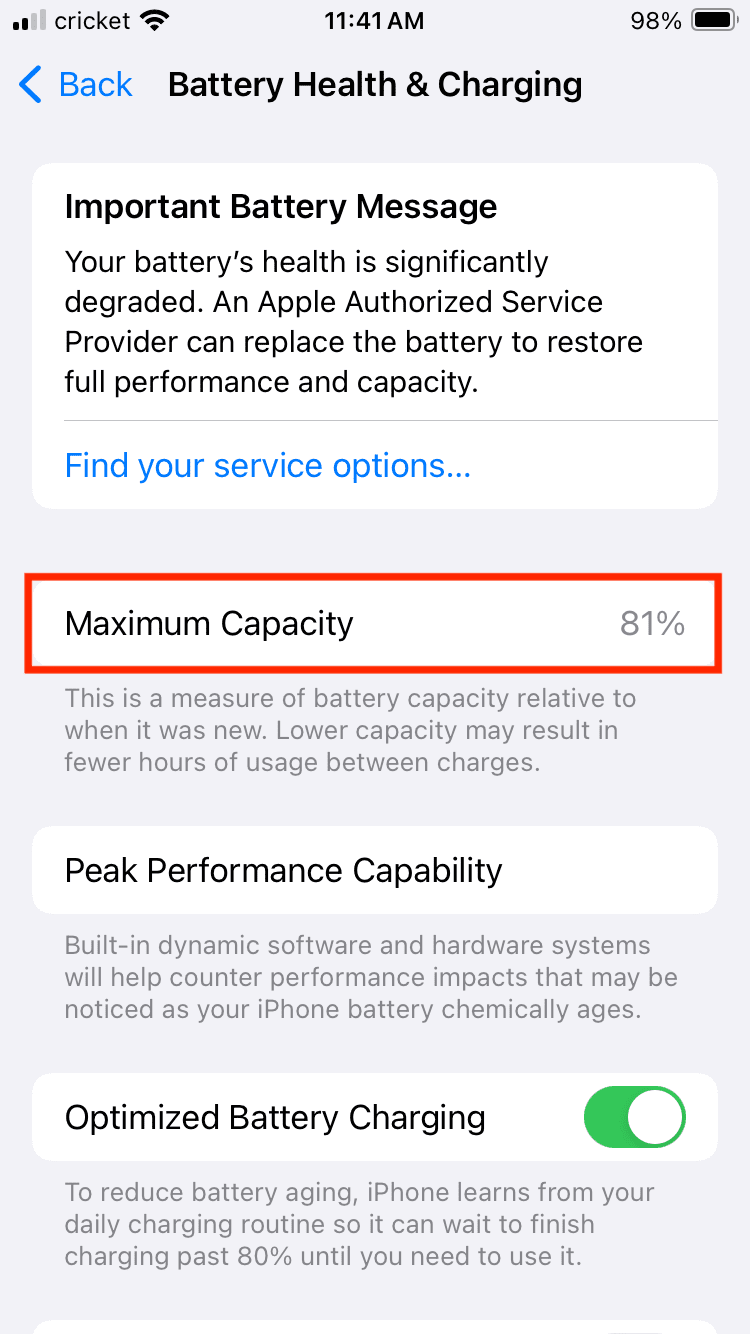
  1. Select Battery Health & Charging.

  1. Toggle off Optimized Battery Charging.


Other Features

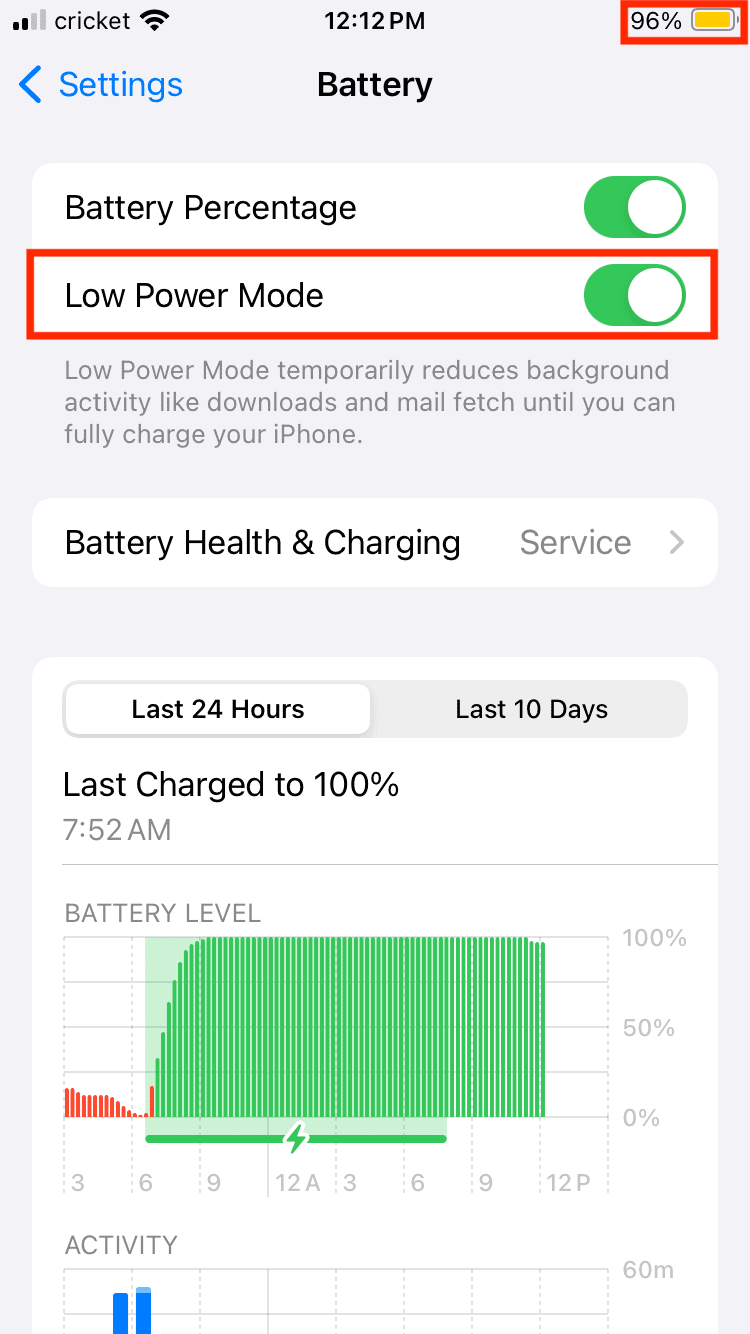
It’s important to note that the Battery screen has some helpful tools. For instance, you can toggle on Low Power Mode, which turns off background activity like mail fetch until you can fully charge your phone to preserve battery life. You’ll notice your battery icon turn yellow in the top right of the screen when it is on.

The Battery Health & Charging screen is worth a look, as well. The Maximum Capacity gives a read of how much charge your battery can hold compared to when it was new. A lower percentage means fewer hours of use between charges.

If you turn off your Battery Optimization feature, this number could take a hit over time, so it’s important to keep an eye on it as you change certain battery health features.
Related Posts:

  • iPhone 15 Pro unboxing
    How To Extend Your iPhone Battery Life
  • pexels-designecologist-1779487
    The Best iPhone And Mac Shortcuts For Beginners
  • WWDC 2021 Hero
    WWDC21 Recap: Everything You Missed In Apple's 2-Hour Event
  • Screen Shot 2021-10-24 at 3.08.11 AM
    The 2021 iMac Review: The Future Of Computing
  • Disable Do Not Disturb iPhone Header
    How to Turn Off Do Not Disturb on iPhone 14
  • pexels-cottonbro-5082579
    Getting Started With iOS 15: Everything Good And Bad
  • photo of an iphone with ios 16 downloaded on it
    iOS 16 Tips and Tricks: The Definitive List
  • iPhone Schedule Text Header
    How to Schedule a Text Message on iPhone
  • Apple Watch Ultra Tips and Tricks
    Apple Watch Tips and Tricks for 2023

Reader Interactions

Write a Comment Cancel reply

Primary Sidebar

Recent Posts

  • What to Do When Windows 11 Won’t Detect Your iPad
  • Outlook Outage 2026: iPhone Fixes for Sign-In Chaos
  • Guide to Changing iMessage Backgrounds on iPhone and Mac
  • Has Apple Killed Vision Pro? (Insane Sales Flop Explained)
  • 5 Great Apps for Staying Organized on Your iPhone
  • What Are iPhone Antennas and Do You Need One?

Connect with us

Footer

ABOUT

  • About Us
  • Contact us
  • Advertise
  • Privacy
  • Terms of Use

GUIDES

  • iOS & iPadOS
  • Apple ID
  • iCloud
  • App Store
  • iTunes
  • FaceTime
  • iMessage
  • Siri
  • Books and iBooks
  • Game Center
  • AirPlay

CONNECT

  • Facebook
  • Twitter
  • FeedBurner
  • YouTube

© Copyright 2010-2024 Guiding Tech Media · All Rights Reserved

This site and its content are in no way affiliated or endorsed by Apple, Inc. · Reproduction without explicit permission is prohibited

Last Updated on January 31, 2024 by Mitch Bartlett