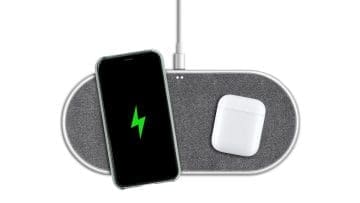
The iPhone is an incredibly advanced device. As such, you would imagine that it would have streamlined charging technology that helps it charge at a super-fast rate. Unfortunately, that’s rarely the case. Your iPhone can take several hours to charge, and this is impacted by open apps, usage, and even the age of your charging equipment.
Learn how to fix a slow charging iPhone with these simple steps.
Understand How Long It Should Take Your iPhone to Charge
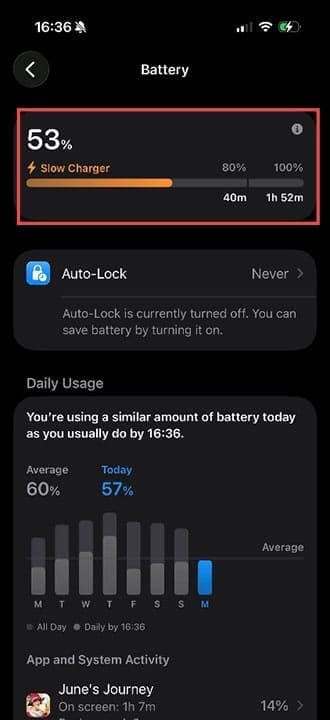
Check how long you should expect your iPhone to charge by heading to Settings > Battery. The iPhone will indicate how long the battery will take to charge to 80% and to 100%. It will also let you know if the charger you’re using is a slow charger, i.e., not optimized for fast charging.
Pro tip: By only ever charging to 80%, you can prolong the life of your iPhone battery. However, you will of course need to charge your device more often.
If you put your iPhone on charge and it regularly takes significantly longer than the estimated time, try the steps below.
Fix iPhone Charging Slowly: Steps to Try
Fix 1. Try a different power adapter and cable. For optimal results, look for a 20-watt power adapter and a USB-C to USB-C or USB-C to Lightning cable, depending on how old your phone is. Some older iPhone wall adapters aren’t powerful enough to provide a fast charge on newer iPhone devices, so investing in a newer adapter can make a big difference.
Fix 2. Charge from a wall outlet, not your laptop. Your laptop may not produce enough “juice” to charge your iPhone quickly, especially if it’s running intensive processes in the background. A wall adapter and cable should offer the fastest rate of charge to fix iPhone charging slowly.
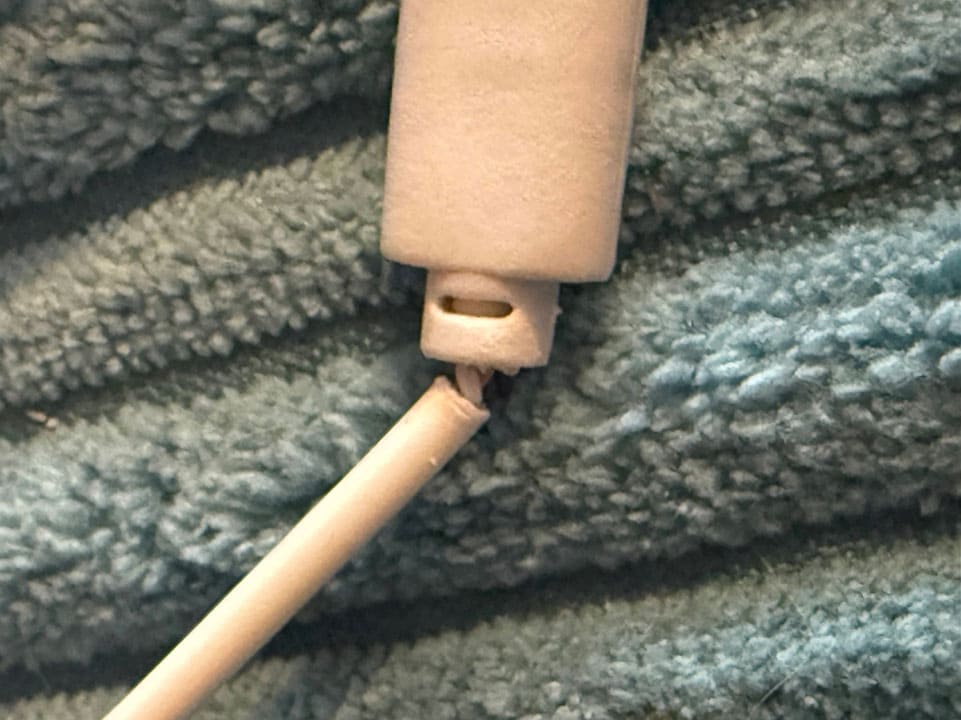
Fix 3. Check cables and adapters for damage. Worn or cracked cables may not work as efficiently and can even be dangerous. Replace damaged charging equipment as soon as possible.
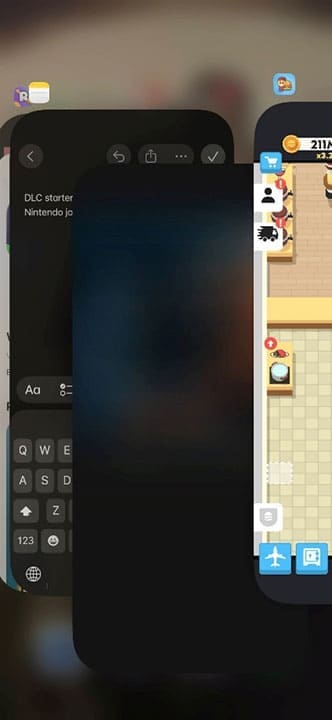
Fix 4. Turn off apps. Many apps connect to the internet and utilize cache memory and other resources, draining the battery all the time. You’ll usually get a much faster charge if you switch off any apps you’re not using. Swipe up from the bottom of the screen to see open apps, then swipe up again on any apps you want to close.
Fix 5. Similarly, if you use your iPhone while it’s charging, it will slow the rate at which it powers up. Leave it alone for half an hour, and you should see it charge a significant amount.
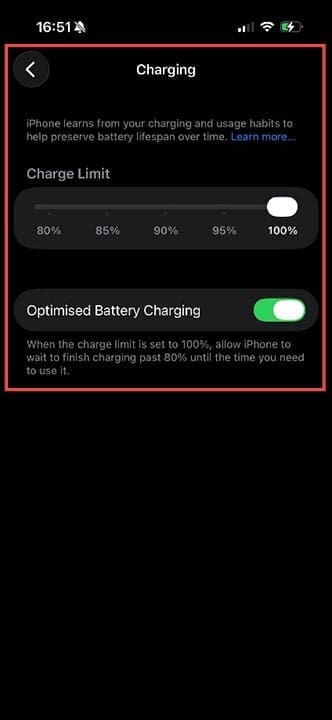
Fix 6. Check if Optimized Battery Charging is on. This is a setting that charges your phone to a set limit, but does so at times when you’re unlikely to be using it, such as at nighttime. The iPhone can determine what your routine is, based on when you plug it in and end charging, so it may charge more slowly or even stop charging outside these hours.
To check if the setting is on, head to Settings > Battery > Charging. You can toggle the setting on or off, and choose your upper battery charge limit.
Now you know how to fix a slow charging iPhone in several ways. If problems continue, consider contacting Apple if your device is still under warranty.
As an avid gamer, I’ve run into my fair share of error codes and weird faults that have forced me to find fixes to problems I never anticipated. That gave me a passion for sharing those fixes with others so we can all game without feeling like our hardware is rebelling against us.











Write a Comment