With the release of iOS 13 and iPadOS, Apple finally made it possible to make Siri announce notifications that arrived on your iPhone and iPad. However, the only caveat here was that you could have the feature enabled when you were using AirPods and select Beats headphones that include Apple’s H1 chip. This is a great way to keep focused on the task at hand, without needing to reach for your iPhone whenever a new notification arrived on your device.
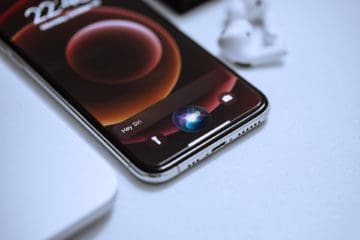
iOS 16 and iPadOS 16 introduce some new and exciting features for iPhone and iPad users, such as Stage Manager and Lock Screen customization. However, Apple is also continuing to lead the way when it comes to implementing accessibility features for owners of its various devices. And that includes things such as having the ability to make Siri announce notifications on iPhone. As you might expect, this is not something that enabled by default, and actually requires you to toggle two different settings options on in order to make everything work.
Open the Settings app on your iPhone.
Scroll down and tap Siri & Search.
Under the Ask Siri section, tap Announce Notifications.
Tap the toggle next to Announce Notifications to the On position.
Tap < Back to save your changes.
Now that you have enabled the ability for Siri to announce notifications, you’ll need to also enable the new functionality introduced with iOS 16. Here’s how you can make Siri announce notifications on iPhone without needing AirPods or other compatible headphones.
Open the Settings app on your iPhone.
Scroll down and tap Accessibility.
Scroll down until you reach the General section.
Tap Siri.
At the bottom of the page, tap the toggle next to Announce Notifications on Speaker to the On position.
Tap < Accessibility in the top left corner to save your changes.
And that’s it! Instead of needing to use your AirPods or compatible Beats headphones to make Siri announce notifications on iPhone, you can have notifications announced right through your iPhone’s built-in speakers.
Naturally, this might not be a feature that you want to enable unless absolutely necessary. There are few things that are worse than having an embarrassing message announced for the world to hear when it was meant only for you. Nevertheless, Apple’s continued commitment to improving accessibility on its various devices is rather impressive, and we hope that other phone makers start to take a bit more notice and implement similar features into their phones.
Andrew Myrick is a freelance writer based on the East Coast of the US. He enjoys everything to do with technology, including tablets, smartphones, and everything in between. Perhaps his favorite past-time is having a never-ending supply of different keyboards and gaming handhelds that end up collecting more dust than the consoles that are being emulated.









Write a Comment