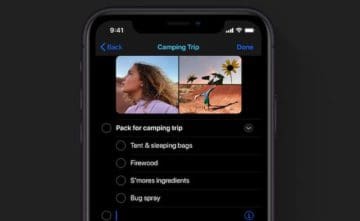
The new Apple Reminders app on iOS 13 and macOS Catalina features many new bells and whistles. One of these features is the ability to organize your reminders by assigning them to new lists. Many users like to organize items into specific lists in order to organize their tasks.
For example, you can have a general to-do list with items of different priority. As you work through that list, you may want to create a Work in progress list or a completed list and move items over. Makes you more productive and reduces stress!
Working with multiple reminder items on a list is super easy and intuitive using the new Reminders app from Apple. In this short article, we will walk you through a step-by-step process for achieving this using your MacBook, iPhone or iPad.
Moving Reminder Items between Lists on your MacBook
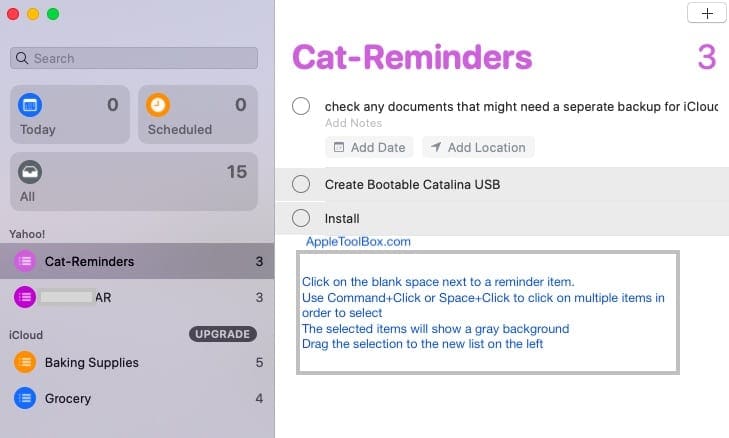
In order to move items around, you will first need to browse and select the items from the list that you want to move it out from.
Clicking on the white space on the right of the reminder item works best.
Click on the white space to the right side of an item in a list
Use Command+Click or Space+Click to select multiple items from the list
Once you have selected all the items that you want moved
Drag the items and drop them into the target list
Move multiple reminder items between lists on your iPhone and iPad
iOS 13 and iPadOS support the new Apple Reminders app. Drag and drop feature comes handy when moving items between reminder lists on your iPhone. To get started, open up your Reminders app and select a reminder list.
Moving multiple reminder items from one list to the other
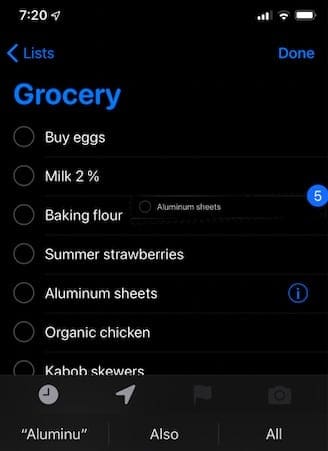
In the example here, I’m moving all my baking supplies from the main grocery list to another list called ‘Baking Supplies’. Open up the source Reminder list ( in our example ‘grocery’) to select the items to move.
Tap and hold on the blank space on right side of an item that you want to move
While pressing, drag the item a little bit to the right
You will see animation where the reminder item seems to move
Without releasing your first finger, tap on other items on the list that you want to move
The count updates as you add more items to move by tapping on them.
Tapping on the center of the item or immediately to the right works the best.
Selected items will be added into the first one that you picked
You will see the number of reminder items on the side of your selection. This changes as you add new items to your selection.
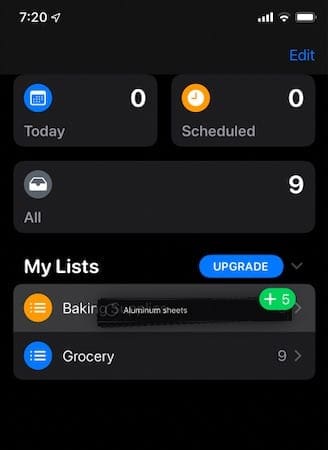
Without releasing the first gesture (press and hold), tap on ‘Lists’ at the top left of your screen with another finger.
Drag and drop the selected reminders into destination list.
Choose the List that you want the items to be transferred into
Release your tap. This will add all the items that you had selected into the new list
Multiple items transferred to new reminder list
It takes a couple of tries in order to get used to the idea of selecting multiple items and re-assigning them to other Reminder lists. Overall its pretty responsive and intuitive.
Changing the List for a single item from your Reminders
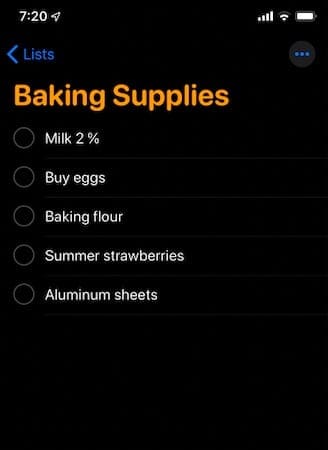
This is pretty straight-forward.
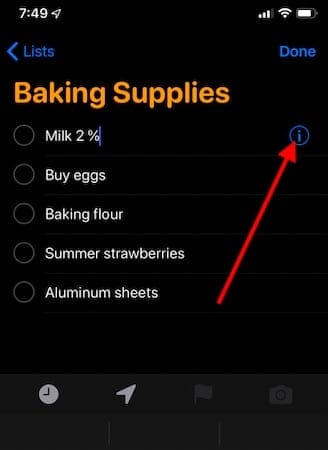
Select an item anywhere by tapping on the right side to the item on the list and you will see the familiar ‘i’ icon show up next to the item.
Tap on ‘i’ icon and scroll to the bottom
Tap on ‘i’ icon to make changes to the reminder item.
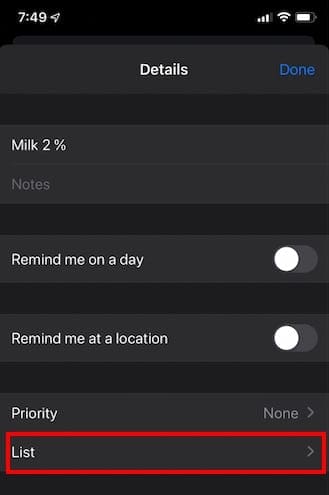
Select ‘List’ at the bottom of screen
You can assign priority, set up Location based reminders as much more here.
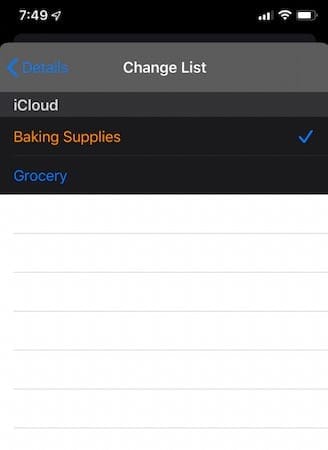
Select the new List that you want the item to be assigned to
Tap Done at the top right corner of your screen
You can move items within the list by simply dragging and dropping in order to re-order the items on any list.
You can also create copies of the reminder items and move the copies to a new list and leave the original list intact when working with reminder items on your Mac.
In order to do this, once you select one or more reminders, click on Edit > Copy from the top Reminders menu and then choose the list to which you want to move these items to. Next click Edit and select Paste to drop these items into the new list.
We hope that you are excited to try out the new Reminders App on your iPhone and Mac. Please let us know using the comments below if you have any questions or concerns or if you like to share some of your favorite reminder tips and tricks.
Obsessed with tech since the early arrival of A/UX on Apple, Sudz (SK) is responsible for the original editorial direction of AppleToolBox. He is based out of Los Angeles, CA.
Sudz specializes in covering all things macOS, having reviewed dozens of OS X and macOS developments over the years.
In a former life, Sudz worked helping Fortune 100 companies with their technology and business transformation aspirations.
It is simple to move a reminder to a specific list on the iPhone or ipadmini. I just bought a MacBook Air and the described process above of clicking on the white space to the right of the reminder and then dragging it on to the correct list does not work very well. Why would you not handle it the same way on the MacBook as you do on the iPad or iPhone. You simply click on the small I in the circle to the right of the reminder, and a window opens that allows you to simply select the List you want to move the reminder to. The window that opens on the MacBook Air does not include a feature to select a list. Why would you have your own products functions so different on multiple devices.












It is simple to move a reminder to a specific list on the iPhone or ipadmini. I just bought a MacBook Air and the described process above of clicking on the white space to the right of the reminder and then dragging it on to the correct list does not work very well. Why would you not handle it the same way on the MacBook as you do on the iPad or iPhone. You simply click on the small I in the circle to the right of the reminder, and a window opens that allows you to simply select the List you want to move the reminder to. The window that opens on the MacBook Air does not include a feature to select a list. Why would you have your own products functions so different on multiple devices.
Thank you