• Skip to primary navigation
  • Skip to main content
  • Skip to primary sidebar
  • Skip to footer

AppleToolBox

Tools and Fixes for Mac, iPad, iPhone & iWatch

Search posts

  • About
  • Contact

CONNECT WITH US

CATEGORIES

  • iPhone
  • iPad
  • iPod
  • Apple Watch
  • Mac/MacBook
  • AirPods
  • Apple TV
  • News
  • Apple Services
  • HomePod
  • Reviews

SITE

  • Home
  • About Us
  • Contact
  • Advertise

Search posts

You are here: Home / iPad / How to Play 8 Ball Pool on iMessage?

How to Play 8 Ball Pool on iMessage?

By Michelle Honeyager 1 comment Last updated March 11, 2022

One of the coolest features of iMessage, in my opinion, is the ability to play pool with friends right in your text message app. You and a friend get to take turns shooting pool in a layout that looks just like a classic pool table. Learn how to get playing with friends today.

How to Play 8 Ball Pool Using the iMessage App

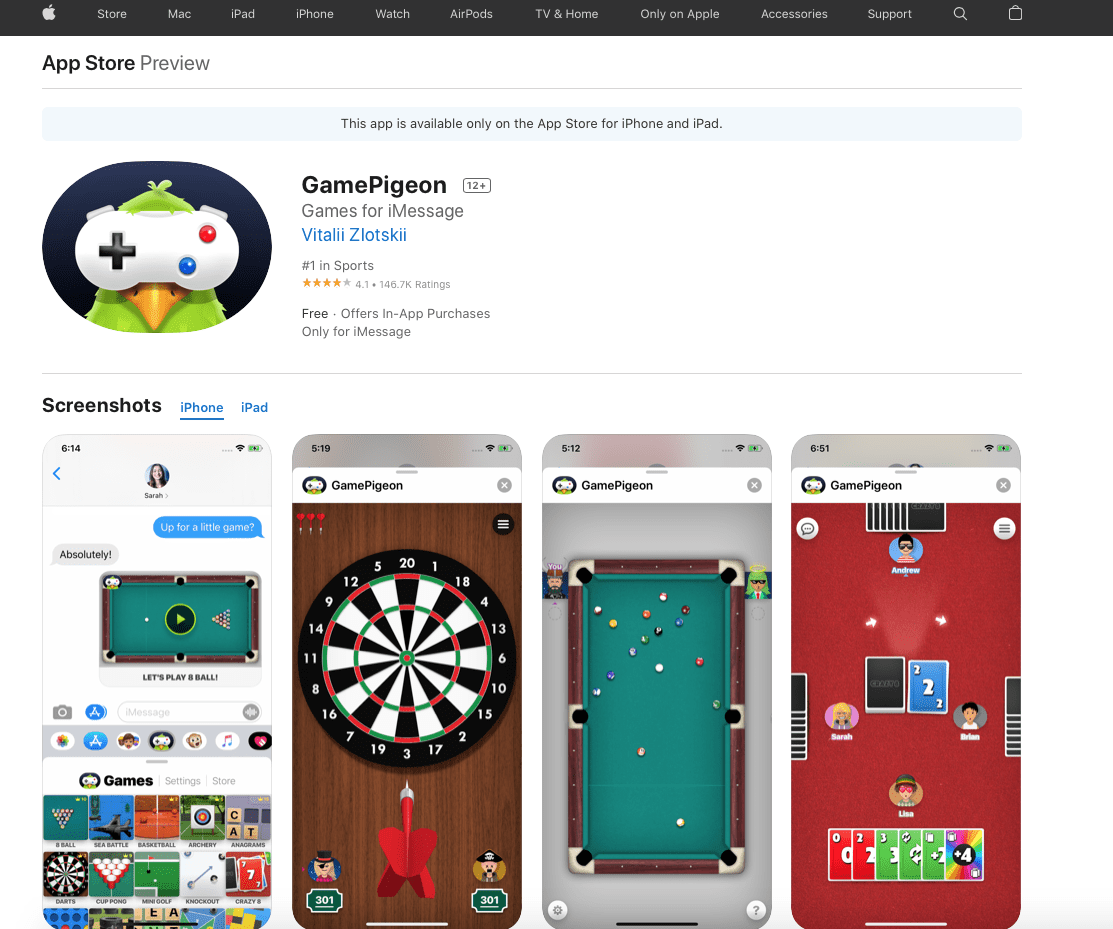
To do this, you have to download and install an app called GamePigeon through the App Store. As you can see, it’s only available for the iPhone and iPad:


The nice part of this app is that you aren’t just limited to pool. You can play darts, archery, card games and even cup pong.

To start playing with someone in your contacts list after you install the app:

  1. Launch your messages app.
  2. Tap the listing for the person you want to play the game with to open a conversation window.
  3. The bar on top of your keyboard in the text message will now have the GamePigeon icon, though you may have to scroll to find it and tap it.
  4. You’ll see a menu where you can choose games, select the 8 Ball option.
  5. Now you can select the game mode, where you can choose 8 Ball.
  6. You can also choose between normal, which gives you an aim line, and hard, which does not.
  7. You can also customize your cue stick on this screen.
  8. Now the app will let you send a text inviting the person to play, with an optional additional message.
  9. The other player gets the first turn. Once they complete their turn, you can tap on the YOUR MOVE. option. You can play by dragging your finger across the screen to align where you want the cue ball to hit. Follow the prompts to control the ball, controlled by tapping different parts of the screen.

You and your friend will exchange moves until someone wins the game.

Related Posts:

  • iPhone 15 event - iPhone 15 Pro and iPhone 15 Pro Max A17 Pro Video Recording Promo
    iPhone 14 vs. iPhone 15: Should You Upgrade?
  • iPhone 15 Pro Max - 4
    Best iPhone Lock Screen Widgets for iOS 17
  • pexels-tima-miroshnichenko-6860464
    How To Start Using Regex With The Shortcuts App
  • iPhone App Store Header
    Best Free iPhone Apps 2023
  • pexels-lukas-590022
    How To Use Pivot Tables On Mac In 2022
  • pexels-designecologist-1779487
    The Best iPhone And Mac Shortcuts For Beginners
  • pexels-lukas-590022
    How To Use Numbers On Mac: Advanced Techniques
  • photo of an iphone with ios 16 downloaded on it
    iOS 16 Tips and Tricks: The Definitive List
  • pexels-cottonbro-5082579
    Getting Started With iOS 15: Everything Good And Bad

Reader Interactions

Write a Comment Cancel reply

Show 1 Comments

  1. Richmond says

    March 22, 2022 at 5:43 PM

    Yes I t has brought about easy chatting with friends and also very simple and inexpensive to opreate

    Reply

Primary Sidebar

Recent Posts

  • How to Hide Username and Photo on the Mac Lock Screen
  • Microsoft Resume vs. Apple Handoff – Which Wins for Cross-Device Work?
  • How to Export iTunes Library to New Computer
  • What the Gemini Desktop App Will Bring to Mac
  • What to Do When Windows 11 Won’t Detect Your iPad
  • Outlook Outage 2026: iPhone Fixes for Sign-In Chaos

Connect with us

Footer

ABOUT

  • About Us
  • Contact us
  • Advertise
  • Privacy
  • Terms of Use

GUIDES

  • iOS & iPadOS
  • Apple ID
  • iCloud
  • App Store
  • iTunes
  • FaceTime
  • iMessage
  • Siri
  • Books and iBooks
  • Game Center
  • AirPlay

CONNECT

  • Facebook
  • Twitter
  • FeedBurner
  • YouTube

© Copyright 2010-2024 Guiding Tech Media · All Rights Reserved

This site and its content are in no way affiliated or endorsed by Apple, Inc. · Reproduction without explicit permission is prohibited

Last Updated on March 11, 2022 by Mitch Bartlett