Can you imagine the road trip without music because your phone can’t connect to your car’s audio system? Neither can we. Thankfully, even though Android Auto runs on a completely different operating system from iOS, it’s still possible to play Apple Music tunes and keep the good vibes coming.
This article will show you how to play Apple Music on Android Auto and get your favorite playlist started.
More and more cars come with navigation screens, which makes streaming music a much easier task than it used to be. Gone are the days of fighting over the “Aux,” and now there’s wireless connectivity to make things even easier.
Android users can benefit from Android Auto, which can install numerous car-friendly apps from the Google Play Store. If you aren’t connecting from your iPhone and are using an Android device, you can enjoy the benefits of this functionality.
Better still, Google Play offers Android users the Apple Music App.
“Yes,” With a “But”
As is the sad case with most Apple and Android interconnectivity, Apple Music comes with a few limitations on its functionality when playing Apple Music on Android Auto:
The performance isn’t seamless, and navigation can be slow, depending on the hardware and software of your car.
You can’t add or remove songs from your library via the app.
It’s not possible to “Love” or “Dislike” songs.
There are occasional glitches in the software.
That said, though things might not have the smoothness you’re used to on iOS, Apple Music still functions well on Android Auto.
How to Play Apple Music on Android Auto
To connect to Apple Music on your Android Auto, you’ll need to ensure that you have an account and a subscription (or trial) with Apple Music to start.
Subscribing to Apple Music
Here’s how to get connected to Apple Music:
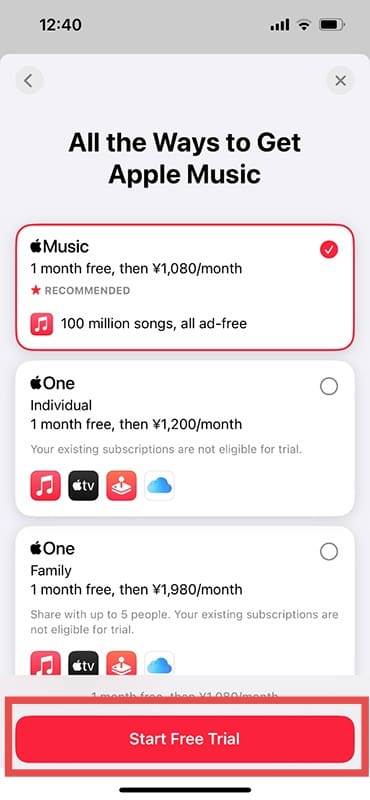
1. Open the Apple Music app on any Apple device.
2. Open “Subscriptions” on the welcome page (it should be a pop-up).
3. You can choose a 1-month trial, and then select your preferred plan.
4. Tap “See Other Plans” to pick the best option for you.
5. Tap “Start Free Trial” or “Subscribe” to begin your access.
Download the Apple Music App to Android
You’ll need to have Android Auto downloaded and installed on your Apple device to enable syncing between your phone and car screen. It goes without saying that you’ll also need to have Apple Music downloaded and signed in before proceeding.
Connecting to Apple Music and Playing
Finally, you’re ready to connect and play. Depending on your car, you might have the option to connect via USB cable, Bluetooth, or Wi-Fi. Android Auto should connect automatically when your phone does, but if it doesn’t, simply start the app on your Android device with a tap.
Apple Music will be located in the Media Player section of the Android Auto app. Tap it on your navigation screen to open. You can access songs directly from your Library, radio stations, and even playlists you’ve created. Once open, you can control your play options via the screen, your Android device, or (if your car has the capability) via voice control.
Keeping the Good Times Rolling
To ensure that you’re always able to play Apple Music on Android Auto, it’s vital to ensure that both apps are frequently updated. It’s also important to remember that to stream music (beyond what’s already on your device), your device needs a connection and data to stream music. Be aware of the costs and keep your Apple Music subscription active, too.
As an avid gamer, I’ve run into my fair share of error codes and weird faults that have forced me to find fixes to problems I never anticipated. That gave me a passion for sharing those fixes with others so we can all game without feeling like our hardware is rebelling against us.












Write a Comment