• Skip to primary navigation
  • Skip to main content
  • Skip to primary sidebar
  • Skip to footer

AppleToolBox

Tools and Fixes for Mac, iPad, iPhone & iWatch

Search posts

  • About
  • Contact

CONNECT WITH US

CATEGORIES

  • iPhone
  • iPad
  • iPod
  • Apple Watch
  • Mac/MacBook
  • AirPods
  • Apple TV
  • News
  • Apple Services
  • HomePod
  • Reviews

SITE

  • Home
  • About Us
  • Contact
  • Advertise

Search posts

You are here: Home / Mac / How to Remove a Section Break in Word for Mac

How to Remove a Section Break in Word for Mac

By Louis Roundtree 0 comments Last updated July 25, 2025

Things to Know
  • You can use the “Show/Hide” feature (the pilcrow ¶ button) with the keyboard shortcut Cmd + Shift + 8 or Cmd + *
  • If you want to remove all section breaks, use the Find and Replace feature, as it’s the fastest way.
  • Removing section breaks might alter or break formatting in surrounding text, so make sure to reread it after.

Section breaks in Word can be beneficial when you want to structure your content better. However, once you press that “Page Break” button, you never get the opportunity to remove the break with a similar command. Luckily, if you need to learn how to remove a section break in Word for Mac, it’s quite easy and relies on section breaks still being a type of character, but one that simply isn’t displayed.

Contents

  • Method 1. How to Remove a Section Break in Word for Mac Manually
  • Method 2. How to Remove a Section Break in Word for Mac for the Entire Document
  • Method 3. Remove Section Breaks in Draft View

Method 1. How to Remove a Section Break in Word for Mac Manually

If your page ever ends unexpectedly and shifts to a new one, chances are you have a page break there, which is a character that Word doesn’t usually display on-screen. Once you make it visible, however, you can remove it just like any other character.

Step 1. Go to the “Paragraph” section in the “Home” tab and click on the pilcrow button (¶), which displays “Show/Hide.” Cmd + Shift + 8 or Cmd + * should work on all modern versions of the program.

How to Remove a Section Break in Word for Mac 1

Step 2. Section breaks are outlined with a dotted line and a text showing which type of break it is (continuous, page break, or next even/odd page).

How to Remove a Section Break in Word for Mac 2

Step 3. Place the cursor at the beginning of the break symbol (e.g., after the last period or the pilcrow that suggests moving to the next row), then hit “Shift + Right Arrow” to select the next symbol to the right, which will be the section break. You can also try clicking and dragging over the symbol, but it may produce mixed results.

Step 4. Hit “Delete.”

Step 5. Use the “Show/Hide” button again to check if the break is removed properly.

Method 2. How to Remove a Section Break in Word for Mac for the Entire Document

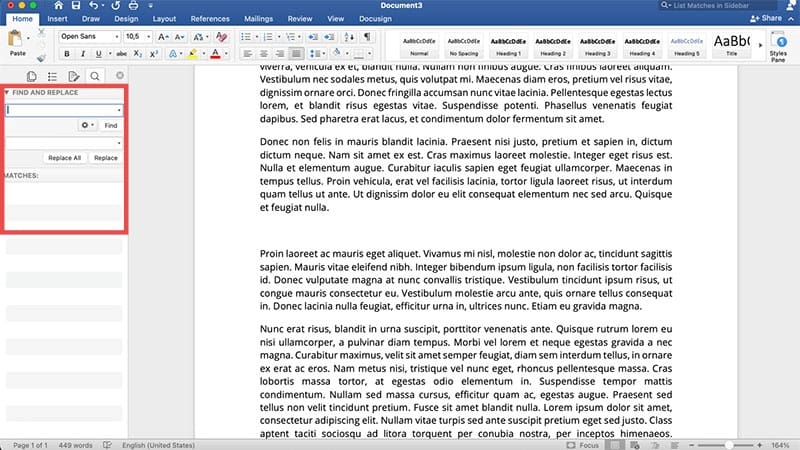
If you’ve added many section breaks (or don’t want to spend time catching them manually), you can use Find and Replace to remove them.

Step 1. Hit “Cmd + F” and then enter the “Find and Replace” menu.

How to Remove a Section Break in Word for Mac 3

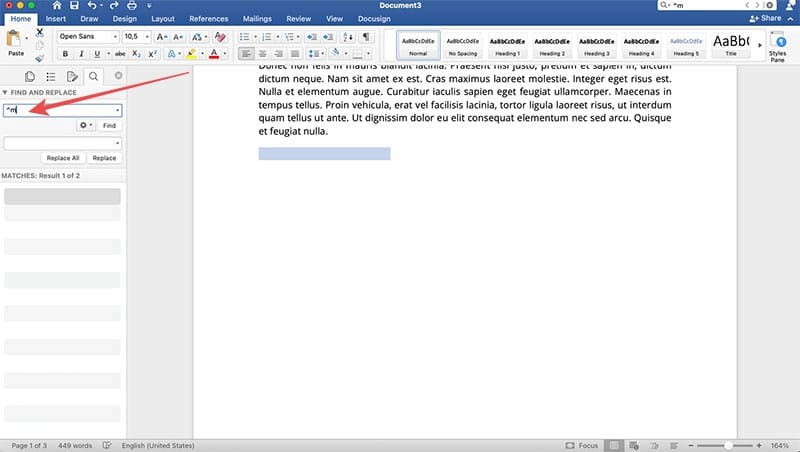
Step 2. In the “Find” box, enter “^p” and leave the “Replace” box empty.

How to Remove a Section Break in Word for Mac 4

Step 3. Click on “Replace All” and you’ll get a confirmation on how many breaks were removed.

How to Remove a Section Break in Word for Mac 5

You can also use the character “^m” to remove manual section breaks or “^b^p” to also include the paragraph break afterward.

How to Remove a Section Break in Word for Mac 6

Method 3. Remove Section Breaks in Draft View

The traditional print layout makes some page breaks relatively difficult to notice when using “Show/Hide.” Switching viewing modes will make them easier to point out.

Step 1. Go to the “View” tab and select “Draft” in the “Views” section.

How to Remove a Section Break in Word for Mac 7

Step 2. Hit the “Show/Hide” button or shortcut (as in Method 1). This time, section breaks should cover the entire width of the screen and cleanly divide text.

Step 3. Remove any section breaks you need by selecting them and hitting “Delete.”

Step 4. Switch back to “Print Layout” if needed.

Related Posts:

  • pexels-tima-miroshnichenko-6860464
    How To Start Using Regex With The Shortcuts App
  • 2022 Mac Mini with Studio Display and Accessories
    Mac Tips For New Users In 2023
  • pexels-cottonbro-4709285
    How To Learn Swift On Mac And iPad
  • pexels-designecologist-1779487
    The Best iPhone And Mac Shortcuts For Beginners
  • 2023 Mac Studio lifestyle - 1
    macOS Could Not Be Installed, How-To Fix
  • pexels-cottonbro-5474033
    How To Use The Mac Terminal: The Basics
  • How to Recover Unsaved Word Document on Mac in 5 Best Ways
    How to Recover Unsaved Word Document on Mac in 5 Best Ways
  • pexels-cottonbro-5474033
    How To Navigate Folders Using The Mac Terminal
  • pexels-mockupeditorcom-205316
    10 Mac Terminal Tips And Tricks For Pro Users
Louis Roundtree
Louis Roundtree

As an avid gamer, I’ve run into my fair share of error codes and weird faults that have forced me to find fixes to problems I never anticipated. That gave me a passion for sharing those fixes with others so we can all game without feeling like our hardware is rebelling against us.

Reader Interactions

Write a Comment Cancel reply

Primary Sidebar

Recent Posts

  • How to Hide Username and Photo on the Mac Lock Screen
  • Microsoft Resume vs. Apple Handoff – Which Wins for Cross-Device Work?
  • How to Export iTunes Library to New Computer
  • What the Gemini Desktop App Will Bring to Mac
  • What to Do When Windows 11 Won’t Detect Your iPad
  • Outlook Outage 2026: iPhone Fixes for Sign-In Chaos

Connect with us

Footer

ABOUT

  • About Us
  • Contact us
  • Advertise
  • Privacy
  • Terms of Use

GUIDES

  • iOS & iPadOS
  • Apple ID
  • iCloud
  • App Store
  • iTunes
  • FaceTime
  • iMessage
  • Siri
  • Books and iBooks
  • Game Center
  • AirPlay

CONNECT

  • Facebook
  • Twitter
  • FeedBurner
  • YouTube

© Copyright 2010-2024 Guiding Tech Media · All Rights Reserved

This site and its content are in no way affiliated or endorsed by Apple, Inc. · Reproduction without explicit permission is prohibited

Last Updated on July 25, 2025 by Louis Roundtree