If you’re an avid photo taker, odds are you don’t want those photos just sitting forgotten on your Photos app. The iPhone has a variety of ways you can view your favorite photos again and again.
If you have a certain set of photos you’d like to show someone or relive, you can make your own slideshow. Maybe you have photos of your kid or pet growing up, or you’d like to show images from a recent vacation. The best part of this feature is that it sets the photos to music. To make your own slideshow:
Go into your Photos app.
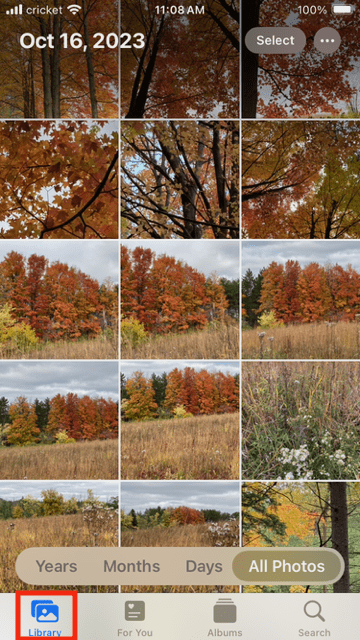
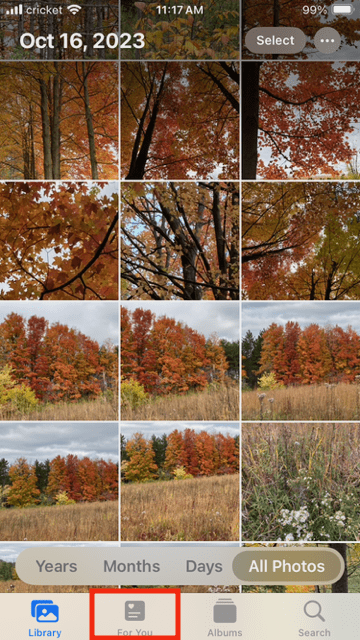
Make sure Library is selected at the bottom of the screen.
View All Photos or Days.
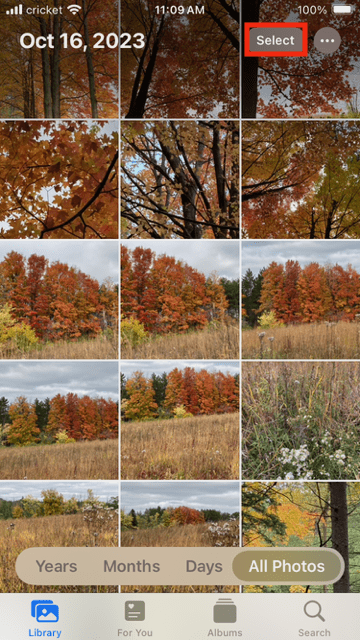
Tap Select.
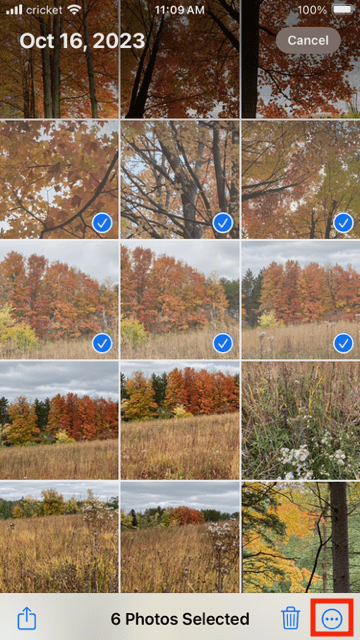
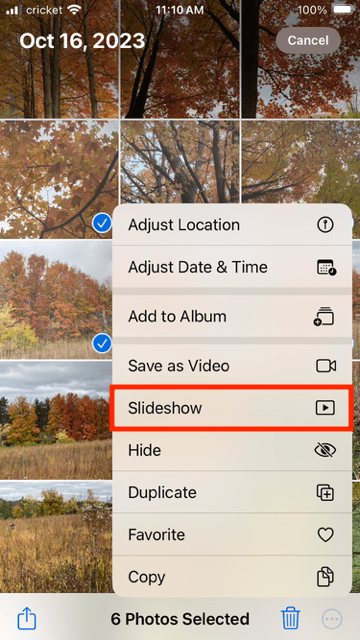
Tap which photos you want in the slideshow, you’ll see a blue check on the photo.
Tap the icon that looks like a circle with three dots inside.
Tap Slideshow.
While the slideshow is playing, you can tap it and then hit Options.
Now you can change the theme, music and other elements.
If you wish to make a slideshow from an album, tap the Album option on the bottom of the screen. Tap the Album itself and hit Select. Follow the same steps above.
Enjoy the Featured Photos and Memories
The iPhone also features images from your library at random. You can swipe right from the home or lock screen and configure the top of the Today Screen to show images.
This screen shows the most common apps you use and helpful information like the weather. Tap and hold the Today Screen if you want to remove or switch around any widgets on the screen. Drag an item around to move it or tap the – icon to remove it. You can also add widgets by hitting the + icon at the top of the screen.
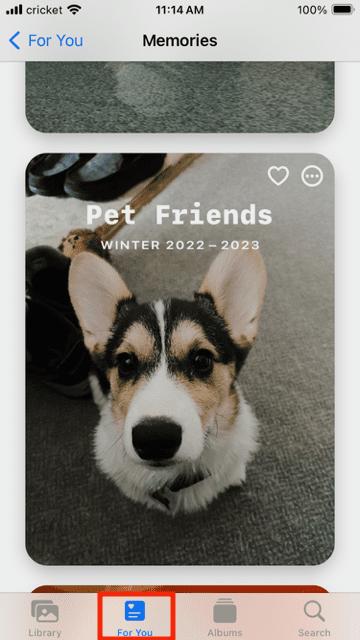
You can also access a Memories scroll. Go directly to your Photos app and then tap For You at the bottom of the screen:
The photo app will automatically create different memory slideshows if you have taken a lot of pictures of one subject, such as your pet or fall colors. Tap it to begin playing the slideshow with music.
You can also feature fewer types of content. To feature certain memories less:
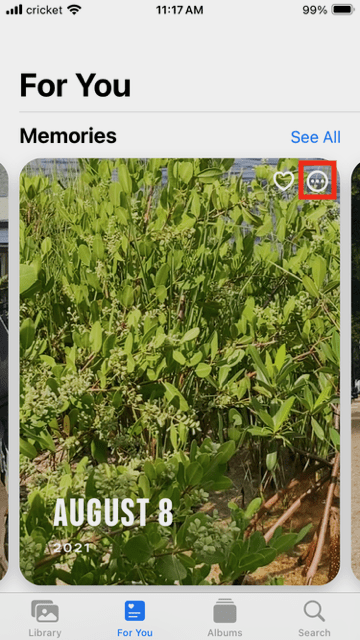
In Photos, tap For You.
Then tap the dot with the circles inside of the memory you wish to show less.
Select Feature Less…
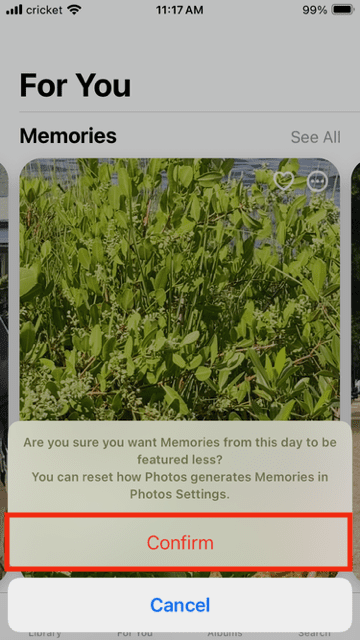
Hit Confirm. If it’s a person, it might ask if you want to feature the person or day less. You may also have to select the person if there are multiple people in the image, as well as how often you want to view them.
If you want to customize your memories so they just show a person less often, simply:
Open a photo of the person you want to show less often by tapping it.
Tap the circle that has the three dots inside.
Tap the Feature a Person Less option.
Select how often you want to show the person, ranging from less to never. You might need to choose which person if there are multiple people in that image.
Make Your Lock Screen into a Sideshow
On iOS 16 or later, you don’t have to stick with one image for your wallpaper, which is the image that acts as a backdrop to your iPhone screens. You can also turn that into a slideshow. To make a wallpaper Lock Screen slideshow:
Go to the Settings app.
Hit Wallpaper.
Select Add New Wallpaper.
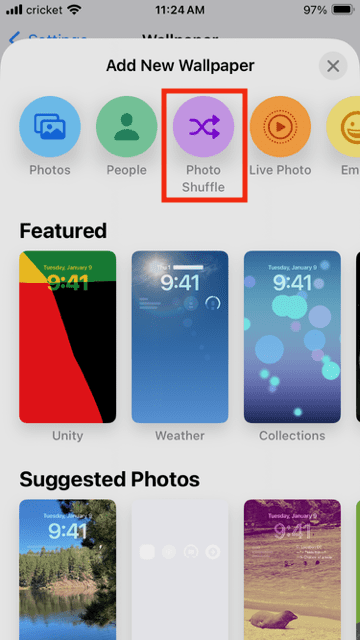
Tap Photo Shuffle.
Tap the Use Featured Photos button or tap the Select Photos Manually option underneath to pick your own.
If you want to change how often photos filter out or categories, go to Settings > Wallpaper > Customize.

















Write a Comment