So, you’re hoping to share files between an iPhone and an Android device. It won’t be as simple as AirDrop, but it doesn’t have to be difficult either. Depending on the size of the files you want to send and the apps available to you, there can be quite a few ways to move things from one device to another.
In this article, we’ll be covering some major ones to share files between iPhone and Android.
Many Ways to Share Files Between iPhone and Android
The Android world is a lot more open-ended than its iOS counterpart. There are a lot more devices to cover. Depending on the Android smartphone or tablet you’re using and the size of your files, some of the methods we’ve listed below may be more successful than others.
It’s worth trying them all out until you find what works best for you.
Device Migration
This method is only for those looking to migrate their device’s entire memory from one device to another and is only really possible for new or wiped smart devices. You can either do this transfer wirelessly (if offered) or using a USB cable. Here’s what to do:
Step 1. Ensure both devices are properly charged.
Step 2. Sign out of all accounts on your old device.
Step 3. Connect your devices wirelessly or via USB cable.
Step 4. Activate your SIM on your new iPhone or Android device.
Step 5. Choose what data you want to transfer.
Step 6. Let the devices sync files. This may take a while, depending on the amount.
Using a Manufacturer-Specific App
Certain manufacturers outfit their smart devices with additional, unique software that makes transferring data a breeze. While these apps are being phased out, there are still a few around to help. Case in point, Samsung’s Smart Switch.
Keep in mind that these apps are for large-scale transfers that usually occur when a phone’s entire memory is being transferred, and aren’t suitable for smaller jobs. This is ideal for those with new devices.
Social Media Apps
If you’re looking to share the odd video or photo with a friend or family member, then perhaps the easiest way to do so is via a social messaging platform. Apps like WhatsApp, Telegram, WeChat, and Line are great choices for easy sharing that doesn’t require immediate proximity.
In the case of apps like Line, you can even create shared albums, where stored images won’t expire as they normally do in a chat.
Cloud Storage Applications
Online file-sharing sites are a useful way to send larger files and folders that might exceed the limits of many social apps. Sites like WeTransfer allow up to 3GB of data to be sent on their Free Tier. If you need a more structured option, where files and folders remain, sites like Dropbox and Google Drive are excellent choices.
Seeing as Google is such a large part of the Android experience, Google Drive is a perfect way to share files. You’ll need to have the Drive app installed on both iPhone and Android devices, and (if one device isn’t yours) you’ll need to grant permission for the other party to access the file or folder you want to share. Here’s how:
Step 1. Open your Google Drive app.
Step 2. Tap the Hamburger menu (three lines) of the file.
Step 3. From the menu that pops up, choose “Share.”
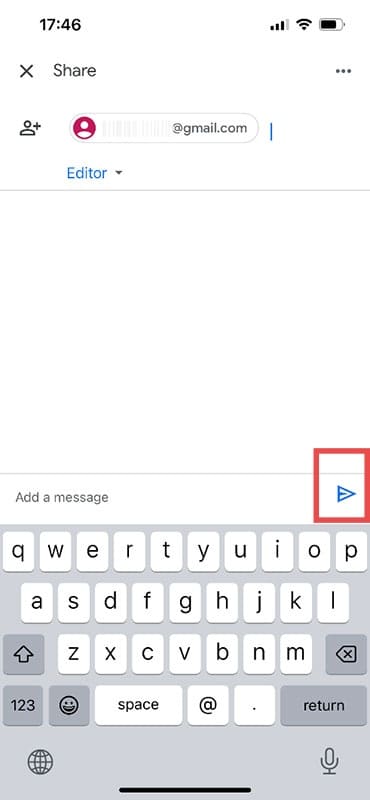
Step 4. Add the person or group you want to share the file with by entering their email address.
Step 5. Send the invite once done and add a message if you’d like.
Third-Party Apps
Finally, third-party apps, the solution to most iOS/Android connectivity problems. There are plenty of apps in the App Store and Google Play that allow you to transfer all sorts of files between devices. Some can do this via an internet connection, while others require a shared Wi-Fi network to get the job done. There are countless apps (and costs involved), but some major ones include: SHAREit, Xender, Send Anywhere, and Zapya.
As an avid gamer, I’ve run into my fair share of error codes and weird faults that have forced me to find fixes to problems I never anticipated. That gave me a passion for sharing those fixes with others so we can all game without feeling like our hardware is rebelling against us.














Write a Comment