• Skip to primary navigation
  • Skip to main content
  • Skip to primary sidebar
  • Skip to footer

AppleToolBox

Tools and Fixes for Mac, iPad, iPhone & iWatch

Search posts

  • About
  • Contact

CONNECT WITH US

CATEGORIES

  • iPhone
  • iPad
  • iPod
  • Apple Watch
  • Mac/MacBook
  • AirPods
  • Apple TV
  • News
  • Apple Services
  • HomePod
  • Reviews

SITE

  • Home
  • About Us
  • Contact
  • Advertise

Search posts

You are here: Home / iPhone / How to Share Health Data on iPhone

How to Share Health Data on iPhone

By Michelle Honeyager 0 comments Last updated June 25, 2022

The Health App on your iPhone can help you keep up with your personal goals like general health and weight loss. It can track things like steps, exercise completed and goals for activity. However, if you’re the type who likes to stay motivated with a buddy, it can help to share that data with someone else’s iPhone. You can even share your data with your doctor. Below we’ll go into how to share health data.

Getting Ready to Share Health Data

Before you can share data from your Health App with another user, you need a few conditions in place.

  1. You’ll need an iPhone or iPod touch that is running iOS 15 or later.
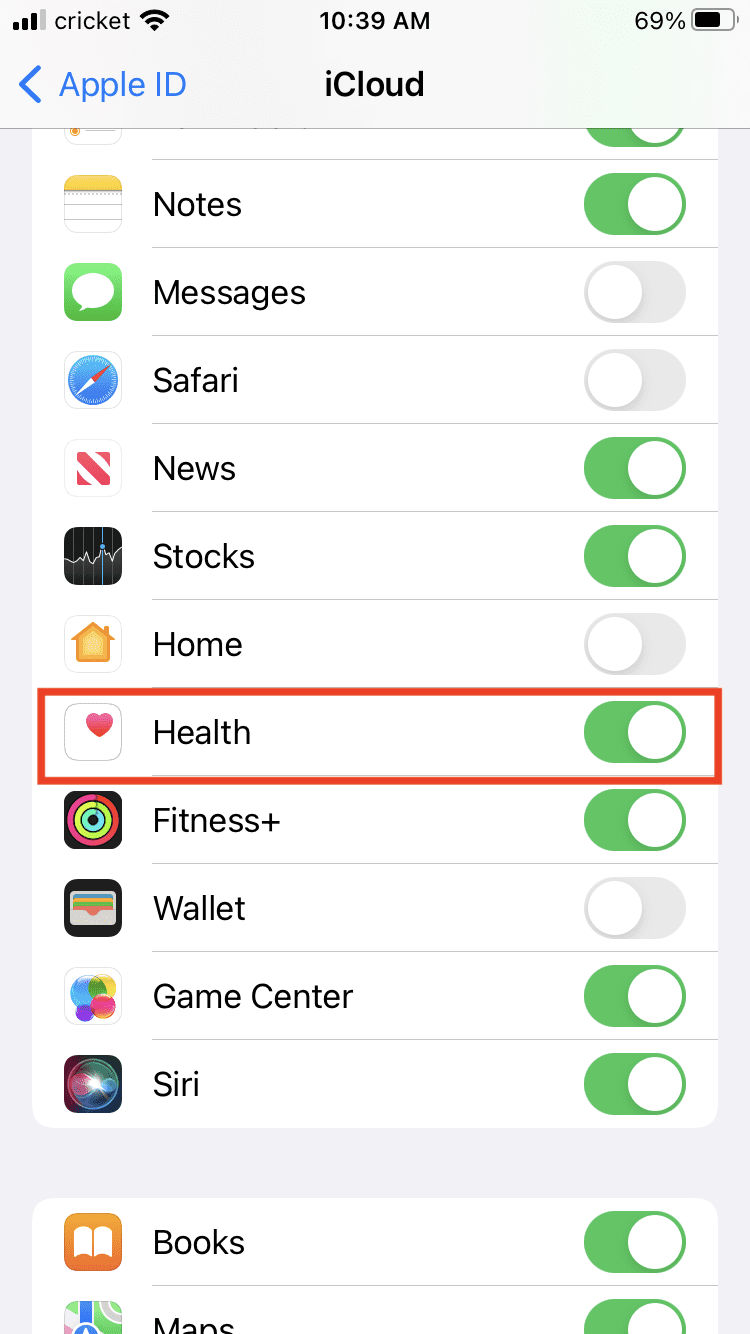
  2. Health needs to be turned on in your iCloud account, as well as enabled two-factor authentication.
    1. To turn on Health in iCloud, go into Settings > tap on your name at the top > tap iCloud > scroll until you see the health app and turn the toggle green.

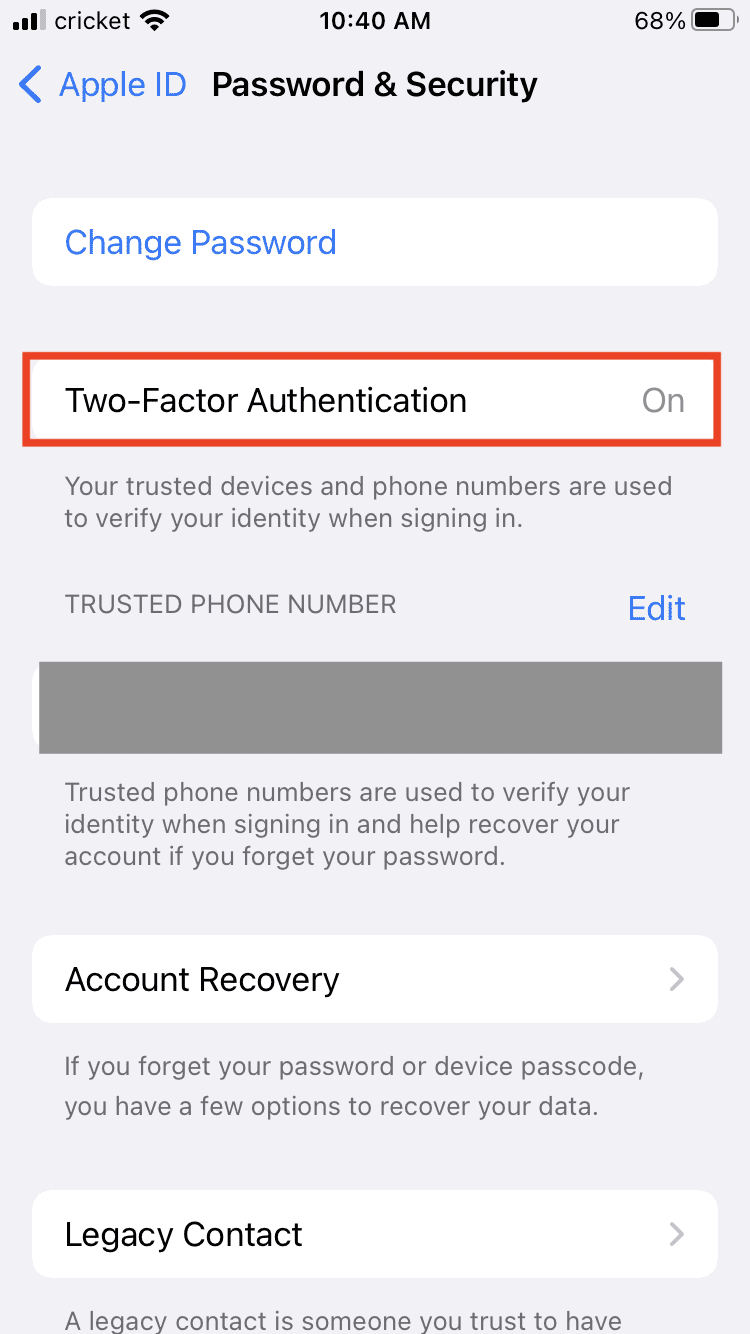
  1. To make sure two-factor authentication is on, go to Settings > tap your name > hit Password & Security > Two-Factor Authentication should read on.

  1. You have to include the person you want to share with in your Contacts, complete with their iCloud email account.

Set Up Health App Sharing

To set up sharing with someone:

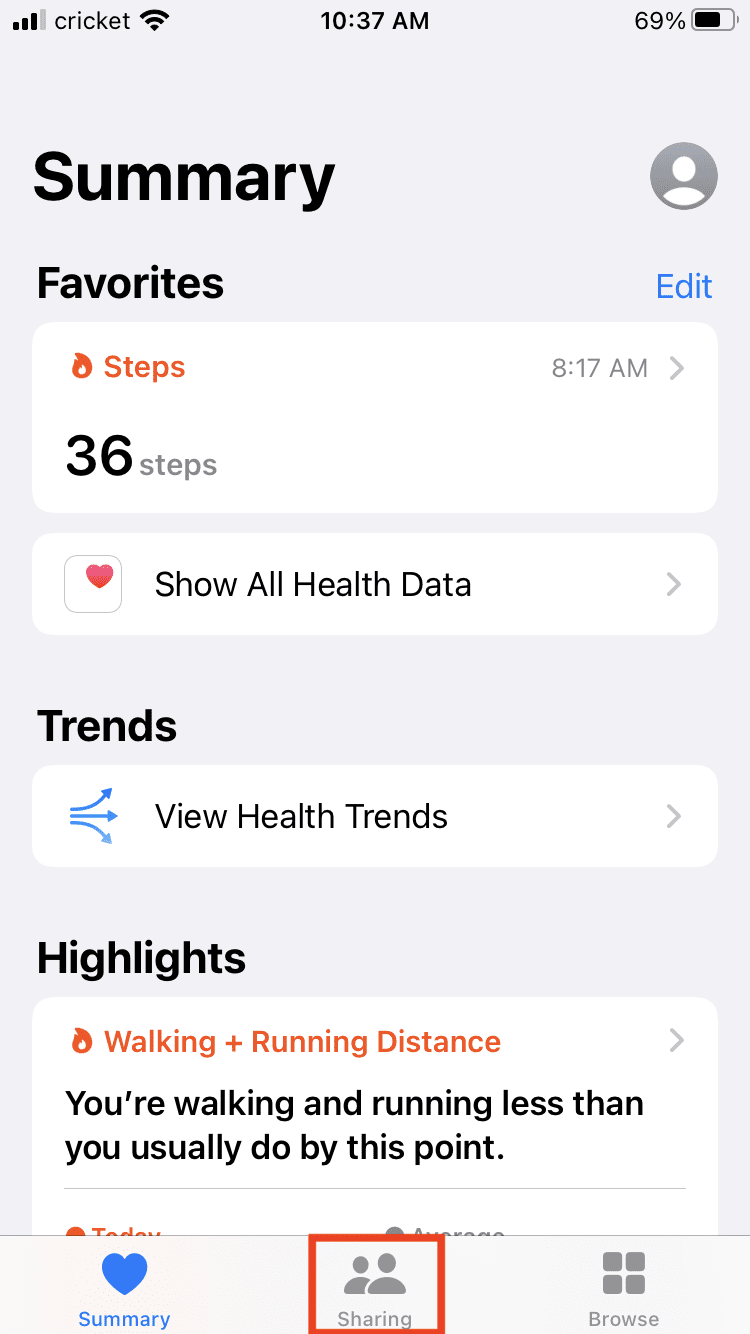
  1. Tap on the Health App.
  2. Hit the Sharing tab at the bottom.

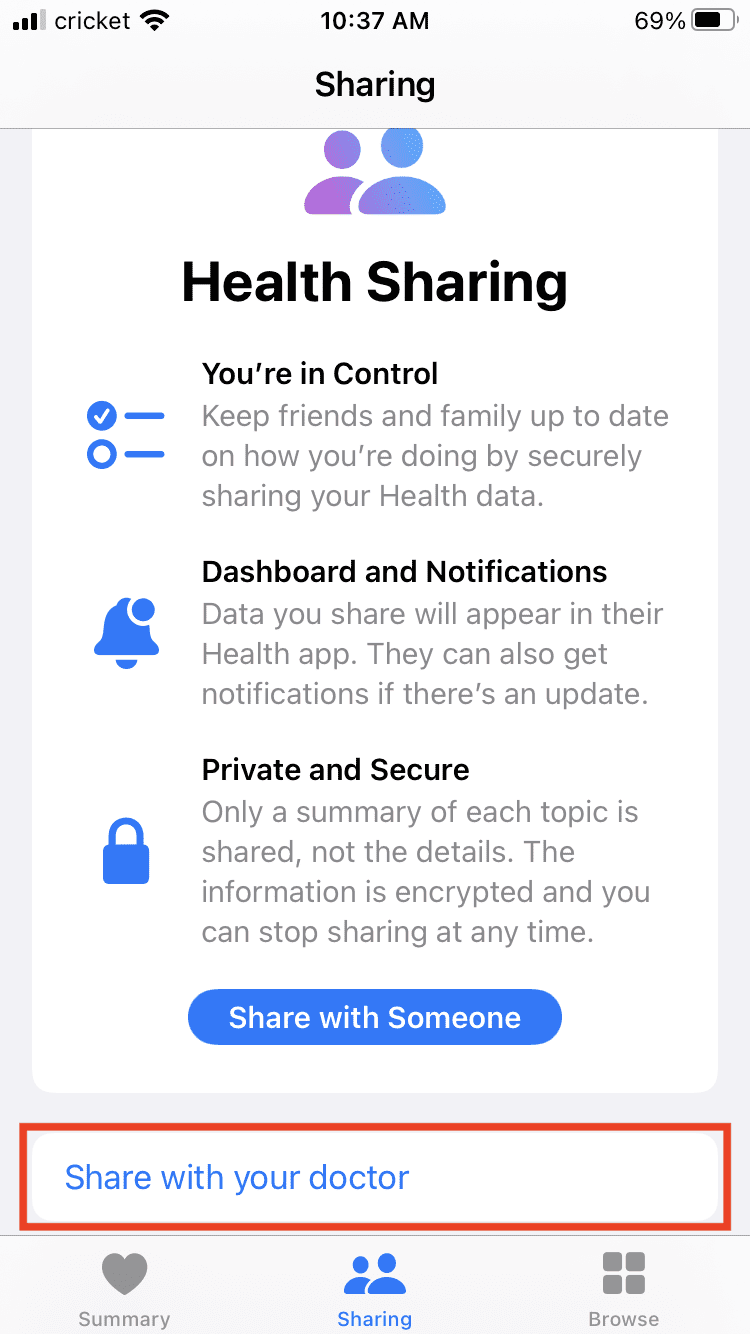
  1. Tap Share with Someone.

  1. You’ll see a list of people to share with. Blue means they can share with you because their device supports it, gray means that they cannot share with you.
  2. You can either select See Suggested Topics or Set Up Manually.
  3. Then you can select the data you want to share.
  4. Hit Share.
  5. Select Done.

You can even share with your doctor. When in the Sharing tab, select the Share with your doctor option and then follow the prompts.

Related Posts:

  • Do contacts you deleted from your iPhone or iPad contacts still show up?
    How to Merge Contacts on iPhone, iPad, Mac using iCloud
  • 0E4A6A0B-65E8-4184-B0C9-16C2179A1256
    The Best Weight Loss Apps For iPhone In 2021
  • AirPods Pro 2 - 1
    How Can I Make My Apple AirPods Louder?
  • image of the 3d notion logo
    The 9 Best Free Notion Templates for Mac
  • solen-feyissa-15v6smjHVHQ-unsplash
    How To Close Your Apple Watch Rings Everyday
  • photo of an iphone with a purple screen
    A Complete Guide to Using ProtonMail on iOS
  • pexels-polina-kovaleva-5717418
    The Best New Year's Resolution Apps For 2023
  • iphone and airpods on a table
    These Apps Have the Best iOS 17 Widgets
  • iPhone 15 Pro Max - 4
    Best iPhone Lock Screen Widgets for iOS 17

Reader Interactions

Write a Comment Cancel reply

Primary Sidebar

Recent Posts

  • How to Hide Username and Photo on the Mac Lock Screen
  • Microsoft Resume vs. Apple Handoff – Which Wins for Cross-Device Work?
  • How to Export iTunes Library to New Computer
  • What the Gemini Desktop App Will Bring to Mac
  • What to Do When Windows 11 Won’t Detect Your iPad
  • Outlook Outage 2026: iPhone Fixes for Sign-In Chaos

Connect with us

Footer

ABOUT

  • About Us
  • Contact us
  • Advertise
  • Privacy
  • Terms of Use

GUIDES

  • iOS & iPadOS
  • Apple ID
  • iCloud
  • App Store
  • iTunes
  • FaceTime
  • iMessage
  • Siri
  • Books and iBooks
  • Game Center
  • AirPlay

CONNECT

  • Facebook
  • Twitter
  • FeedBurner
  • YouTube

© Copyright 2010-2024 Guiding Tech Media · All Rights Reserved

This site and its content are in no way affiliated or endorsed by Apple, Inc. · Reproduction without explicit permission is prohibited