• Skip to primary navigation
  • Skip to main content
  • Skip to primary sidebar
  • Skip to footer

AppleToolBox

Tools and Fixes for Mac, iPad, iPhone & iWatch

Search posts

  • About
  • Contact

CONNECT WITH US

CATEGORIES

  • iPhone
  • iPad
  • iPod
  • Apple Watch
  • Mac/MacBook
  • AirPods
  • Apple TV
  • News
  • Apple Services
  • HomePod
  • Reviews

SITE

  • Home
  • About Us
  • Contact
  • Advertise

Search posts

You are here: Home / Mac / How To Show All File Extensions in Finder on Mac

How To Show All File Extensions in Finder on Mac

By Andrew Myrick 0 comments Last updated January 28, 2022

For as wonderful as the Mac is, especially now that we have proper MacBook Pro’s powered by Apple Silicon, there are still some quirks. Many of these quirks reside in the software, as macOS is going through a few growing pains as Apple continues its transition away from Intel.

Related Reading

  • Mac Firewall: What Is It, Do You Need It, How To Use It
  • How to Re-install Pages for Mac
  • Fix: Bird Process Causes High CPU Usage on Mac
  • How to Fix “Panic Medic Boot” Errors on Mac
  • Fix: Volume Icon Disappeared From Menu Bar on Mac

Contents

  • How To Show All File Extensions in Finder on Mac
    • Show File Extensions for One File
    • Show All File Extensions in Finder

How To Show All File Extensions in Finder on Mac

However, one quirk, the inability to see file extensions, has always been there. By default, Apple hides the file’s filename extension, which can be a bit cumbersome if you’re looking for a specific type of file on your Mac.

Luckily, you aren’t completely left out of the dark, as there are two different methods for you to view file extensions in Finder on the Mac.

Show File Extensions for One File

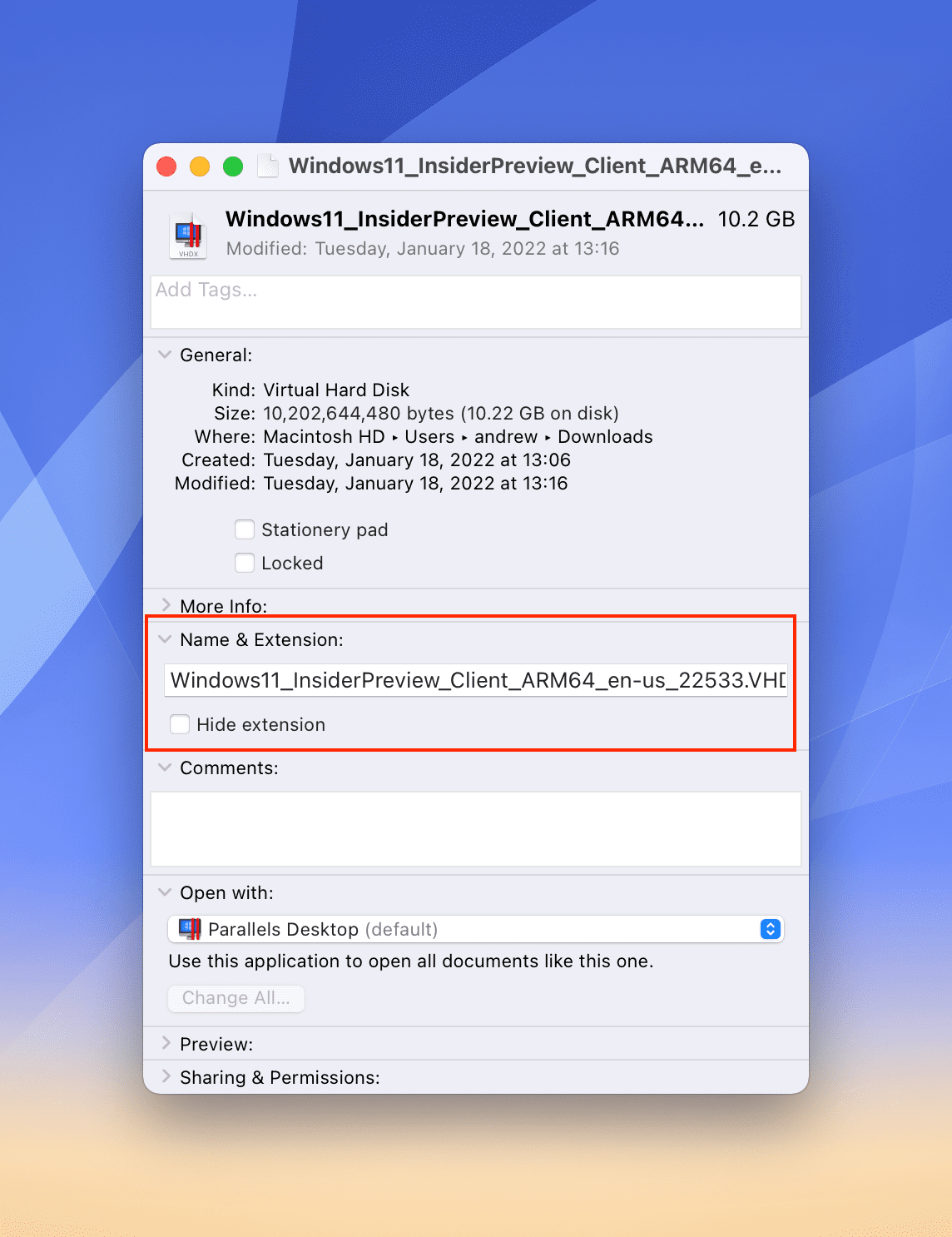
The first method for viewing file extensions is pretty basic. And even this method offers two different ways to view the file extension. The first method is as simple as locating the file, highlighting it in Finder, and pressing CMD + I on your keyboard. But if you forget the keyboard combination, here’s how you can view file extensions for a single file.

  1. Open Finder on your Mac.
  2. Locate the file that you want to view the extension for.
  3. In the menu bar, click File
  4. Select Get Info in the drop-down menu.
  5. Click the arrow next to Name & Extension to expand the section.
  6. Click the checkbox next to Hide extension in order to show (or hide) the file extension.

Show All File Extensions in Finder

The next method is a bit more involved and will show the file extensions for everything on your Mac. This includes things like apps and basic documents that you otherwise wouldn’t need to know the extension for. Here’s how you can show all file extensions in Finder on Mac:

How To Show All File Extensions in Finder on Mac

  1. Open Finder on your Mac.
  2. Click Finder in your Mac’s menu bar.
  3. Select Preferences from the drop-down menu.
  4. Click Advanced in the top bar.
  5. Check the toggle next to Show all filename extensions.
  6. Exit Finder Preferences.

Locating the file extension is just one piece of the puzzle, at least for those who have a tendency of renaming files. There’s another piece that involves being aware of the naming convention for the file that you might be changing. In the event that you accidentally (or intentionally) change a filename’s extension, that file may become corrupt and will no longer be available. Apple has implemented a warning that appears if you are attempting to change the extension, providing a layer of security between you and potentially ruining a file for good.

Related Posts:

  • 2023 Mac Studio lifestyle - 1
    macOS Could Not Be Installed, How-To Fix
  • pexels-arif-kemal-köroğlu-5332291
    Mac Firewall: What Is It, Do You Need It, How To Use It?
  • panic-medic-boot-macbook
    How to Fix "Panic Medic Boot" Errors on Mac
  • macos-bird-process-high-cpu-fix
    Fix: Bird Process Causes High CPU Usage on Mac
  • how to convert a pages file into word
    How to Convert a Pages File Into Word File
  • iPhone 15 event - iPhone 15 Pro and iPhone 15 Pro Max A17 Pro Video Recording Promo
    iPhone 14 vs. iPhone 15: Should You Upgrade?
  • Delete-Group-Reminders-Folder-macOS
    MacBook Will Not Start Up After macOS Update, How-To Fix
  • Intel-Unison-1-1600x800
    How to Use Intel Unison to Connect iPhone to Windows
  • M1 MacBook Pro vs M2 MacBook Pro - M2
    M1 MacBook Pro vs M2 MacBook Pro: Should You Upgrade?
Andrew Myrick
Andrew Myrick

Andrew Myrick is a freelance writer based on the East Coast of the US. He enjoys everything to do with technology, including tablets, smartphones, and everything in between. Perhaps his favorite past-time is having a never-ending supply of different keyboards and gaming handhelds that end up collecting more dust than the consoles that are being emulated.

Reader Interactions

Write a Comment Cancel reply

Primary Sidebar

Recent Posts

  • How to Hide Username and Photo on the Mac Lock Screen
  • Microsoft Resume vs. Apple Handoff – Which Wins for Cross-Device Work?
  • How to Export iTunes Library to New Computer
  • What the Gemini Desktop App Will Bring to Mac
  • What to Do When Windows 11 Won’t Detect Your iPad
  • Outlook Outage 2026: iPhone Fixes for Sign-In Chaos

Connect with us

Footer

ABOUT

  • About Us
  • Contact us
  • Advertise
  • Privacy
  • Terms of Use

GUIDES

  • iOS & iPadOS
  • Apple ID
  • iCloud
  • App Store
  • iTunes
  • FaceTime
  • iMessage
  • Siri
  • Books and iBooks
  • Game Center
  • AirPlay

CONNECT

  • Facebook
  • Twitter
  • FeedBurner
  • YouTube

© Copyright 2010-2024 Guiding Tech Media · All Rights Reserved

This site and its content are in no way affiliated or endorsed by Apple, Inc. · Reproduction without explicit permission is prohibited

Last Updated on January 28, 2022 by Mitch Bartlett