As our smartphones get more and more powerful, this moves us further and further away from being able to play “basic” games on our devices. Not only is the iPhone capable of handling retro emulation (with some caveats), but it’s also more than powerful to handle games that feel as smooth as their console counterparts.
Recently, Diablo Immortal was released, giving mobile gamers that Diablo experience from the good ole’ days of PC gaming. There’s another game on the horizon that was just announced and will try to accomplish the same thing, just for a different genre. Enter ‘The Division Resurgence’.
What Is ‘The Division Resurgence’?
‘The Division’ is a game that was released all the way back in 2016 by Ubisoft, and is an online “action role-playing game (RPG)”. The original game is based in New York, and its popularity spawned ‘The Division 2’ which was launched in March of 2019. Since then, there have been various DLC’s available, but there seems to be enough interest in the game to warrant another version.
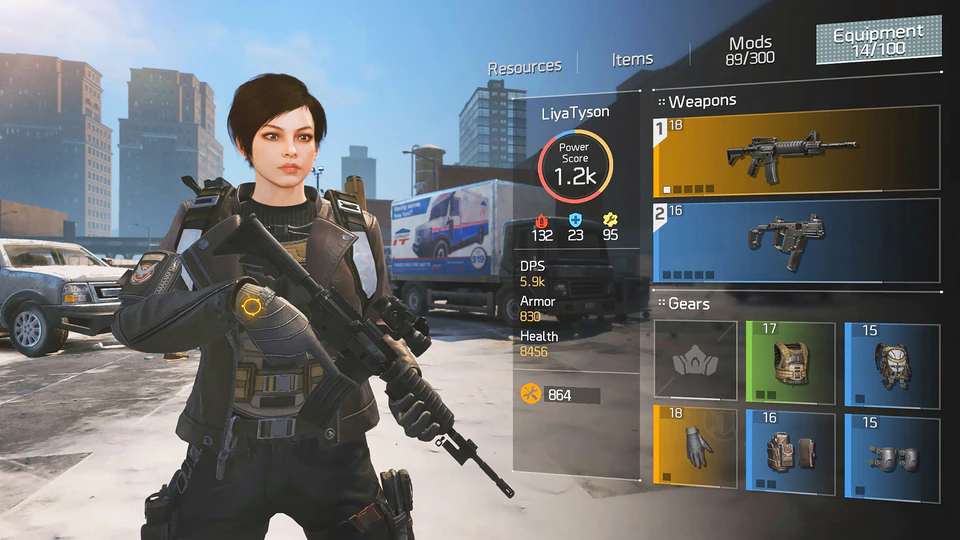
Enter ‘The Division Resurgence’. As opposed to the first two titles in the saga, Resurgence is a mobile-only game. Once released, the game will be available on both iOS and Android, with hopes that we’ll enjoy a similar game to what made the two original titles so popular. Here’s the official description of the game:
“The game will bring a new, canonical storyline to The Division universe as players deploy to New York City in the first wave of Strategic Homeland Division (SHD) Agents, and gain a new perspective on key story events from The Division and The Division 2.”
Along with being a mobile-only game, The Division Resurgence is free-to-play. This means that, unlike the console and PC versions, you won’t need to shell out your hard-earned cash upfront in order to start playing. However, we do expect there to be a slew of micro-transactions in the game, as can be expected with these free-to-play games from big game developers.
How to Sign up for The Division Resurgence on iPhone
Whether you’re a hardcore fan of ‘The Division’ series or you just want to get your hands on a new game before its release, you’re (somewhat) in luck. Ubisoft has announced a “Closed Alpha” program for Resurgence, meaning that Ubisoft will select a group of mobile gamers to test out this game ahead of its official release.
This isn’t going to be available for everyone to play, hence the Closed Alpha signifier, but Ubisoft is planning to send “several waves of invitations to players depending on devices and locations”. If you want to throw your name in the hat and have a chance to jump on the Closed Alpha, then here’s how you can sign up for The Division Resurgence on iPhone:
Click the Register button near the top of the page.
Choose the platform that you wish to play the Closed Alpha on (Android or iOS).
Click the Register button.
When prompted, log in (or create) your Ubisoft account. You can also log in with Facebook, Xbox, Twitch, or PlayStation Network.
Answer the on-screen questions to complete your registration.
In the event that you are creating a Ubisoft account for the first time, you may be prompted to confirm your email address. The email is generated automatically and aims to ensure that future related emails will arrive in your inbox as opposed to a Spam folder. In the event that the email ends up in Spam, you will want to mark it as “not spam” which should move it to your inbox.
Andrew Myrick is a freelance writer based on the East Coast of the US. He enjoys everything to do with technology, including tablets, smartphones, and everything in between. Perhaps his favorite past-time is having a never-ending supply of different keyboards and gaming handhelds that end up collecting more dust than the consoles that are being emulated.










Write a Comment