There’s a whole range of apps on the iPad that allow your artistic skills to flourish. If, however, you’re looking to get your PC involved in the action and use your iPad in much the same way as you would a professional drawing tablet, then the good news is that it’s possible too.
In this article, we’ll be looking at how to do just that.
While drawing tablets like Wacom are designed to work mainly in tandem with a PC, they carry their own software and work independently. There’s no real native support for making this process seamless, but, as with most tech hurdles, there are third-party apps willing to step in and help.
These apps run the gamut from casual connections to professional tools. Cheap or free tools might work for the hobbyist, but can come with latency issues and slower refresh speeds. Higher-end apps, though pricey, offer top performance and a whole range of additional features to smooth your workflow.
Ideally, if you’re looking to use your iPad as a drawing tablet, it would help immensely to have a quality stylus capable of the many degrees of pen pressure required to create professional artwork. The Apple Pencil and Pencil Pro are two Apple solutions ideal in this regard. Higher-performance iPads will also fare better in terms of speed and performance.
Many of the apps mentioned below require that your iPad be connected to your PC with a USB cable or wirelessly. Make sure your PC is up to the task.
Essentially, if you can create art on your iPad without a PC, you should have no problem.
How to Use an iPad as a Drawing Tablet for PC
Let’s take a look at some of the most popular ways to make your iPad a PC drawing tablet:
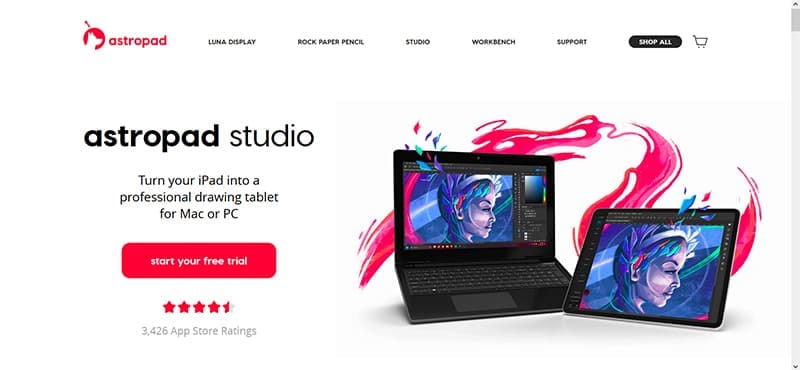
Astropad Studio
One of the first names that pops up is Astropad. If you’re a Mac user, you’re in luck, because this is one of the best tools available. Ultra-low latency makes lag next to non-existent. What’s perhaps best, though, is the quality-of-life additions. Not only does the app allow for pressure sensitivity, but it also offers a whole range of customizable shortcuts and gesture controls, invaluable to any artist looking for a smooth workflow.
The app offers a 14-day trial period for you to test it out yourself.
Duet Display Pro
Heading to the other side of the spectrum now, Duet Pro treats your iPad as a second display (Mac and Windows) rather than a tablet. It’s a simpler connection that doesn’t have the benefit of pressure sensitivity or shortcuts, but does offer an easy way to create simple artwork. This is ideal for hobbyists, but also those looking to use their iPad as an extra display, too.
This app is a subscription service (with a seven-day trial), but it does allow for a once-off lifetime purchase.
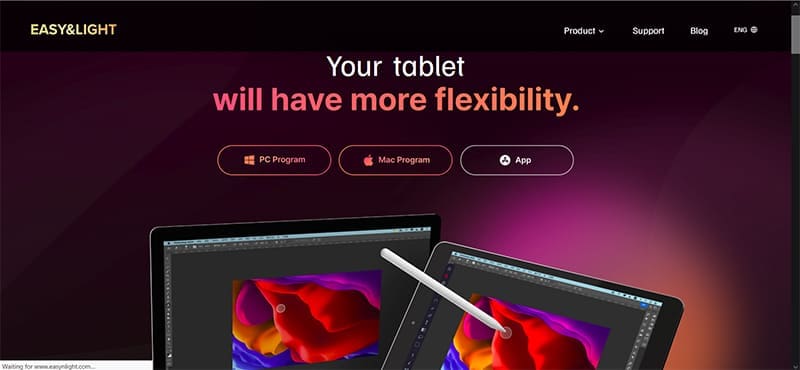
Easy Canvas
Easy Canvas is a cheaper version of Astropad that, while it might not offer the fluid connection of its competitor, does do things for much less. In addition, it also functions with pen pressure sensitivity. For artists starting out, who don’t mind having to adjust for resolution, occasional lag, and lack of pen tilt, this is a solid and budget-friendly option.
Easy Canvas 2025 is specifically designed for optimization with Windows 11 machines and offers marked performance improvements.
As an avid gamer, I’ve run into my fair share of error codes and weird faults that have forced me to find fixes to problems I never anticipated. That gave me a passion for sharing those fixes with others so we can all game without feeling like our hardware is rebelling against us.












Write a Comment