• Skip to primary navigation
  • Skip to main content
  • Skip to primary sidebar
  • Skip to footer

AppleToolBox

Tools and Fixes for Mac, iPad, iPhone & iWatch

Search posts

  • About
  • Contact

CONNECT WITH US

CATEGORIES

  • iPhone
  • iPad
  • iPod
  • Apple Watch
  • Mac/MacBook
  • AirPods
  • Apple TV
  • News
  • Apple Services
  • HomePod
  • Reviews

SITE

  • Home
  • About Us
  • Contact
  • Advertise

Search posts

You are here: Home / iPhone / How to Use iPhone as Internet for PC

How to Use iPhone as Internet for PC

By Louis Roundtree 0 comments Last updated July 16, 2025

Things to Know
  • You can use your iPhone as a wireless hotspot or an Ethernet connection for your PC to access the internet.
  • Wirelessly, you can set up your iPhone as a hotspot and connect with your machine, provided it has Wi-Fi enabled.
  • You can also tether your iPhone via a USB cable and use it as an Ethernet connection.

No internet? No problem. Did you know that you can use your iPhone’s super-fast data connection to connect your PC to the internet? If you’re stuck in an area without good Wi-Fi, you can tether your iPhone to your PC and get online wirelessly or through a USB.

In this article, we’re going to show you how to do both.

Contents

  • How to Use iPhone as Internet for PC in Two Ways
    • The Wireless iPhone PC Hotspot
    • Connect via USB

How to Use iPhone as Internet for PC in Two Ways

There are two major ways for your PC to utilize your iPhone to connect to the internet: tethered via USB or wirelessly as a hotspot. Let’s look at both methods and how to use them:

The Wireless iPhone PC Hotspot

To connect your PC to your iPhone, you’ll have to set up the phone as a hotspot that your PC can connect to. This will use your mobile data to provide access to the internet, and additional charges may apply. If you’re happy to proceed, do the following on your iPhone:

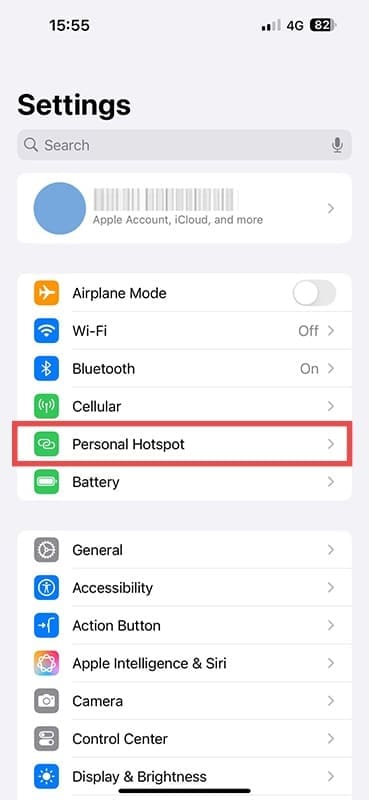
Step 1. Open Settings on your iPhone and navigate to “Personal Hotspot.” If the option is greyed out, ensure your mobile data is switched on.

How to Use iPhone as Internet for PC 1

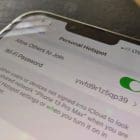
Step 2. In the Personal Hotspot menu, drag the “Allow Others to Join” slider to “On.”

How to Use iPhone as Internet for PC 2

Step 3. Set a Wi-Fi password. Any device linking to it will need to enter to join.

Step 4. If your PC isn’t the latest, cutting-edge machine, you can drag the “Maximize Compatibility” slider (usually only available on older iPhone models) to “On.” This will ensure effective communication, but at the cost of speed.

Now for the PC:

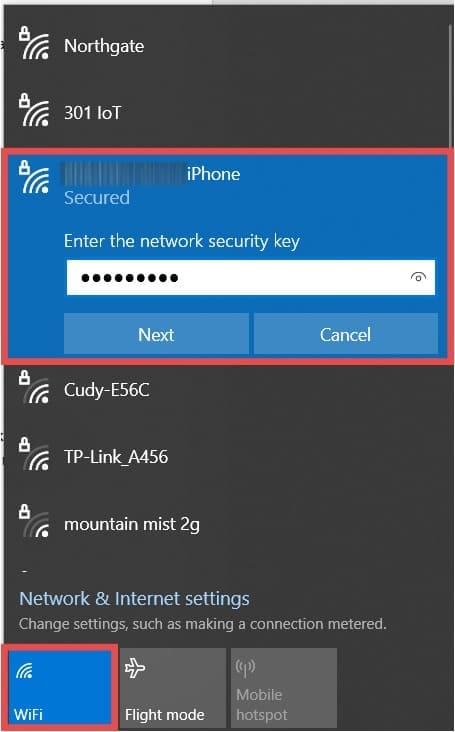
Step 1. Click the System Tray at the bottom right of your screen and click the Wi-Fi icon.

Step 2. Your iPhone should be in the list of available devices.

Step 3. Click the iPhone name, enter the network security key, and you should be connected.

How to Use iPhone as Internet for PC 3

Connect via USB

To connect with a USB cable, you’ll need to set up both your PC and phone:

Step 1. Plug your iPhone into your PC with a USB cable.

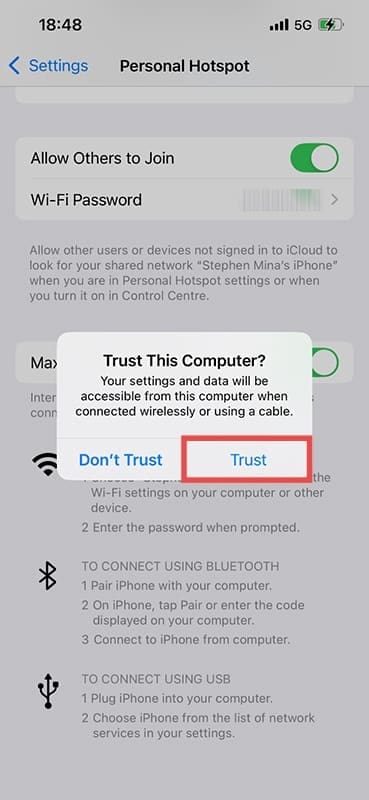
Step 2. You should get a message on your iPhone asking if you trust this computer. Click the “Trust” button. You will be required to enter your passcode on your iPhone just to be sure. If you’ve previously connected your iPhone, this message may not appear.

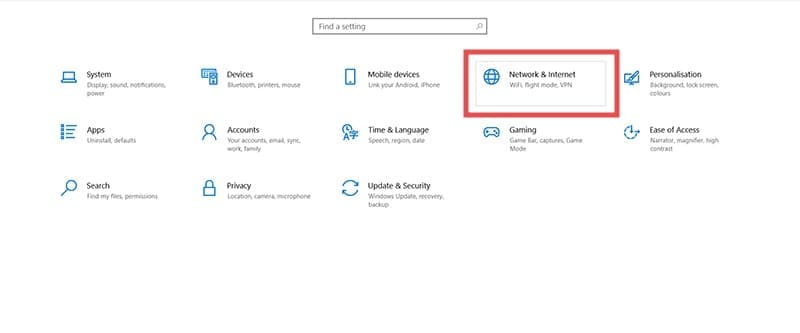
Step 3. On your PC, open “Network & Internet” in Settings.

How to Use iPhone as Internet for PC 5

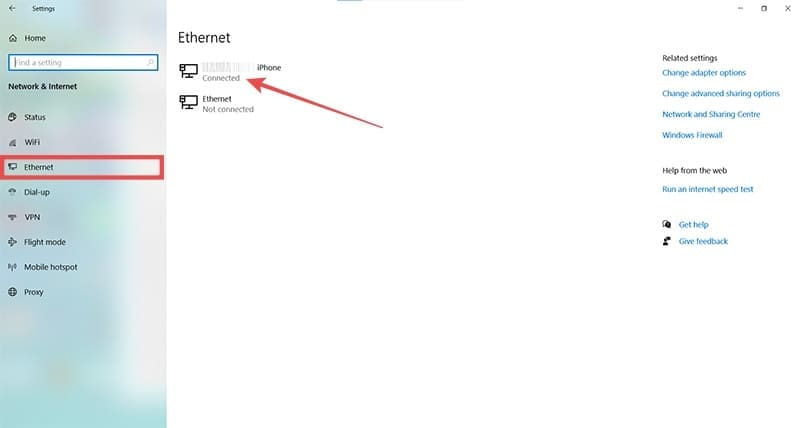
Step 4. Click “Ethernet” in the sidebar. You should see your iPhone listed as a remote internet sharing device. If it shows “Connected,” then your computer is using your iPhone’s internet.

How to Use iPhone as Internet for PC 6

If you don’t see your iPhone listed as an Ethernet option, then you’ll need to have iTunes installed to use it.

Related Posts:

  • 2023 Mac Studio lifestyle - 1
    macOS Could Not Be Installed, How-To Fix
  • sidecar on iPadOS and macOS
    Sidecar not working in iPadOS and macOS? How to fix…
  • An iPhone, Mac, and MacBook on a table
    How to Fix Personal Hotspot Issues After iOS 17 Update
  • iPhone 15 event - iPhone 15 Pro and iPhone 15 Pro Max A17 Pro Video Recording Promo
    iPhone 14 vs. iPhone 15: Should You Upgrade?
  • Update Apple ID settings on your iPhone, iPad, or Mac after changing your password
    Getting a Message to Update Apple ID Settings on…
  • iPhone 15 Pro unboxing
    How To Extend Your iPhone Battery Life
  • how-to-make-iphone-a-hotspot-featured
    How to Make iPhone a Hotspot
  • photo of an iphone with ios 16 downloaded on it
    iOS 16 Tips and Tricks: The Definitive List
  • iOS 16 Unsend Messages on Your On Your iPhone
    No Text or Message Notification Alerts or Sounds on…
Louis Roundtree
Louis Roundtree

As an avid gamer, I’ve run into my fair share of error codes and weird faults that have forced me to find fixes to problems I never anticipated. That gave me a passion for sharing those fixes with others so we can all game without feeling like our hardware is rebelling against us.
Reader Interactions

Write a Comment Cancel reply

Primary Sidebar

Recent Posts

  • How to Export iTunes Library to New Computer
  • What the Gemini Desktop App Will Bring to Mac
  • What to Do When Windows 11 Won’t Detect Your iPad
  • Outlook Outage 2026: iPhone Fixes for Sign-In Chaos
  • Guide to Changing iMessage Backgrounds on iPhone and Mac
  • Has Apple Killed Vision Pro? (Insane Sales Flop Explained)

Connect with us

Footer

ABOUT

  • About Us
  • Contact us
  • Advertise
  • Privacy
  • Terms of Use

GUIDES

  • iOS & iPadOS
  • Apple ID
  • iCloud
  • App Store
  • iTunes
  • FaceTime
  • iMessage
  • Siri
  • Books and iBooks
  • Game Center
  • AirPlay

CONNECT

  • Facebook
  • Twitter
  • FeedBurner
  • YouTube

© Copyright 2010-2024 Guiding Tech Media · All Rights Reserved

This site and its content are in no way affiliated or endorsed by Apple, Inc. · Reproduction without explicit permission is prohibited

Last Updated on July 20, 2025 by Louis Roundtree