The art of journaling has found a new home on our devices. Apple’s latest offering, the Journal app, integrates this age-old practice seamlessly into the iOS ecosystem for iPhone and iPad users. Whether you’re looking to document daily reflections, capture fleeting moments, or simply have a space for your thoughts, the Journal app is your digital diary reimagined.
In this guide, we’ll walk you through the intricacies of using Journal on both iPhone and iPad, ensuring you make the most of this innovative application.
As WWDC ’23 approached, speculation mounted about Apple unveiling a brand-new app. This speculation proved accurate when Apple introduced its Journal app at the Keynote. Mental health took center stage at WWDC, making Journal a captivating new feature.
Journal lets users revisit cherished memories and introspect, enriched with the option to incorporate photos, music, and more. iOS 17 leverages on-device machine learning for tailored suggestions, though users can also freely pen down their thoughts without prompts.
However, the app was not included with the final version of iOS 17 rolled out, leaving Apple fans wondering when it would actually arrive. Those questions were finally answered after the first iOS 17.2 Developer Beta was released. Just like every other app made by Apple, the Journal app is pre-installed, so you won’t have to go digging for it yourself.
Why Would You Want to Use the Journal App?
The Journal app on the iPhone presents a modern way to chronicle daily experiences, combining the traditional art of journaling with the conveniences of technology. Leveraging its seamless integration with the iOS ecosystem, the app can automatically document facets of your day, such as the music you’ve listened to or the places you’ve visited, enriching your entries with a contextual backdrop. The on-device machine learning offers personalized suggestions, ensuring that the journaling experience is both reflective and intuitive.
Furthermore, the ability to augment entries with multimedia elements like photos or voice notes makes the Journal app a dynamic platform to capture memories. Additionally, with its emphasis on privacy and data security, one can write freely, knowing that personal reflections remain confidential. In an age where moments pass by swiftly, the Journal app serves as a sanctuary to pause, reflect, and preserve memories in a comprehensive and secure manner.
Privacy Concerns
All entries are stored securely only on your device, ensuring that your personal data remains private. Journal uses end-to-end encryption for your data, further enhancing its security measures. Additionally, there’s no cloud syncing of your entries, meaning your information isn’t sent to external servers.
The app’s machine learning operates offline, processing only anonymized data. This means that personalized features are based on non-identifiable information. Before accessing features like location and photos, you need to explicitly grant permission, ensuring you have control over what data the app can use. Importantly, the Journal app is free from ads, and your data is never utilized for advertising purposes.
How to use the Journal app on iPhone and iPad
Journal bears similarities to apps such as Day One, offering users the capability to pen diary-styled notes while seamlessly integrating with the iOS ecosystem. The app has the added functionality of automatically documenting various aspects of your day, encompassing activities like workouts, music listened to, messages sent, phone calls made, photos taken, and places visited.
These automated details are termed as ‘Journaling Suggestions’. Users have the flexibility to enable or disable these suggestions, either individually or in their entirety.
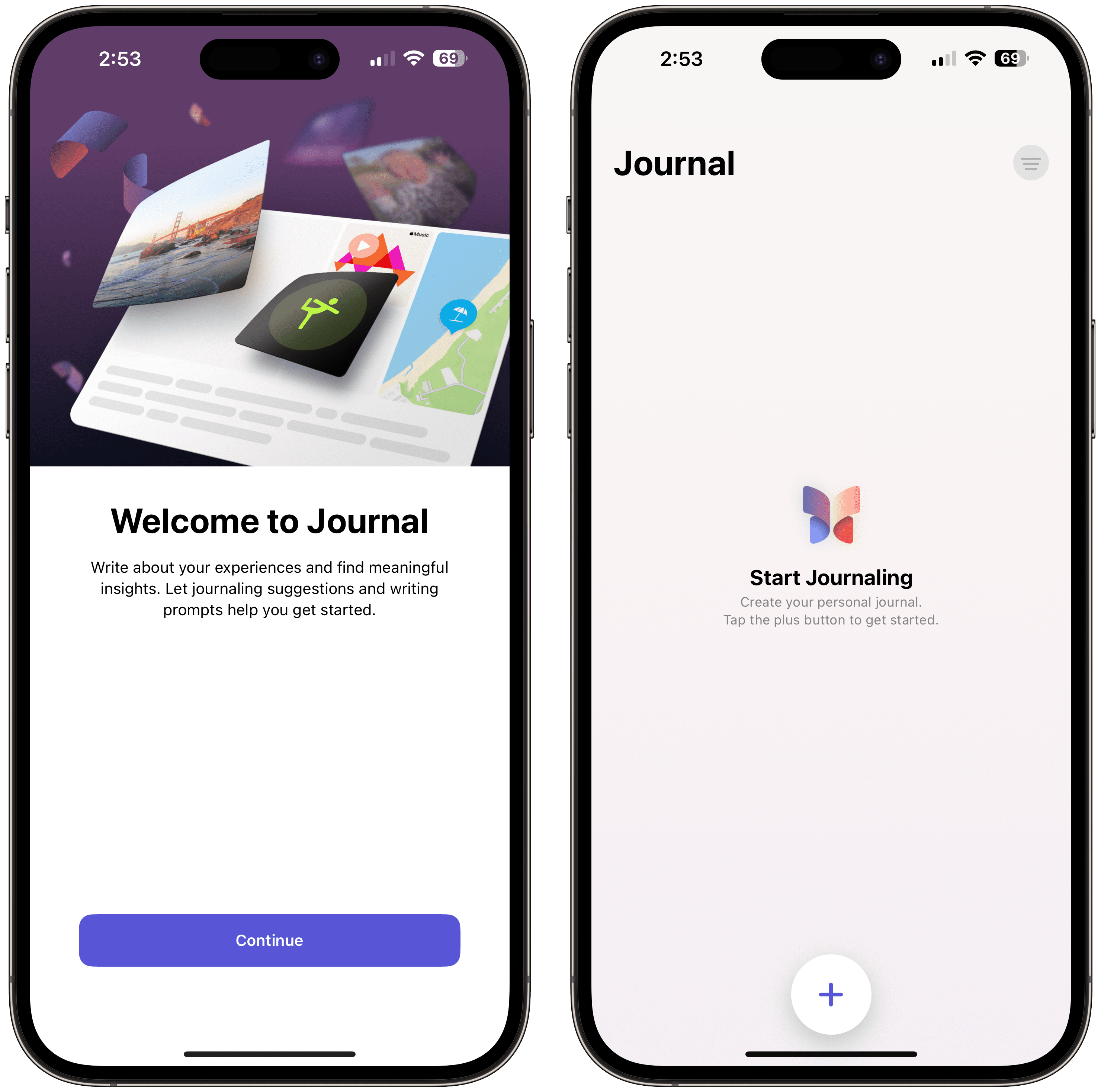
When opening the Journal app for the first time, tap the Continue button.
From the main screen, tap the Add button at the bottom of the page.
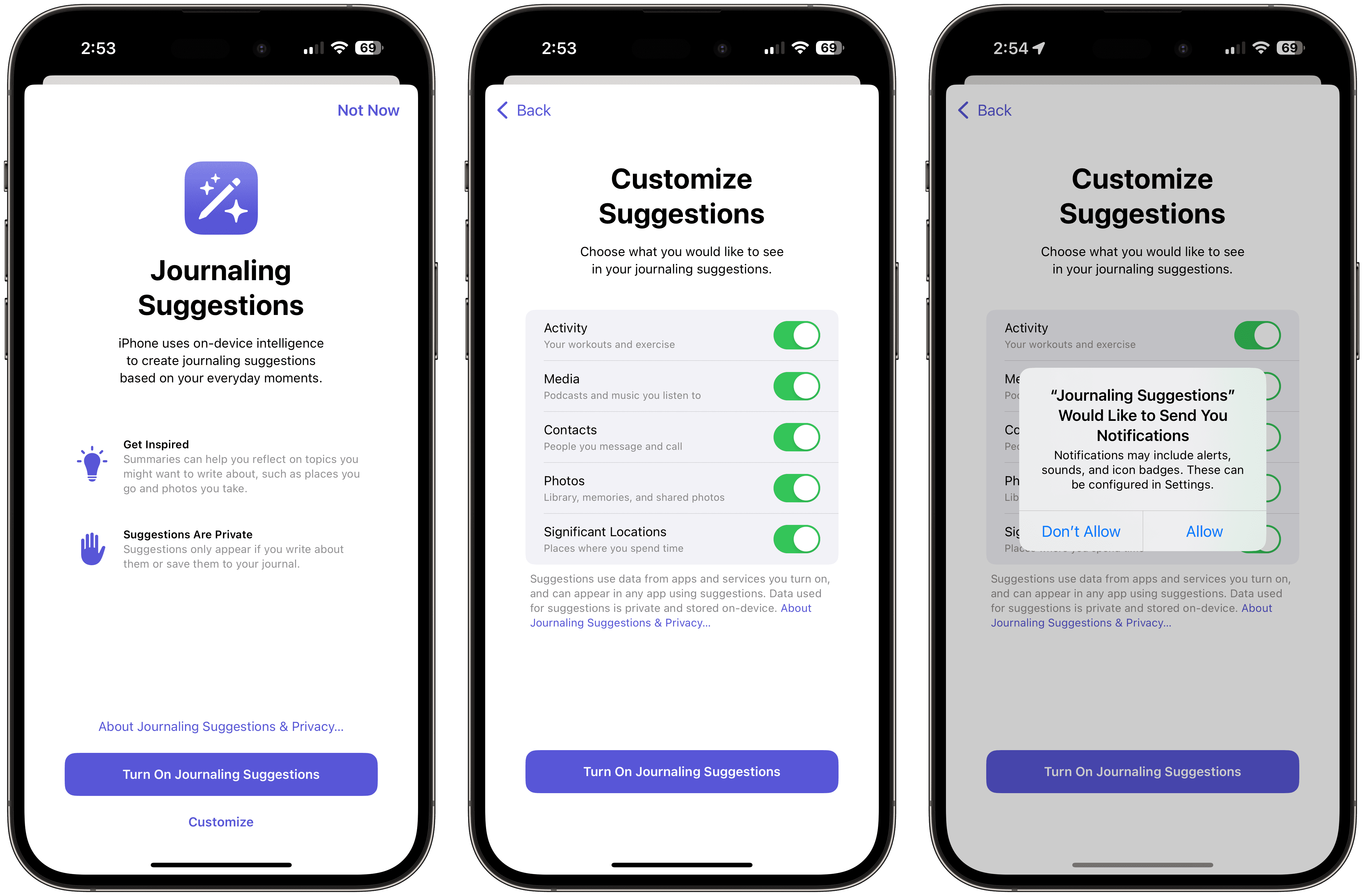
You’ll be taken to the Journaling Suggestions page, where you can either enable all suggestions or customize what appears.
When tapping the Customize button, here are the options you can turn on and off:
Activity – Your workouts and exercise
Media – Podcasts and music you listen to
Contacts – People you message and call
Photos – Library, memories, and shared photos
Significant Locations – Places where you spend time
Make any changes that you want to make, then tap the Turn On Journaling Suggestions button at the bottom.
You’ll be prompted to allow notifications, tap the Allow or Don’t Allow button.
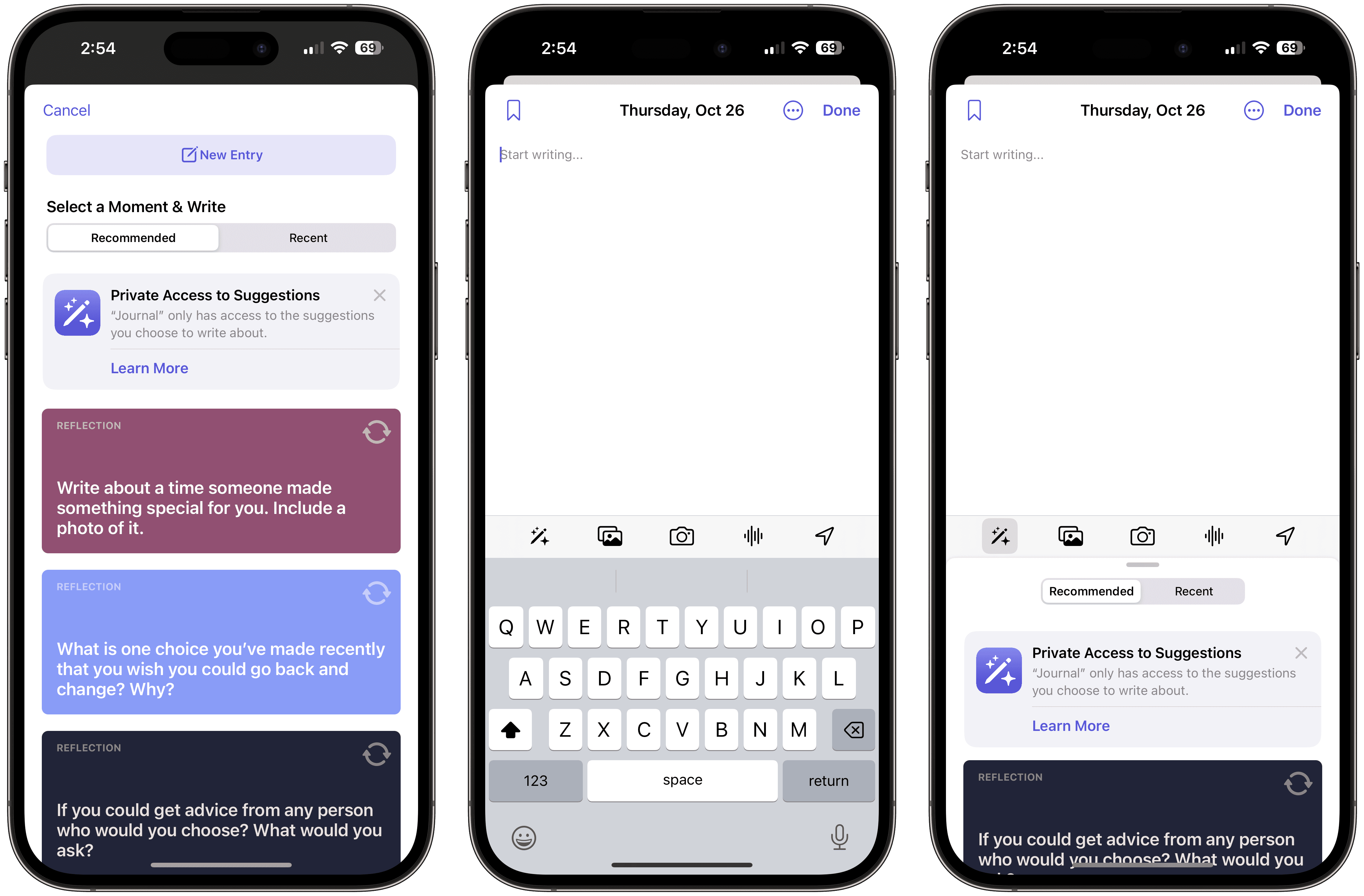
After you’ve gone through the steps to enable Journaling Suggestions, you’ll be taken to a new window. At the top of the page, you’ll find a basic New Entry button, letting you get started with your latest journal entry. However, you’ll also notice a few recommendations that you can use if you need a bit of inspiration.
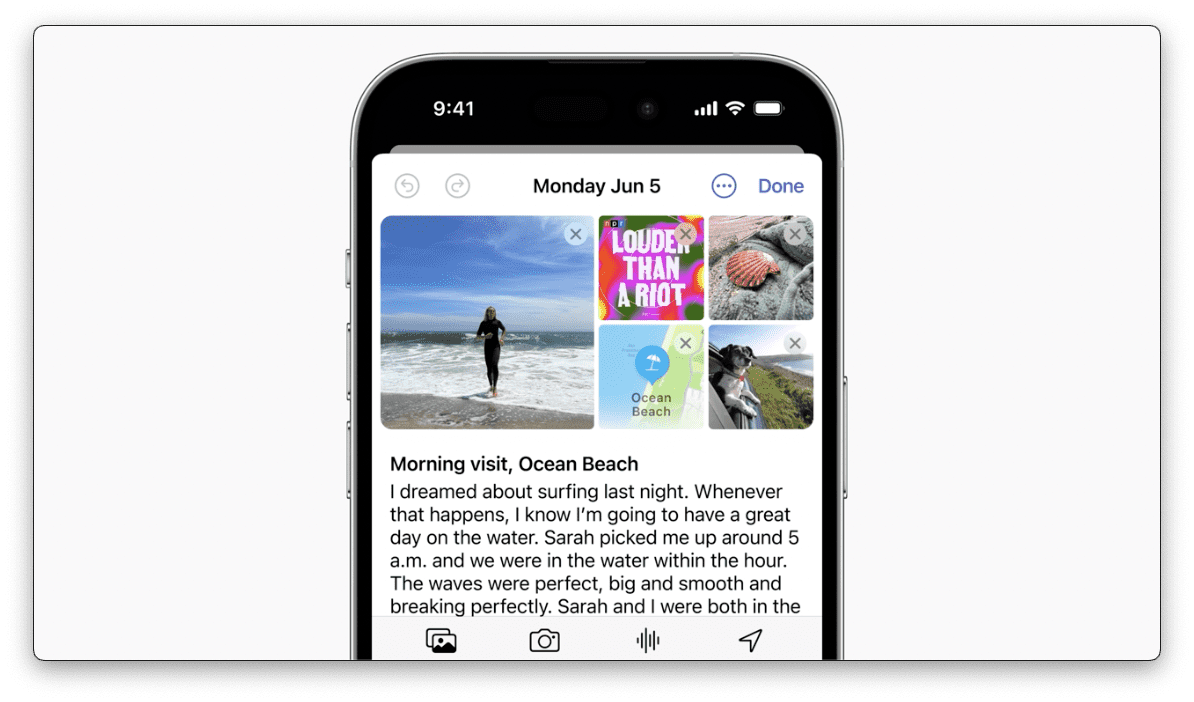
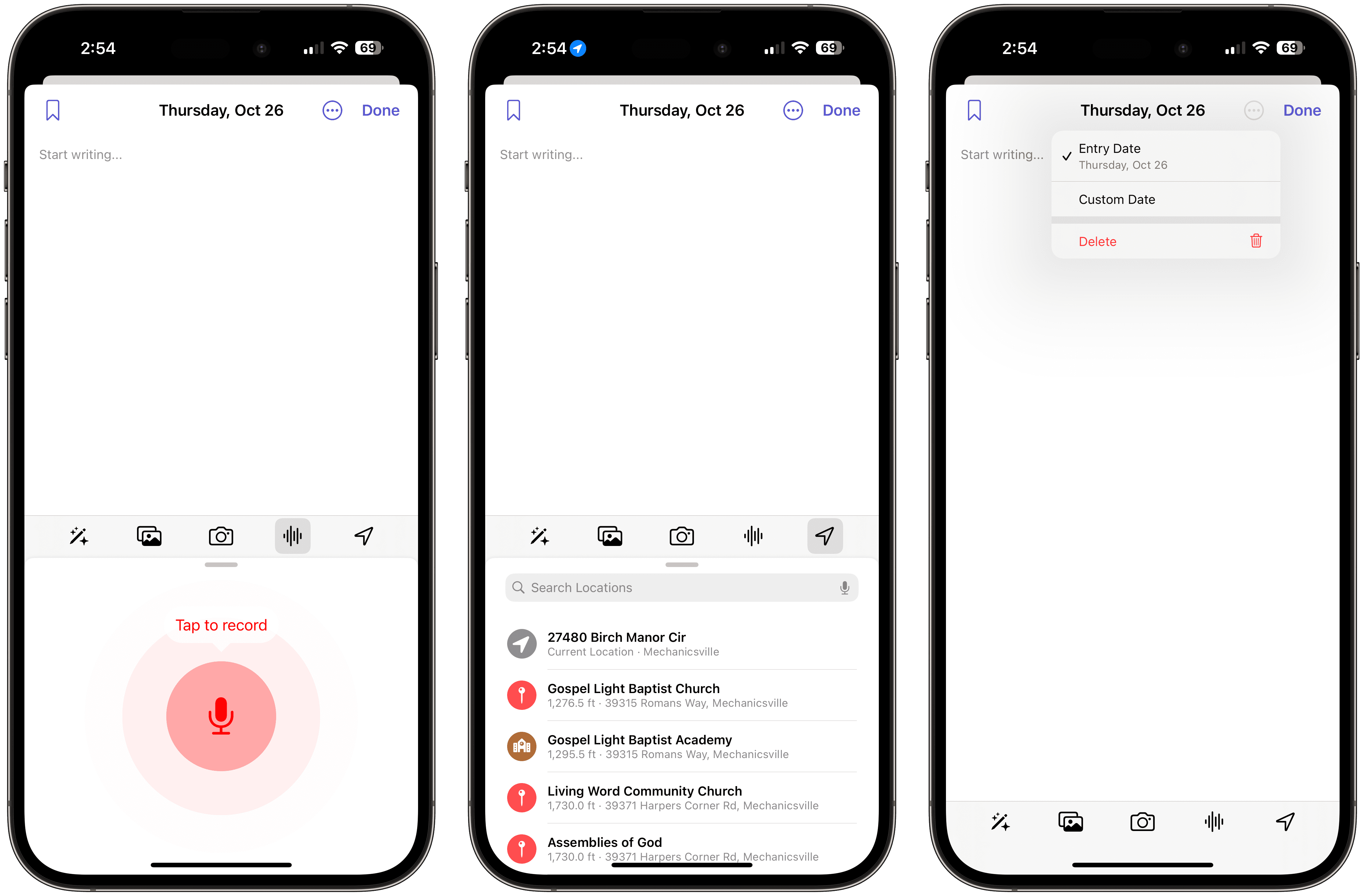
When it comes to actually writing down your journal entry, Apple has included pretty much everything you would want. At the top of the page, you’ll see the day of the week and the date, along with a “Bookmark” toggle in the top left corner and a “Done” button in the top right corner.
If you find yourself wanting to go back and create a journal entry for a previous date, you can do so. Just tap the button in between the date and “Done” button. From the drop-down menu that appears, tap the Custom Date option, then select the date that you want the entry to be created for, and get started.
At the bottom of the writing space is a toolbar that gives you quick access to the aforementioned recommendations. From there, there are tabs for “Recommended” and “Recent”, so you can go back and see which prompts helped get the words flowing.
Also in the toolbar are buttons to add images or videos that you’ve already taken, and a button to snap a picture to save it directly to your journal entry. The last two options available from the toolbar is a button to record a voice memo, and to add your location to the journal entry.
Change Your Journal Settings
After activating the Journaling Suggestions, navigating to the controls to deactivate them can be a bit tricky. When you launch the app, the main interface predominantly displays your previously written journal entries. Alongside, there’s a fundamental filter button and a plus sign, which is utilized to initiate a new journal entry.
Instead, in order to change any of the settings for the Journal app, you won’t be able to do so from the app. It’s a bit surprising to see that Apple isn’t including any options within Journal itself, but here’s what you’ll need to do.
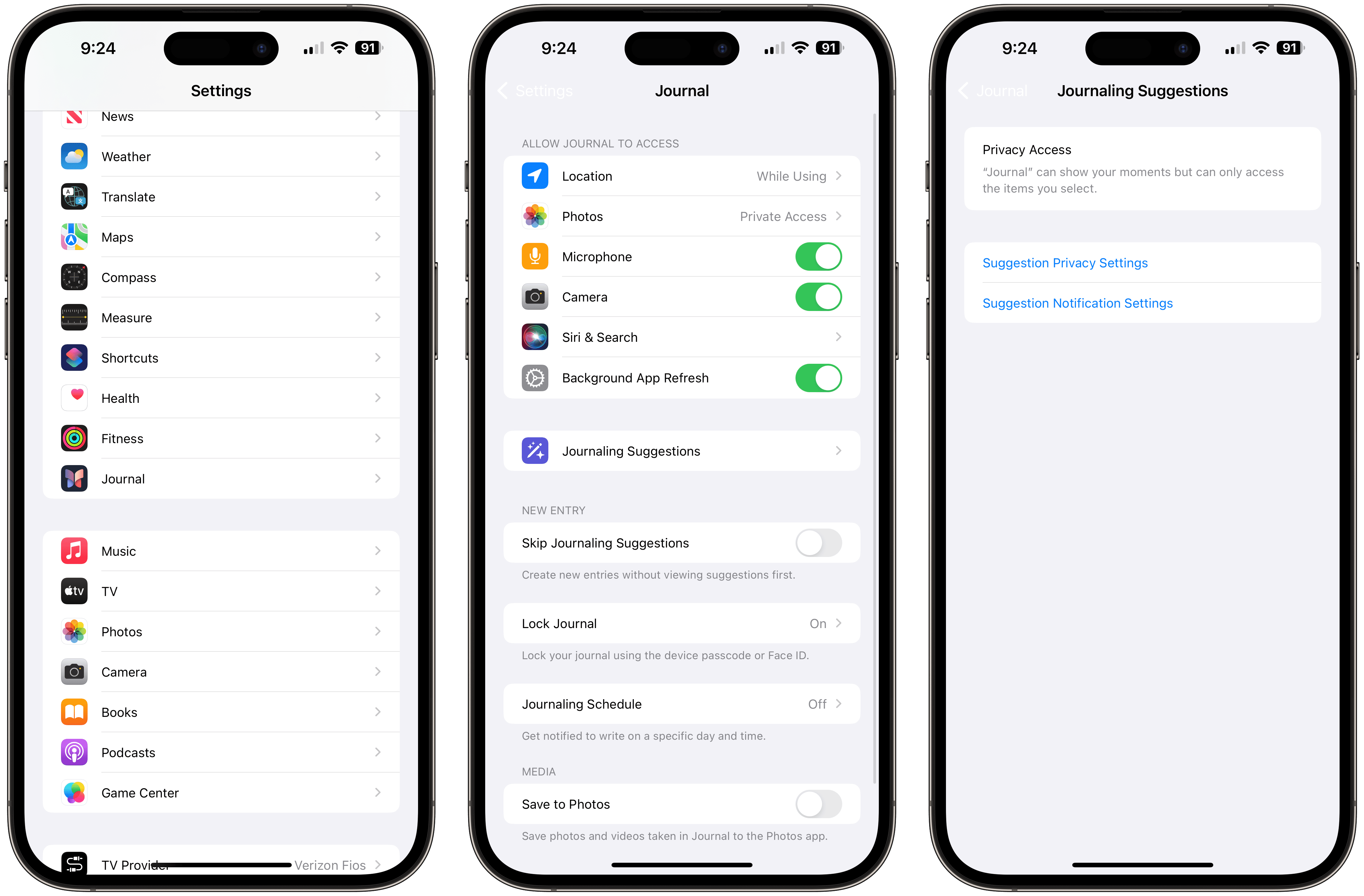
Open the Settings app on your iPhone.
Scroll down and tap Journal.
Beneath the Allow Journal to Access section, you can customize the following options:
Location
Photos
Microphone
Camera
Siri & Search
Background App Refresh
You can further customize the permissions by tapping Journaling Suggestions.
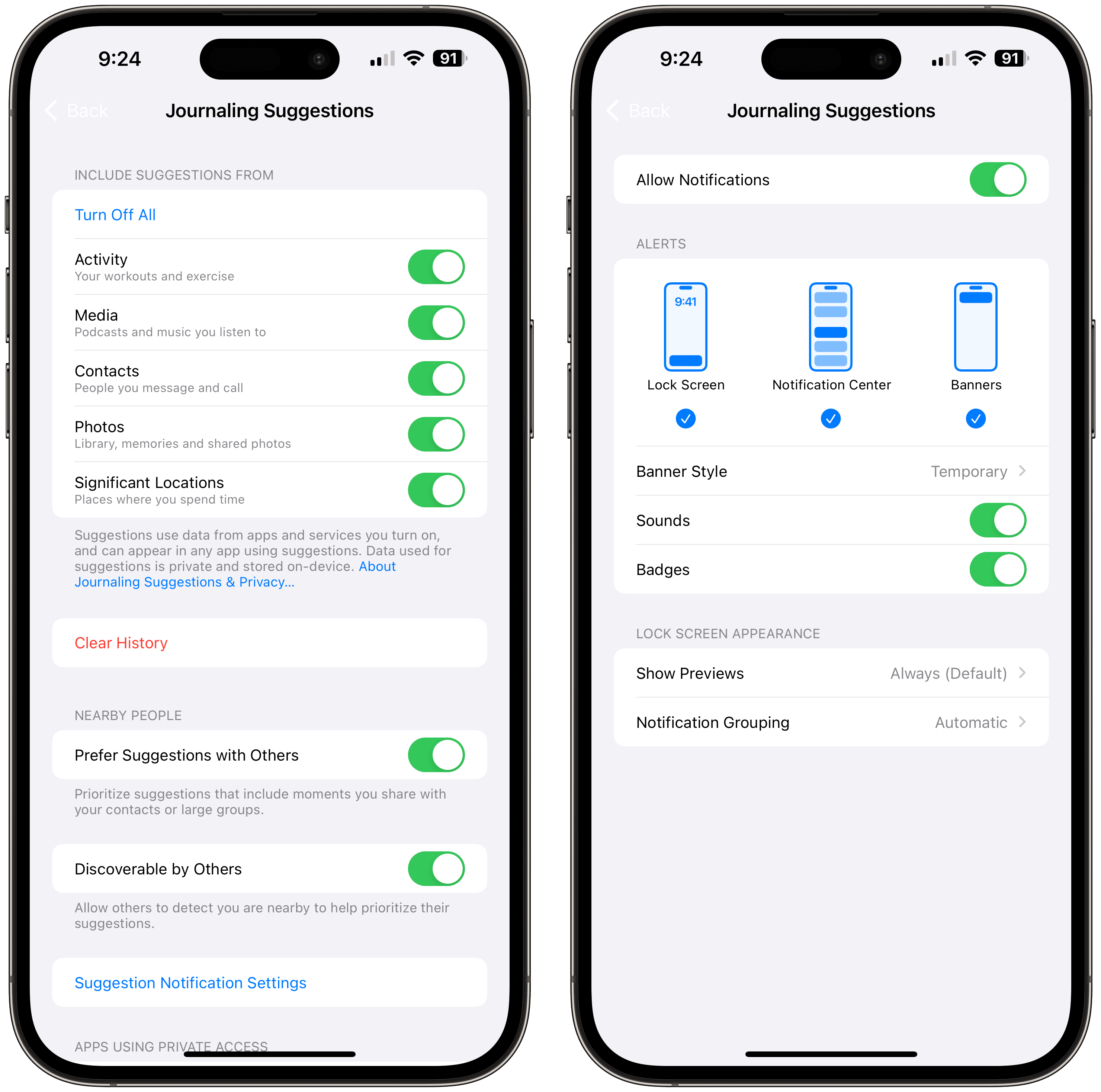
Tap Suggestion Privacy Settings
Turn on or off the following options:
Include Suggestions From:
Activity
Media
Contacts
Photos
Significant Locations
Nearby People
Prefer Suggestions with Others: Prioritize suggestions that include moments you share with your contacts or large groups.
Discoverable by Others: Allow others to detect you are nearby to help prioritize their suggestions.
Tap the Suggestion Notification Settings.
Customize your notifications based on your preferences.
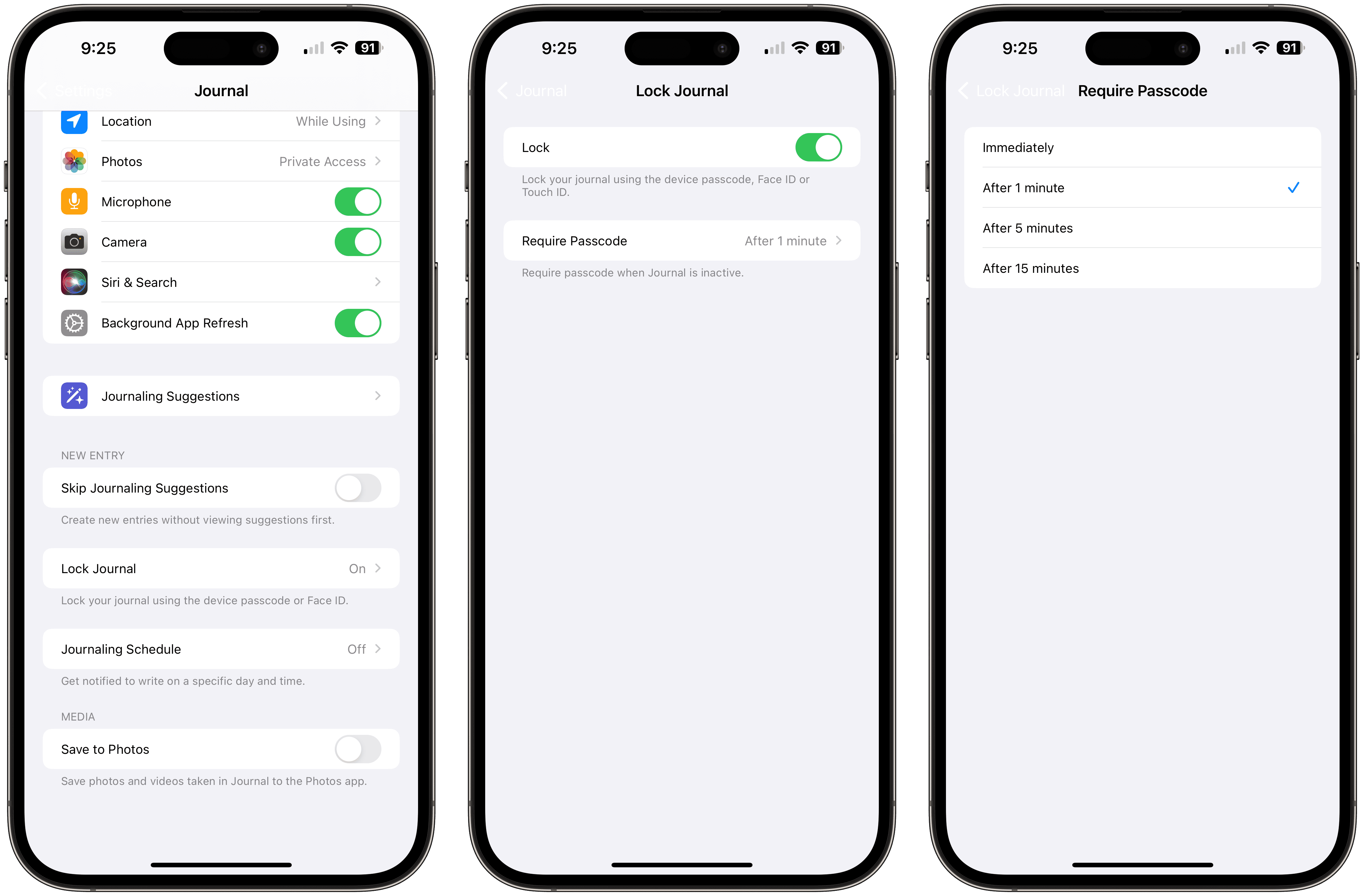
There are even more options to be found within the Journal settings. These include things such as being able to “Skip Journaling Suggestions”, create a Journaling Schedule, and toggle whether you want to save photos and videos taken in the Journal app to the Photos app. One setting that we skipped over is the ability to lock the Journal app. Here’s what you’ll need to do in order to lock the Journal app in order to keep it away from prying eyes:
Open the Settings app on your iPhone.
Scroll down and tap Journal.
Tap Lock Journal.
Enter your iPhone’s passcode to authenticate.
Tap the toggle next to Lock to the On position.
Tap Require Passcode.
Select one of the following options:
Immediately
After 1 minute
After 5 minutes
After 10 minutes
Tap the < Lock Journal button in the top left corner to save your changes.
Tailoring the Journal app’s settings to your preferences enhances the overall journaling experience, ensuring it aligns closely with your personal needs and style. As you navigate through the various options, remember that the flexibility of the settings empowers you to create a space that feels both comfortable and intuitive.
Whether you’re adjusting privacy controls, toggling Journaling Suggestions, or customizing notifications, each tweak ensures your Journal app becomes a true reflection of your journaling aspirations.
Conclusion
With all these features and functionalities, the Journal app in iOS 17.2 offers a comprehensive journaling experience, integrating deeply with the iOS system and enhancing your reflections with multimedia additions. Whether you’re a seasoned diarist or just starting, the Journal app provides a platform to chronicle your daily life seamlessly.
Andrew Myrick is a freelance writer based on the East Coast of the US. He enjoys everything to do with technology, including tablets, smartphones, and everything in between. Perhaps his favorite past-time is having a never-ending supply of different keyboards and gaming handhelds that end up collecting more dust than the consoles that are being emulated.
I used the new Journal App to record my holiday activities for a week and want to export the text, but can see no way of doing that. Very disappointing.
The title of this is “How to use Journal on iPhone and iPad” , but no mention of iPad in the entire article. And it’s not available in the Store!
I won’t be using it on my iPhone – the keyboard just isn’t big enough!
No jounal for the iPad? What’s the point? Using the tiny phone keyboard to type long-form is unpleasant at best.
Here’s my bet – classic Apple, people put years worth of work into it, then in a few years, they’ll drop support and people will lose their entire journal. And it can’t be exported/shared because it supports too much with videos and pictures.
Notes is okay for short notes, but I’ve found really long notes causes the iPhone Pro Max to stumble/stutter. “Our most powerful processor ever” acts like an ancient Windows machine that can’t handle a long text file.
What is the point of seamless integration and augmented entries if it only works on one device? I won’t be switching to Apple journal until it has the convenience of syncing across IPhone, IPad and Mac.












Very nice article. My only problem with journal is not on iPad still. I’m 58 with sausage fingers. Easier on iPad with the keyboard
I used the new Journal App to record my holiday activities for a week and want to export the text, but can see no way of doing that. Very disappointing.
The title of this is “How to use Journal on iPhone and iPad” , but no mention of iPad in the entire article. And it’s not available in the Store!
I won’t be using it on my iPhone – the keyboard just isn’t big enough!
No jounal for the iPad? What’s the point? Using the tiny phone keyboard to type long-form is unpleasant at best.
Here’s my bet – classic Apple, people put years worth of work into it, then in a few years, they’ll drop support and people will lose their entire journal. And it can’t be exported/shared because it supports too much with videos and pictures.
Notes is okay for short notes, but I’ve found really long notes causes the iPhone Pro Max to stumble/stutter. “Our most powerful processor ever” acts like an ancient Windows machine that can’t handle a long text file.
Why not on iPad?
Why no iPad app?
I didn’t get journal on my iPad with 17.2.
What is the point of seamless integration and augmented entries if it only works on one device? I won’t be switching to Apple journal until it has the convenience of syncing across IPhone, IPad and Mac.
It’s not on the iPad.
Any info as to when that may happen ?
Thanks