Are you a sports fanatic who can’t bear to miss a single play? Or maybe you just enjoy the thrill of keeping track of multiple events at once. Whatever your reason, Apple TV’s Multiview feature is here to make your viewing experience even more immersive and exciting. This in-depth guide will walk you through everything you need to know about using Multiview, from activating it to customizing your layout and audio preferences.
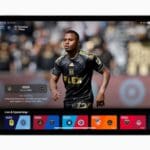
Multiview is a picture-in-picture (PIP) feature that allows you to watch up to four live sports streams simultaneously on your Apple TV screen. You can choose from various layouts, prioritize specific games, and even switch between audio feeds seamlessly. Currently, Multiview is only available for live sports content within the Apple TV app, but hopefully, it will expand to other channels and apps in the future.
Multiview is currently only available on the Apple TV app for select live sports events. This includes major leagues like MLB, NBA, NFL, NHL, MLS, and Friday Night Baseball.
You’ll need an Apple TV 4K running tvOS 16.2 or later.
A stable internet connection is essential for the smooth streaming of multiple games.
How to use Multiview on Apple TV
A particularly exciting feature of Apple TV is Multiview, a tool that enhances the viewing experience by allowing users to watch multiple shows or events simultaneously. Here are the steps that you’ll need to take in order to use MultiView on Apple TV:
Open the Apple TV app and navigate to a live sports event.
Start playing the game in full-screen mode.
Look for the grid icon above the playback bar on the right side of the screen. If the event supports Multiview, you’ll see this icon.
Click the grid icon to minimize the current game into a smaller window.
A list of other available live games will appear below the playback controls.
Select the game you want to add to Multiview.
You can add up to three additional games, bringing your total to four simultaneous streams.
How to Customize Multiview Layout on Apple TV
Apple TV’s Multiview feature has revolutionized the way we watch television, offering the unique capability to view multiple streams simultaneously. However, the true potential of Multiview lies in its customization. Customizing the Multiview layout allows you to tailor your screen according to your preferences, be it for sports, news, entertainment, or any combination of content.
Equal Split: All four games are displayed in equal-sized squares.
Picture-in-Picture: One game is prominently displayed, with the other three shown as smaller thumbnails on the side.
Focus: Choose one game to be the main focus, with the others displayed in smaller windows above or below.
To switch between layouts, simply tap the layout icon in the top right corner of the screen.
How Does Audio Playback Work With Multiview on Apple TV?
Multiview on Apple TV is a game-changer for viewers who love to multitask, offering the ability to watch multiple channels or streams at once. But with multiple videos playing simultaneously, how does audio playback work?
Only the audio from the currently focused game plays by default.
To switch audio focus to another game, simply swipe the Siri Remote touch surface to select it.
You can also long press on the touch surface to bring up a menu where you can rearrange the order of the games or choose an asymmetric view to prioritize one game over the others.
Does Multiview on Apple TV Work With Other Streaming Services?
At the time of this writing, Multiview on Apple TV does not work with other streaming services. Instead, you are limited to only being able to use Multiview with various sporting events. However, there are rumors that Apple is working with partners to make it possible to use Multiview in other video streaming apps, such as YouTube.
Other Tips and Tricks
Using Multiview on Apple TV isn’t just about watching multiple streams at once; it’s about creating an immersive and efficient viewing experience. With that in mind there are a few different tips and tricks to keep in mind when using Multiview on Apple TV.
If you’re using a wired Ethernet connection instead of Wi-Fi, you may experience better streaming performance for multiple games.
Remember, the more games you add to Multiview, the smaller each individual window will become. Consider the size and resolution of your TV when deciding how many games to watch simultaneously.
Multiview is a great feature for keeping track of multiple games, but it can be overwhelming to focus on all of them at once. Choose your games wisely and don’t be afraid to switch between them to catch the highlights.
Conclusion
Apple TV’s Multiview is a powerful tool for sports fans who want to stay on top of all the action. With its intuitive interface and customizable layouts, it’s easy to create the perfect viewing experience for your needs. So grab your popcorn, settle in, and enjoy watching multiple games at once with Multiview!
Andrew Myrick is a freelance writer based on the East Coast of the US. He enjoys everything to do with technology, including tablets, smartphones, and everything in between. Perhaps his favorite past-time is having a never-ending supply of different keyboards and gaming handhelds that end up collecting more dust than the consoles that are being emulated.










Write a Comment