While many of us still rely on third-party installations for apps directly from developers, we have started to see a shift in app distribution on the Mac. After the M1 chip was announced, and because it’s based on the same architecture as the processor found in the iPhone, this opened the door for app developers to release apps on all three platforms.
Instead of wishing that your favorite iPad app developer would release the app for the Mac, you can now download (most of) those apps onto the Mac. But the other problem that needed to be solved came via beta applications through TestFlight. Until now, there was no easy way for developers to release beta versions in the same way that they could on the iPhone or iPad.
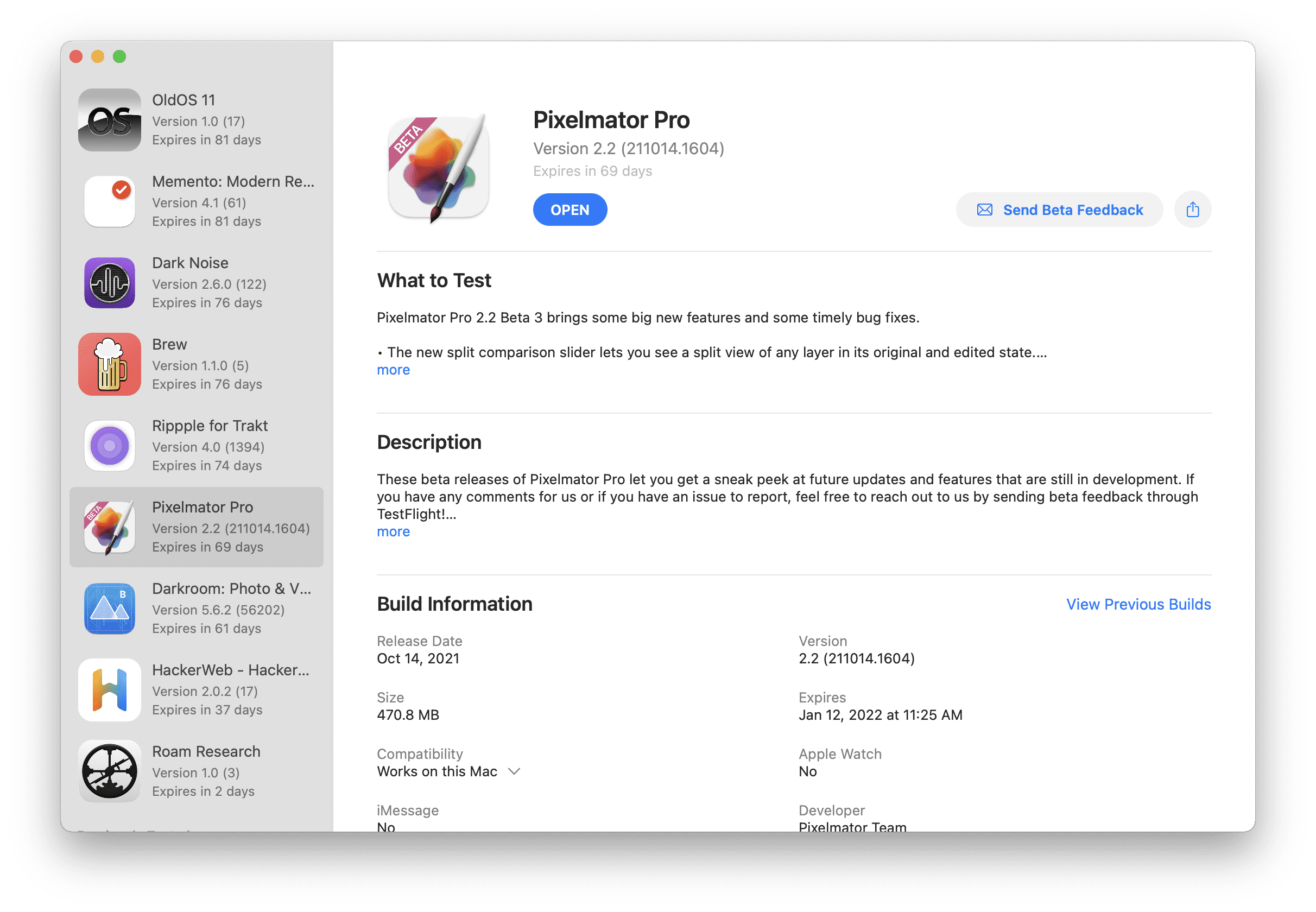
Essentially, TestFlight is an alternative App Store, but it’s not a place where you can search for apps. Instead, whenever you join a TestFlight beta program, the apps that then appear in TestFlight, providing a central location.
The app has been available on the iPhone and iPad for years but has been missing from the Mac. Developers have been relegated to issuing beta applications and updates through their own websites, which could prove to be problematic for an easy testing program.
Sometime after the macOS Monterey announcement, Apple revealed that TestFlight would finally be coming to the Mac. Following that announcement, TestFlight has been available for developer testing, but it has not been available to the general public. That has all changed, as you can finally download TestFlight from the App Store.
How To Use TestFlight for Mac
If you’re interested in TestFlight and trying out some new apps for your Mac, then you’re in luck. The whole process to use TestFlight is pretty straightforward, but here’s a breakdown of how you can join, how to leave feedback, and how to leave a TestFlight beta program.
Join a TestFlight Beta
Joining a TestFlight Beta is a bit of a fickle process. By in large, you have to actually be invited to join the beta program before you can start enjoying newer versions of your apps. But back in 2018, Apple opened things up a bit, as developers are now able to share a public link.
If there is a public link available for a TestFlight beta, you can also join the program from there.
From the invitation email, click the View in TestFlight or Start Testing buttons.
Click Install or Update for the app that you want to begin testing.
For those who are installing a TestFlight beta from a public link, just click either the Install or Update button.
After the app has finished installing, it will appear just like any other app. You can open LaunchPad and view your installed apps, or fire up TestFlight to view and download other apps after you’ve joined the beta program.
Provide Feedback
From a user’s perspective, it’s pretty awesome to be able to test out new features of an app before they are released. But it’s important to remember that these are still beta applications and need to be treated as such.
This means backing up any pertinent information stored within the app, along with providing feedback to the developers. Instead of trying to flag them down on Twitter or sending an email, TestFlight can actually handle any of the beta feedback that you might need to provide. Here’s how you can send feedback for an app through TestFlight:
Open the TestFlight app on your Mac.
Select the app from the list in the sidebar.
Click the Send Beta Feedback button in the main listing.
In the dialog box, add your comments.
You can also add a screenshot by clicking the Attach Screenshot button or dragging and dropping the screenshot in the feedback text field.
Click the Submit button.
Leave A TestFlight Beta Program
Over the course of time, you might run into a situation where the TestFlight is closed, or you are actually removed from the program. One feature of the TestFlight app that helps is that even if you’ve been removed from a beta program, it still appears in the sidebar under the Previously Tested section.
But if there’s a time where you want to remove yourself from the TestFlight beta, you can do that too. Here’s how you can leave a TestFlight beta program from your Mac.
Open the TestFlight app on your Mac.
Select the app from the list in the sidebar.
Scroll to the bottom of the main listing on the right side of the app.
Andrew Myrick is a freelance writer based on the East Coast of the US. He enjoys everything to do with technology, including tablets, smartphones, and everything in between. Perhaps his favorite past-time is having a never-ending supply of different keyboards and gaming handhelds that end up collecting more dust than the consoles that are being emulated.










Write a Comment