Ever wished your phone would stop buzzing and lighting up with alerts while you’re trying to concentrate? Your iPhone can help with that. The built-in Do Not Disturb mode is a one-button press from your control center that prevents notifications from bothering you. The messages and emails still arrive, but you’ll have to check them later. Calls are diverted, allowing you to work in a more focused way – or get some sleep.
Some users have reported that they find their iPhone still vibrating in Do Not Disturb mode. Usually, this is to do with the individual Intelligent Breakthrough settings. In this guide, you’ll learn how to turn Do Not Disturb on and off and how to check that the settings support zero notifications.
Fix iPhone Still Vibrating in Do Not Disturb – Turn Do Not Disturb On
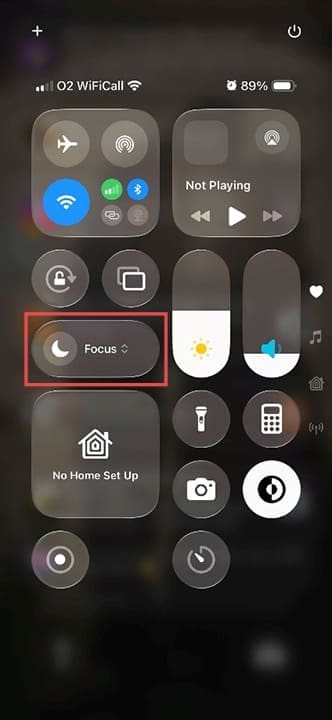
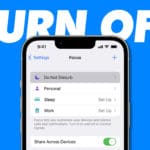
Step 1. The first step is to ensure Do Not Disturb is actually enabled. Because it’s just one button in the control center, it can be easy to tap “off” by accident. Start by swiping down on your device from the top left.
Step 2. Tap the icon that resembles a crescent moon. On the latest software update, this will say “Focus” next to it. On older software versions, it may say Do No Disturb. You’ll now see a menu of Focus options if your software is up to date.
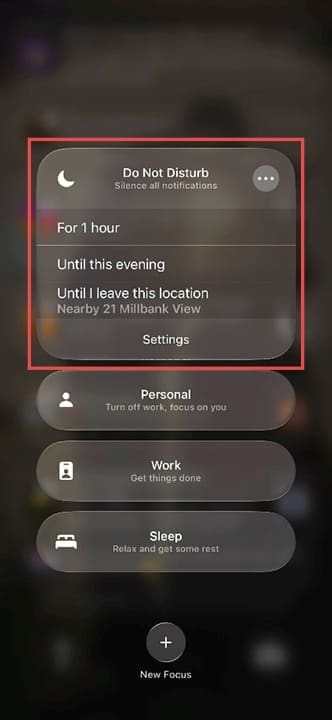
Step 3. Tap on Do Not Disturb, which, in the Focus menu, should be the top option. If you want to set this mode to end automatically, press the three dots icon, then select if you want Do Not Disturb to end in an hour, in the evening, or when you move to another location.
That’s done; you should not receive any notifications, including vibrations, while in Do Not Disturb. Look for a small crescent moon icon at the top of your home screen to confirm it’s on.
Why Is My iPhone Still Vibrating on Do Not Disturb – Intelligent Breakthroughs
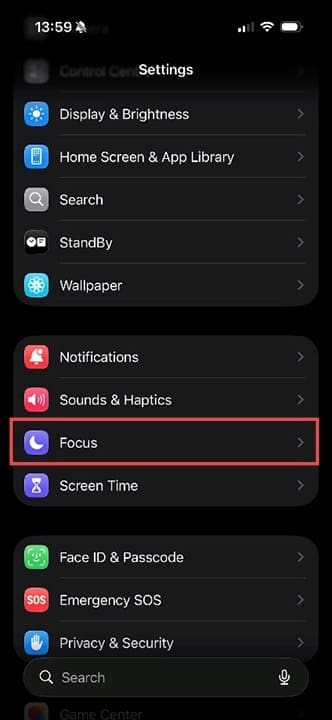
Step 1. If your iPhone is still vibrating while in Do Not Disturb, it could be a problem with your Focus settings. Head to Settings > Focus.
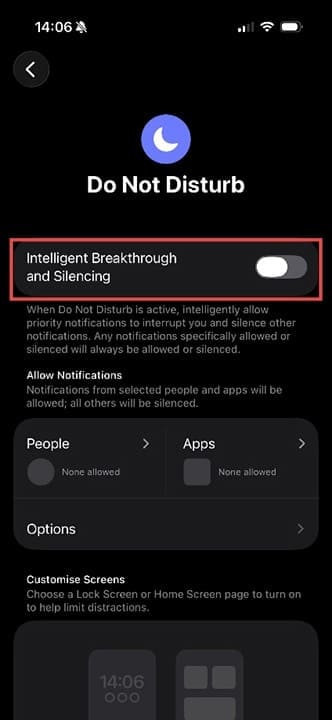
Step 2. Tap Do Not Disturb and check if “Intelligent Breakthrough and Silencing” is on. If the toggle next to this option is green, it may mean that some apps and people will cause your phone to vibrate, even in Do Not Disturb.
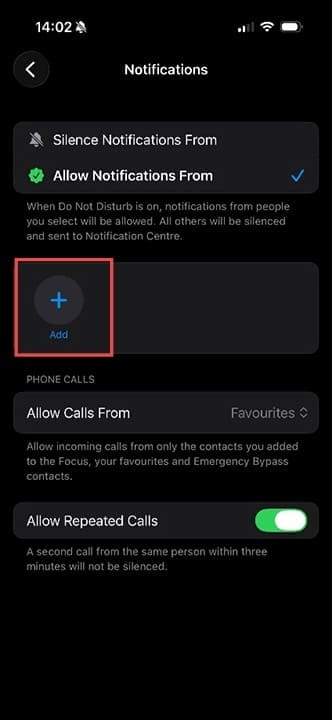
Step 3. Tap on People. Here you can add and remove people. If you add someone, then when they message or email you, you’ll get the notification, even in Do Not Disturb. There’s also the setting to allow a second call from the same person through, in case it’s an emergency.
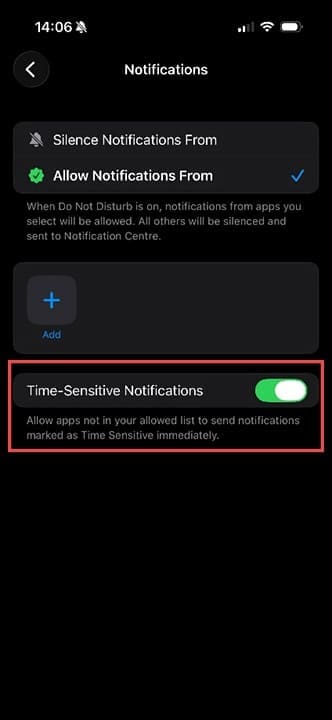
Step 4. Go back to Do Not Disturb settings, then click Apps. Press on “Add” to add apps you want to notify you, regardless of what mode you’re in. At the bottom of the screen, there’s an option to turn time-sensitive notifications on. So, if you receive an email or another notification that requires a prompt response, your iPhone may send this notification through even in Do Not Disturb. It’s worth noting that Apple Intelligence will use its own discretion to decide what is urgent and what isn’t. You may receive notifications about games that need you to “Play now!” as much as emails about work emergencies.
Step 5. To ensure none of these notifications come to you at all during Do Not Disturb, turn Intelligent Breakthrough and Silencing off with the toggle button.
Is your iPhone still vibrating in Do Not Disturb? Try these tips:
Turn the iPhone (or iPad) off and on again.
Turn Do Not Disturb off and on again.
Check whether your software is up to date.
Once you’ve ensured these steps have been completed, you should have total peace when using Do Not Disturb.
As an avid gamer, I’ve run into my fair share of error codes and weird faults that have forced me to find fixes to problems I never anticipated. That gave me a passion for sharing those fixes with others so we can all game without feeling like our hardware is rebelling against us.











Write a Comment