On iOS devices, the home button is the key to operating your iPhone or iPad. This little button is a good representation of why Apple devices are so user friendly. Before the new iOS 13.4, devices featured a physical home button — large, round, and accommodating at the bottom of the screen.
More recent iOS devices have an edge to edge screen and don’t have a physical home button at all. The full-screen iPhones and iPads on iOS 13.4 and above feature a virtual home button, but at times this can disappear altogether.
Apple’s iOS 13.4 was released in late 2019, making it available for compatible devices in March 2020. A few months ago, the tech giant announced a beta 1 for iOS 13.4.5 for the iPhone and iPad.
Devices from iPhone 6s Plus and iPad mini 4 can upgrade to iOS.
This Apple operating system (OS) comes with some major and minor changes that set it aside from its predecessors.
You might be missing the physical home button on older iPhones and iPads, but don’t stress. Though the user experience hasn’t changed much, the new iOS 13.4 doesn’t need you to master coding languages to create a virtual home button on your devices.
It may come as a surprise that the virtual home button you create won’t get stuck in one location on your screen. You can move it to a more ergonomically comfortable spot of your choosing.
Your virtual home button can also be customized to only trigger the commands you chose. You can determine what happens when you single or double-tap the home button, or when you press and hold.
All of these features belong to the AssistiveTouch settings on your iPhone or iPad. Here you’ll be allowed to conjure up an on-screen home button and tweak it to perform your favorite configurations.
What is AssistiveTouch?
AssistiveTouch was included in iOS devices around 2011 and can be used to create a virtual home button. Apple has gone ahead and removed the physical home button on devices like the iPhone X, making AssistiveTouch take on a new role.
Recent Apple devices are favoring the gesture-based home bar over the traditional home button. This has left many users having to relearn how to interact with their devices.
If you find yourself pining for the way things used to be, use AssistiveTouch to create for yourself a virtual, moveable, and personalized home button.
Your AssistiveTouch home button will be shaped like the old one and can be customized for single, double, or long presses.
Locating AssistiveTouch to create a customized home button
Let’s say you have an older iPhone or iPad with an unresponsive physical home button, maybe after upgrading to iOS 13.4. Or it could be that you’ve acquired a new iPhone X series or iPad pro 3rd Generation, and you are not getting along with the gesture-based home bar.
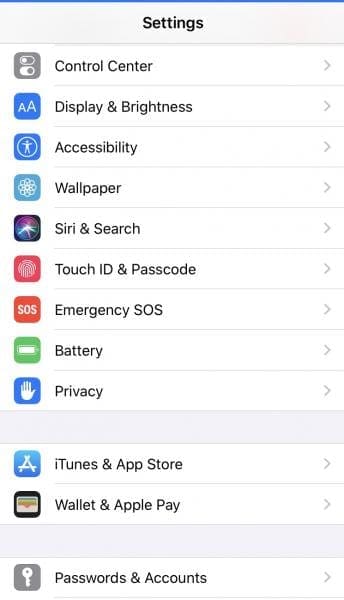
If either scenario fits your device’s description, you can enable a virtual, on-screen home button just like the old physical one. To create this home button, open the Settings app, and navigate to General Settings.
Then scroll down to tap on Accessibility. On Accessibility, find the section labeled Interaction and tap AssistiveTouch.
The next screen shows you a button, dimly defined in the off position. Toggle this button to green, which switches on AssistiveTouch.
On your screen, a white circle within which is a grayscale box will appear. You can resize the box by tapping on the circle for a home button that functions like the old one.
By lightly pressing down on the virtual home button, you can move it around the screen and anchor it in certain spots.
Customizing the on-screen home button on iOS
With the AssistiveTouch home button for iOS 13.4, you have an effective yet simplistic fix for missing on-screen or unresponsive physical buttons. Not only will a virtual home button be relocated around your devices screen, but it’s also more customizable than the original.
Place your home button anywhere you feel like on the screen. But you’ll notice that it skips to the right or left of your location to avoid obstructive any of your home screen icons.
You can fine-tune the performance of your home button once you’ve selected the locale you want it to anchor. Like the physical counterpart, a single tap on the home button opens your devices home screen.
A double-tap will enter multitask mode and display the recently used apps. Long pressing the default virtual home button calls up Siri, while a hard press (3D touch) takes you back Home.
With this feature, however, you are not stuck with default actions, and you can personalize them in the Custom Actions segment.
Single tapping actions
When you select, for instance, Single Tap, you can change what happens when the home button is single tapped. Options to choose from include Control Center, Notifications, Open Menu, Siri, and many others.
Double-tapping actions
Return to Custom Actions and select Double Tap. You can set the durational time outs for double-tapping here, and you can set actions for when the home button is double-tapped.
If you set Siri on double-tap, you can see in the previous screen that it will be listed under the Double Tap selection.
Long Pressing and 3D Touch
Use the same procedure for Long Press and set ApplePay here. Tap on 3D Touch and change the option to control center, and when you go back to the screen, you’ll see the new actions for each press or touch.











Write a Comment