• Skip to primary navigation
  • Skip to main content
  • Skip to primary sidebar
  • Skip to footer

AppleToolBox

Tools and Fixes for Mac, iPad, iPhone & iWatch

Search posts

  • About
  • Contact

CONNECT WITH US

CATEGORIES

  • iPhone
  • iPad
  • iPod
  • Apple Watch
  • Mac/MacBook
  • AirPods
  • Apple TV
  • News
  • Apple Services
  • HomePod
  • Reviews

SITE

  • Home
  • About Us
  • Contact
  • Advertise

Search posts

You are here: Home / Mac / Mac Won’t Recognize Time Machine

Mac Won’t Recognize Time Machine

By Michelle Honeyager 0 comments Last updated March 24, 2022

On the mac forums, there are people reporting that upgrading can affect the Mac recognizing the Time Machine. In this case, the person updated from Catalina to Mojave. They state when they ran Time Machine, it was formatted in MacOS Extended as Case/Journal/Encrypted. They cannot restore from the Time Machine image. They even tried a migration assistant program, which never found the drive and recovery mode tells them the drive has to be in APFS.

Contents

  • How to Troubleshoot the Time Machine when Mac Won’t Recognize It
  • How to Find the Old Files Manually
  • Issues with Newer OS

How to Troubleshoot the Time Machine when Mac Won’t Recognize It

There are a few ways to troubleshoot this issue. Start by making sure the backup disk is connected to the Mac and its power sources firmly, as cords can come loose, and that the backup disk is turned on.

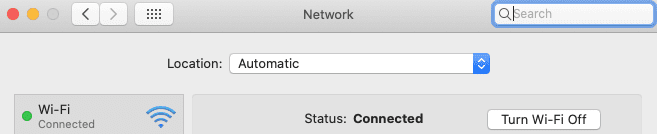
Now, make sure the disk is connecting to the same network and that the network is up. Check the Wi-Fi icon at the top right of the screen or check the network under System Preferences > Network. It should tell you if you’re connected.


You may also need to update and install the recent macOS update, as well as downloading the latest software and firmware for a Time Capsule, if you are using that.

How to Find the Old Files Manually

You might also be able to find old backed-up files with the finder and extract the files that are most needed. Simply open Finder, often on the Dock where the icon looks like a face. You can also find it in the Applications folder. Search in the bar under Backups.backupdb.


Issues with Newer OS

According to Apple’s support pages, upgrading to macOS Monterey can mean that your backups were not upgraded enough with the new system. Newly created backups can only be used on macOS Big Sur or later.

Related Posts:

  • iPhone 15 Pro in hand
    How to Use Journal on iPhone and iPad
  • 2023 Mac Studio lifestyle - 1
    macOS Could Not Be Installed, How-To Fix
  • Manage Open Apps Windows Mac
    Guide to Transfer Data from Windows to Mac
  • Delete-Group-Reminders-Folder-macOS
    MacBook Will Not Start Up After macOS Update, How-To Fix
  • an iphone on a book
    How To Reset the Screen Time Passcode on iOS,…
  • iPhone 15 Pro Max - 1
    What's New in iOS 17.2
  • MacBook Pro 2021 iPad Mini iPhone 13 Pro AirPods 3 Beats Fit Pro iPad Pro Best Apple Products - 5
    How to Downgrade From macOS Ventura to macOS Monterey
  • google assistant on iphone
    How to Use Google Assistant on iPhone for Microsoft Services
  • An iPhone, Mac, and MacBook on a table
    Can You Use Time Machine to Back up Your Mac to…

Reader Interactions

Write a Comment Cancel reply

Primary Sidebar

Recent Posts

  • How to Stop Your Pointer From Moving to Other Macs and Apple Devices
  • What Will Siri AI Bring to Apple Devices?
  • How to Check if Your Device Is Compatible With Siri AI
  • How to Get Rid of Reading List in Safari
  • Gaming Alternatives to Whisky: Which Is Better for Running Windows Games on Mac?
  • How to Hide App Results From Spotlight

Connect with us

Footer

ABOUT

  • About Us
  • Contact us
  • Advertise
  • Privacy
  • Terms of Use

GUIDES

  • iOS & iPadOS
  • Apple ID
  • iCloud
  • App Store
  • iTunes
  • FaceTime
  • iMessage
  • Siri
  • Books and iBooks
  • Game Center
  • AirPlay

CONNECT

  • Facebook
  • Twitter
  • FeedBurner
  • YouTube

© Copyright 2010-2024 Guiding Tech Media · All Rights Reserved

This site and its content are in no way affiliated or endorsed by Apple, Inc. · Reproduction without explicit permission is prohibited

Last Updated on March 24, 2022 by Mitch Bartlett