MacBooks come with a handy keyboard backlight for low-light conditions. These can help you see the keyboard with a pleasant ambient glow that surrounds the keys themselves. This feature means in low light conditions you don’t need a book light, or worse, trying to navigate by the light of the screen. Below we’ll go into how to set the brightness of the keyboard light, which also allows you to turn it on and off.
Turning the Keyboard Light On and Off
The MacBook comes with this feature on as a default, controlled through a light sensor. That means the keyboard light will come on in darker conditions. If you want to turn it off, on the keyboard there are two brightness keys, which are the F5 and F6 keys on the top middle of the MacBook. The F5 key decreases the brightness of the keyboard backlight, and the F6 key increases brightness. To turn off the backlight, just keep holding the F5 key until it is no longer providing light. You can also hit the F6 key until the light comes back on.
If your MacBook has a Touch Bar, you can also control the backlighting through this feature. It’s located at the top of the keyboard. You can expand the Control Strip to the right by tapping the left-facing arrow. Tap the buttons that increase or decrease the keyboard backlight to the setting you want, including if you want it off. The icon to increase lighting is a short horizontal bar with lines radiating out of it. The icon to decrease lighting is the same short horizontal bar surrounded by dots.
You can also go to your MacBook’s Control Center and select Keyboard Brightness. There’s a slider to drag that controls the brightness of the keyboard backlight.
Adjusting the Backlight Through System Preferences
You can also use System Preferences to set backlighting to automatically adjust to ambient lighting so it’s not too bright. To do this:
Select the Apple icon at the top left of the screen.
Select System Preferences.
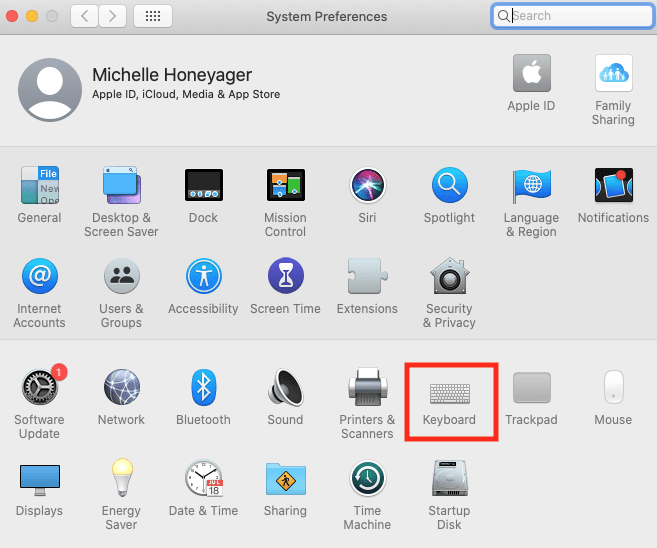
Click on the Keyboard icon.
4. Select Keyboard at the top of the screen.
5. Select Adjust keyboard brightness in low light.
The light sensor is at the top of the MacBook near the camera, so make sure this area is not covered if you use the automatic adjust feature.
You can also use this method to allow the backlighting to turn off after you haven’t been using the computer for a while. In the same screen as above, you also have the option to select Turn keyboard lighting off after [time] of inactivity. A popup menu will help you select the time.
I had the same problem mentioned above, and it concerned me that Apple did not add a shortcut to adjust this. So, I have developed an application that adds the following shortcuts in place: Fn/F2 brighten backlight, and Fn/ F1 darken backlight. Take a look over at https://naden.co/luminescent.html












I had the same problem mentioned above, and it concerned me that Apple did not add a shortcut to adjust this. So, I have developed an application that adds the following shortcuts in place: Fn/F2 brighten backlight, and Fn/ F1 darken backlight. Take a look over at https://naden.co/luminescent.html