• Skip to primary navigation
  • Skip to main content
  • Skip to primary sidebar
  • Skip to footer

AppleToolBox

Tools and Fixes for Mac, iPad, iPhone & iWatch

Search posts

  • About
  • Contact

CONNECT WITH US

CATEGORIES

  • iPhone
  • iPad
  • iPod
  • Apple Watch
  • Mac/MacBook
  • AirPods
  • Apple TV
  • News
  • Apple Services
  • HomePod
  • Reviews

SITE

  • Home
  • About Us
  • Contact
  • Advertise

Search posts

You are here: Home / Mac / macOS: How to Delete Admin User Account

macOS: How to Delete Admin User Account

By Michelle Honeyager 1 comment Last updated May 27, 2022

If someone isn’t using an account anymore or you simply created a different admin account, it might make sense to delete the old admin user account from the computer. Deleting an unused admin account can actually free up storage space and help the Mac run faster from de-cluttering it. You can also make your Mac more secure by streamlining who has admin accounts and access to those admin accounts. Read on to learn how to delete an admin user account on a macOS.

Before You Delete an Admin Account

Keep in mind, you will need another admin account active before you delete a current admin account so you can do things like download items or make other changes to the computer.

To add another admin account:

  1. Click the Apple icon.
  2. Select System Preferences.
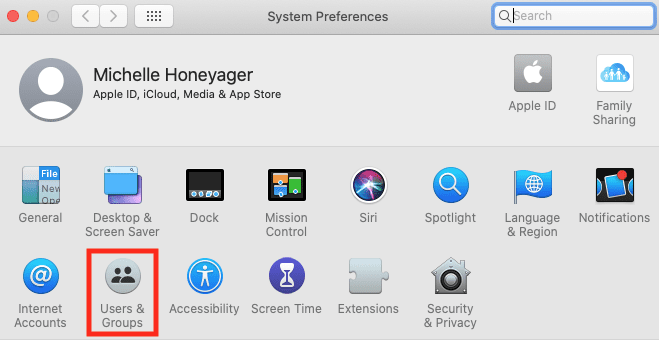
  3. Click Users & Groups.

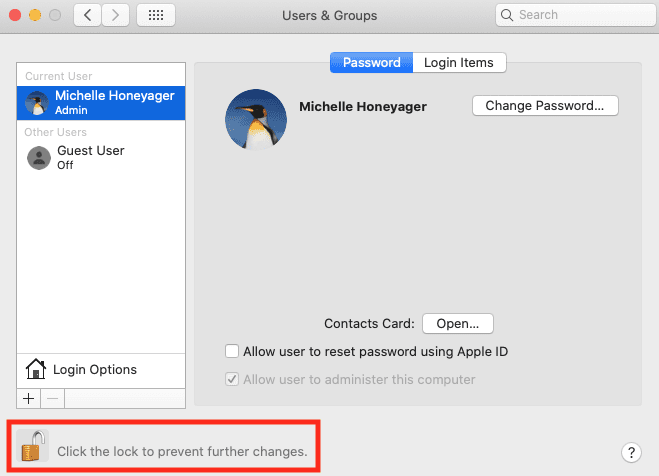
  1. Click the padlock at the bottom to unlock it and make changes. You may need to enter your user name and password.
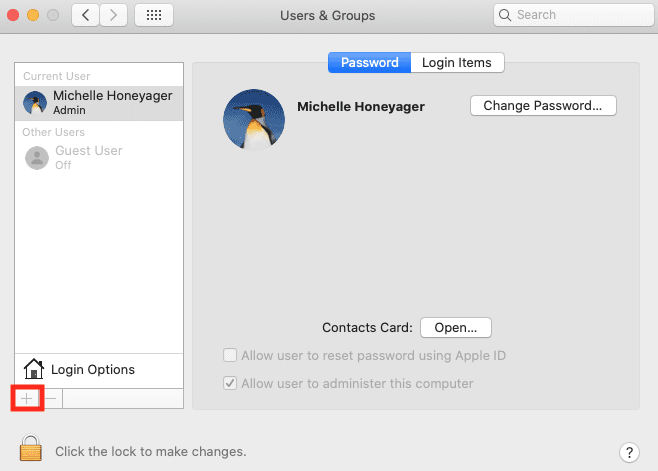
  2. At the bottom of the users list, you’ll see a + button to add new users. Select it.

  1. Follow the prompts to add another administrator account, which you should be able to select in a pop-up menu.
  2. Enter the required information.
  3. Click Create User.

You should also perform some type of backup to save all data you still need from the admin account you are deleting, since you will no longer have access to that account in any way.

How to Delete an Admin Account

  1. Log in to the alternate admin account you want to keep or just set up.
  2. Click on the Apple icon.
  3. Select System Preferences.
  4. Hit Users & Groups.
  5. Click the padlock icon in the bottom left corner if it is in a closed position.
  6. It will prompt you to enter your login details, and then should appear open:

  1. Select the admin user from the list on the left.
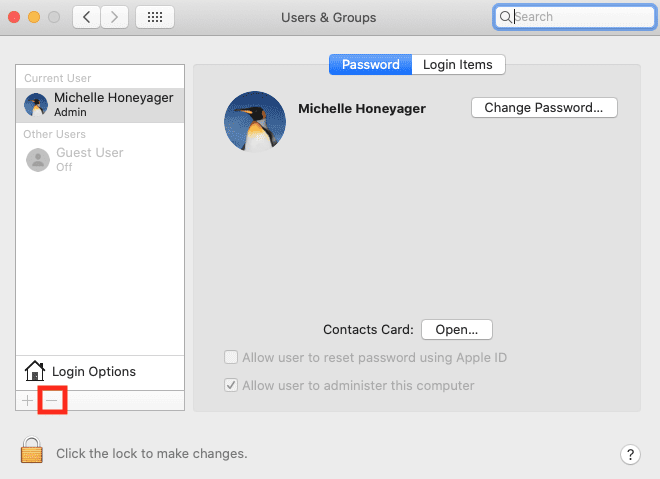
  2. Click the – button on the bottom of the list.
  3. You can now either hit “Save the home folder in a disk image” if you might want to access the account later. Click “Delete the home folder” if you want it gone permanently.
  4. Click Delete User.
  5. You can click the padlock to stop yourself or anyone else from making further changes.

If you need to delete a user account that does not have admin privileges, you can delete it using the same method, by clicking the account in the list in Users & Groups and hitting the – option at the bottom of the list. Then you just need to follow the prompts.

Related Posts:

  • 2023 Mac Studio lifestyle - 1
    macOS Could Not Be Installed, How-To Fix
  • 14 Best Mac Cloud Storage for Home, Work, and School in 2023
    14 Best Mac Cloud Storage for Home, Work, and School in 2023
  • pexels-tima-miroshnichenko-6860464
    How To Start Using Regex With The Shortcuts App
  • pexels-jess-bailey-designs-810079
    How To Run Linux On Mac: A Step-by-Step Guide
  • 2022 Mac Mini with Studio Display and Accessories
    Mac Tips For New Users In 2023
  • pexels-cottonbro-4709285
    How To Learn Swift On Mac And iPad
  • An iPhone, Mac, and MacBook on a table
    Can You Use Time Machine to Back up Your Mac to…
  • iphone and airpods on a table
    These Apps Have the Best iOS 17 Widgets
  • pexels-sanaan-mazhar-2272752
    Workout vs Nike Run Club: Which Is The Best Apple Watch App?

Reader Interactions

Write a Comment Cancel reply

Show 1 Comments

  1. Rick Testra says

    December 3, 2022 at 4:53 PM

    It is not allowing me to select the other admin. The other admin name is greyed out. So #7 and beyond are not possible for me. Any suggestions?

    Reply

Primary Sidebar

Recent Posts

  • How to Hide App Results From Spotlight
  • How to Set Up iCloud Passwords on a Windows PC?
  • How to Turn Off Apple Music’s Dark Mode
  • How to Disable Predictive Text in iOS 26
  • How to Stop Sharing Analytics in iOS 26
  • How to Manage Your iPhone Call Log

Connect with us

Footer

ABOUT

  • About Us
  • Contact us
  • Advertise
  • Privacy
  • Terms of Use

GUIDES

  • iOS & iPadOS
  • Apple ID
  • iCloud
  • App Store
  • iTunes
  • FaceTime
  • iMessage
  • Siri
  • Books and iBooks
  • Game Center
  • AirPlay

CONNECT

  • Facebook
  • Twitter
  • FeedBurner
  • YouTube

© Copyright 2010-2024 Guiding Tech Media · All Rights Reserved

This site and its content are in no way affiliated or endorsed by Apple, Inc. · Reproduction without explicit permission is prohibited