• Skip to primary navigation
  • Skip to main content
  • Skip to primary sidebar
  • Skip to footer

AppleToolBox

Tools and Fixes for Mac, iPad, iPhone & iWatch

Search posts

  • About
  • Contact

CONNECT WITH US

CATEGORIES

  • iPhone
  • iPad
  • iPod
  • Apple Watch
  • Mac/MacBook
  • AirPods
  • Apple TV
  • News
  • Apple Services
  • HomePod
  • Reviews

SITE

  • Home
  • About Us
  • Contact
  • Advertise

Search posts

You are here: Home / Mac / macOS: How to Disable Firewall

macOS: How to Disable Firewall

By Michelle Honeyager 0 comments Last updated December 17, 2022

The firewall on your Mac is a feature that allows the Mac to prevent connections you don’t want from the internet or other networks. It can also protect the Mac from network access or denial-of-service attacks.

You can even configure the firewall for a variety of settings. For instance, you can block all incoming connections, allow built-in software to receive all connections and allow or block access based on user-specified apps. This is all doable through the Security and Privacy window.

To get to the Security & Privacy window and turn off the firewall:

  1. Click the Apple icon.
  2. Select System Preferences.
  3. Click Security & Privacy.

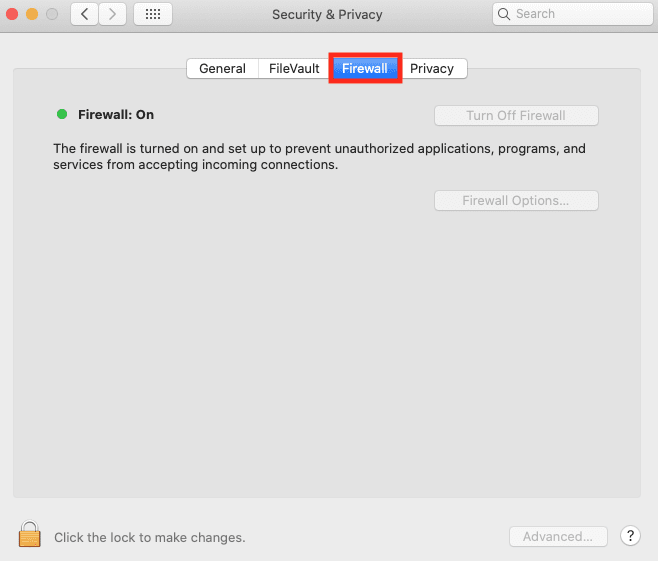
  1. Make sure Firewall is selected at the top.

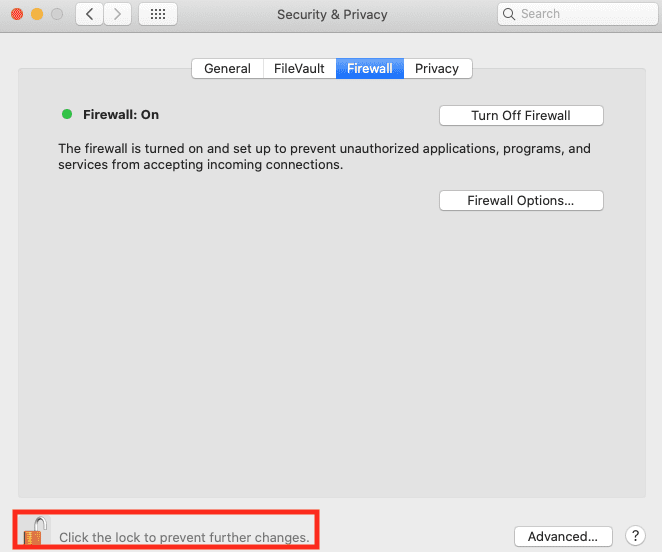
  1. This area will be locked against changes. Click the lock at the bottom of the screen.
  2. You will be required to enter your password. After, the lock will be open and you can make changes.

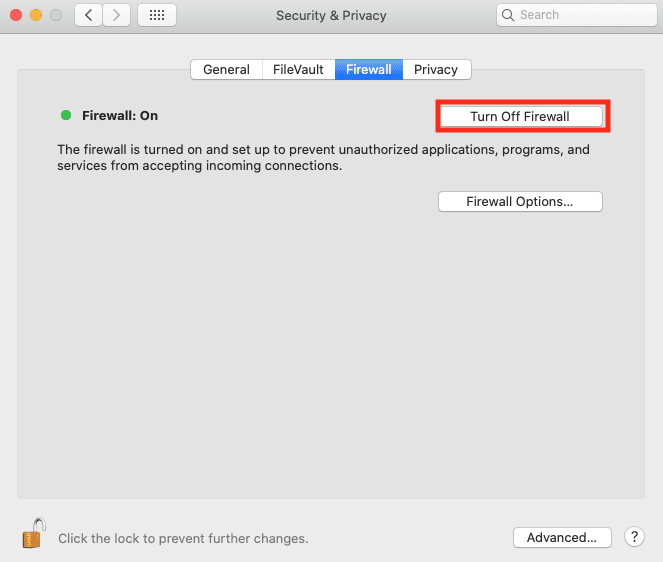
  1. Now click Turn Off Firewall.
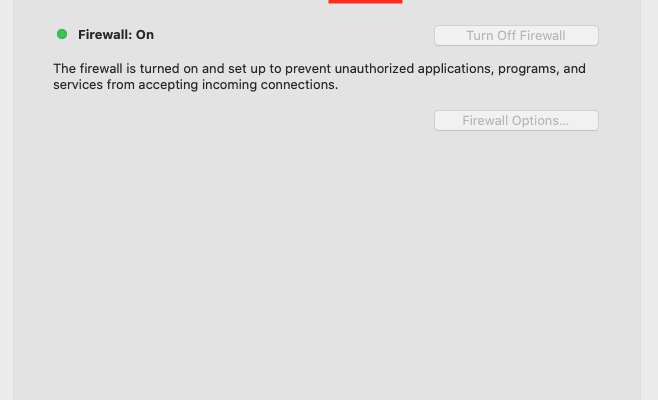
  2. If you want to configure and customize the firewall, you’ll need to have the firewall on and then you can hit Firewall Options.

  1. Check which options you wish to enable or disable.
  2. After you are done, click the lock on the Security & Privacy window to prevent further changes.

If you’re running Ventura, you’ll need to access the firewall controls through the Apple menu > System Settings > Network on the sidebar > Firewall.
Related Posts:

  • 2023 Mac Studio lifestyle - 1
    macOS Could Not Be Installed, How-To Fix
  • pexels-arif-kemal-köroğlu-5332291
    Mac Firewall: What Is It, Do You Need It, How To Use It?
  • Mail app macOS Ventura WWDC 2022
    Mail: Fix "Your Network Settings Prevent Content…
  • Excel Lock Header
    How to Password Protect an Excel File on Mac (With…
  • sidecar on iPadOS and macOS
    Sidecar not working in iPadOS and macOS? How to fix…
  • 2022 Mac Mini with Studio Display and Accessories
    Mac Tips For New Users In 2023
  • Delete-Group-Reminders-Folder-macOS
    MacBook Will Not Start Up After macOS Update, How-To Fix
  • pexels-marc-mueller-380769
    macOS vs Linux: An In-depth Comparison
  • Update Apple ID settings on your iPhone, iPad, or Mac after changing your password
    Getting a Message to Update Apple ID Settings on…

Reader Interactions

Write a Comment Cancel reply

Primary Sidebar

Recent Posts

  • Are Apple’s Safety Precautions Enough for AirTags?
  • How to Hide Username and Photo on the Mac Lock Screen
  • Microsoft Resume vs. Apple Handoff – Which Wins for Cross-Device Work?
  • How to Export iTunes Library to New Computer
  • What the Gemini Desktop App Will Bring to Mac
  • What to Do When Windows 11 Won’t Detect Your iPad

Connect with us

Footer

ABOUT

  • About Us
  • Contact us
  • Advertise
  • Privacy
  • Terms of Use

GUIDES

  • iOS & iPadOS
  • Apple ID
  • iCloud
  • App Store
  • iTunes
  • FaceTime
  • iMessage
  • Siri
  • Books and iBooks
  • Game Center
  • AirPlay

CONNECT

  • Facebook
  • Twitter
  • FeedBurner
  • YouTube

© Copyright 2010-2024 Guiding Tech Media · All Rights Reserved

This site and its content are in no way affiliated or endorsed by Apple, Inc. · Reproduction without explicit permission is prohibited