• Skip to primary navigation
  • Skip to main content
  • Skip to primary sidebar
  • Skip to footer

AppleToolBox

Tools and Fixes for Mac, iPad, iPhone & iWatch

Search posts

  • About
  • Contact

CONNECT WITH US

CATEGORIES

  • iPhone
  • iPad
  • iPod
  • Apple Watch
  • Mac/MacBook
  • AirPods
  • Apple TV
  • News
  • Apple Services
  • HomePod
  • Reviews

SITE

  • Home
  • About Us
  • Contact
  • Advertise

Search posts

You are here: Home / Mac / macOS: How to Disable IPv6

macOS: How to Disable IPv6

By Michelle Honeyager 0 comments Last updated December 28, 2022

IPv6, short for Internet Protocol Version 6, is a network layer protocol that enables communication over a network. It’s essentially a longer way of listing IP addresses, making more IP addresses available as more people around the globe access the internet. It’s known for greater reliability, efficiency, faster speeds and greater security.

So why would you want to disable it? The original IPv4 is still widely used. Unfortunately, IPv4 and IPv6 machines cannot directly communicate. IPv6 can also cause connectivity issues, especially under certain ISPs. Read on to learn how to turn off IPv6 on a Mac.

How to Disable IPv6 on the Mac through System Preferences

  1. Click the Apple icon on the top left of the screen.
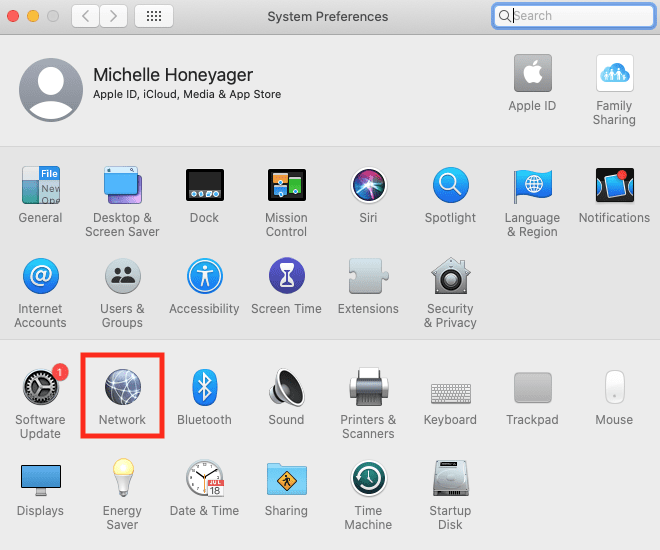
  2. Select System Preferences.
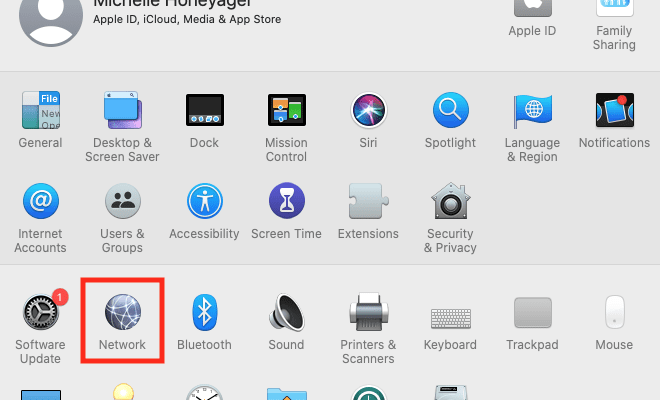
  3. Click the Network icon.

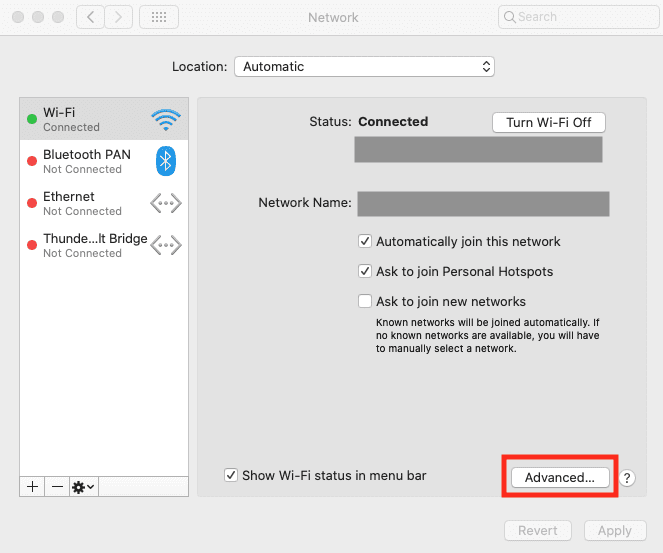
  1. Make sure you have the network selected that you are using. It’s usually labeled as your Wi-Fi.
  2. Click advanced.

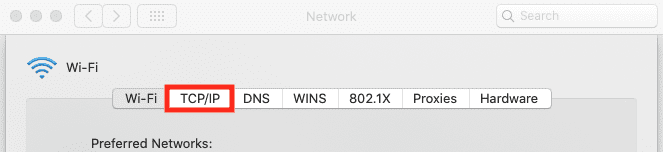
  1. Select the TCP/IP tab at the top.

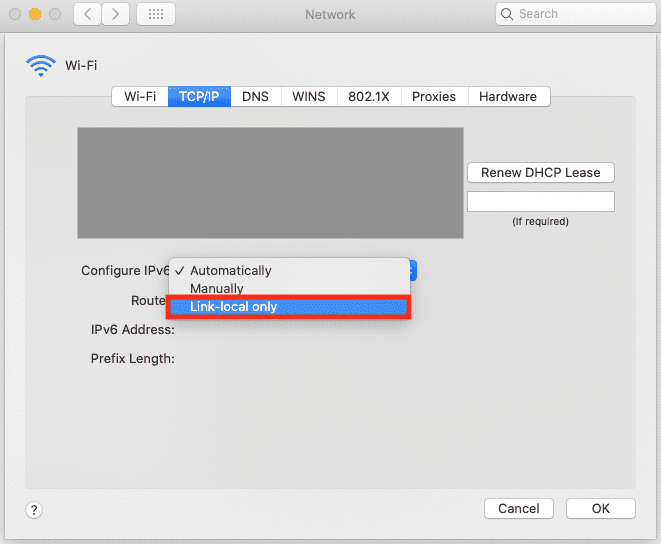
  1. You’ll see a line that says Configure IPv6. By default, it’s set to Automatically. Set it to Link-local only, which sets the computer to only use IPv6 within your home, not on the internet. Some MacOS versions may even simply allow you to select Off as an option. See below to use Terminal to set IPv6 off if the option is not on the drop-down menu.

  1. Click Ok.
  2. You should then restart your Mac.

Disabling IPv6 Using Terminal

You can also use commands via the Terminal. If your Mac version does not have an Off selection in the System Preferences screen, you can also use the commands below to turn IPv6 off entirely.

Simply go to Finder > Go > Applications > Utilities Folder > Terminal. Then run the following command by typing or copying/pasting it in and hitting enter:

sudo networksetup -listallnetworkservices 

You may be asked to put in your administrator password in the Terminal. Once completed, this will tell you if you are running Ethernet or Wi-Fi. Run the appropriate command based on your connectivity:
sudo networksetup -setv6off Ethernet
sudo networksetup -setv6off Wi-Fi

To turn the IPv6 back on, use the following commands:

sudo networksetup -setv6automatic Wi-Fi
sudo networksetup -setv6automatic Ethernet

Related Posts:

  • 2023 Mac Studio lifestyle - 1
    macOS Could Not Be Installed, How-To Fix
  • 2022 Mac Mini with Studio Display and Accessories
    Mac Tips For New Users In 2023
  • Delete-Group-Reminders-Folder-macOS
    MacBook Will Not Start Up After macOS Update, How-To Fix
  • sidecar on iPadOS and macOS
    Sidecar not working in iPadOS and macOS? How to fix…
  • pexels-jess-bailey-designs-810079
    How To Run Linux On Mac: A Step-by-Step Guide
  • pexels-marc-mueller-380769
    macOS vs Linux: An In-depth Comparison
  • pexels-cottonbro-4709285
    How To Learn Swift On Mac And iPad
  • pexels-cottonbro-5082579
    Getting Started With iOS 15: Everything Good And Bad
  • iphone SE 2022
    iPhone SE Review 2022: Everything You Need to Know

Reader Interactions

Write a Comment Cancel reply

Primary Sidebar

Recent Posts

  • How to Disable Predictive Text in iOS 26
  • How to Stop Sharing Analytics in iOS 26
  • How to Manage Your iPhone Call Log
  • Are Apple’s Safety Precautions Enough for AirTags?
  • How to Hide Username and Photo on the Mac Lock Screen
  • Microsoft Resume vs. Apple Handoff – Which Wins for Cross-Device Work?

Connect with us

Footer

ABOUT

  • About Us
  • Contact us
  • Advertise
  • Privacy
  • Terms of Use

GUIDES

  • iOS & iPadOS
  • Apple ID
  • iCloud
  • App Store
  • iTunes
  • FaceTime
  • iMessage
  • Siri
  • Books and iBooks
  • Game Center
  • AirPlay

CONNECT

  • Facebook
  • Twitter
  • FeedBurner
  • YouTube

© Copyright 2010-2024 Guiding Tech Media · All Rights Reserved

This site and its content are in no way affiliated or endorsed by Apple, Inc. · Reproduction without explicit permission is prohibited

Last Updated on December 28, 2022 by Mitch Bartlett