• Skip to primary navigation
  • Skip to main content
  • Skip to primary sidebar
  • Skip to footer

AppleToolBox

Tools and Fixes for Mac, iPad, iPhone & iWatch

Search posts

  • About
  • Contact

CONNECT WITH US

CATEGORIES

  • iPhone
  • iPad
  • iPod
  • Apple Watch
  • Mac/MacBook
  • AirPods
  • Apple TV
  • News
  • Apple Services
  • HomePod
  • Reviews

SITE

  • Home
  • About Us
  • Contact
  • Advertise

Search posts

You are here: Home / Mac / macOS: How to Install PIP

macOS: How to Install PIP

By Michelle Honeyager 0 comments Last updated September 16, 2022

PIP is a package management system that helps install and manage software packages and libraries used in the programming language Python. Luckily, installing it can be done using some command lines, which we’ll go over below:

How to Install PIP in the Mac Using Command Lines

You can download PIP directly using a command line in the Terminal:

  1. Press the Command key and the space bar to open Spotlight.
  2. Type in Terminal.

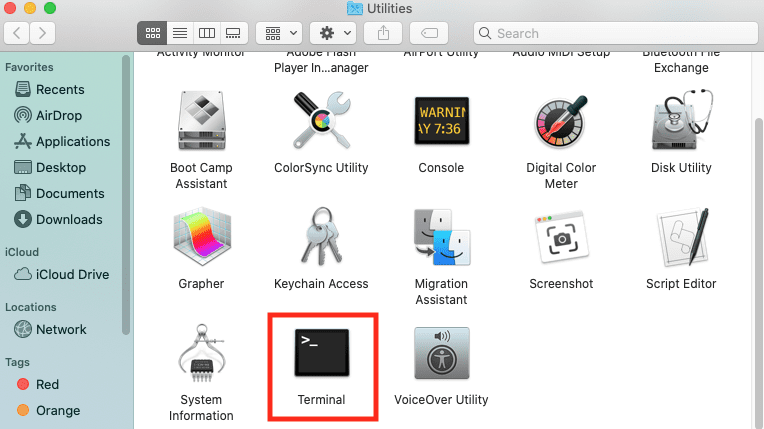
  1. Hit enter. That will load Terminal.
  2. You can also hit Go at the top menu, then Utilities > Terminal.
  3. Enter this command into the Terminal to download PIP directly to your Mac:
curl https://bootstrap.pypa.io/get-pip.py -o get-pip.py

     6.   Execute the download by using this command:

python3 get-pip.py

Now you just have to wait for installation to complete.

Related Posts:

  • 2023 Mac Studio lifestyle - 1
    macOS Could Not Be Installed, How-To Fix
  • pexels-cottonbro-4709285
    How To Learn Swift On Mac And iPad
  • sidecar on iPadOS and macOS
    Sidecar not working in iPadOS and macOS? How to fix…
  • Update Apple ID settings on your iPhone, iPad, or Mac after changing your password
    Getting a Message to Update Apple ID Settings on…
  • How to Disable the Login Password on Mac
    My Mac Won't Start or Boot: How To Fix White Screen
  • How to use ChatGPT on iPhone and iPad - Hero
    How to Use ChatGPT on iPhone and iPad
  • Delete-Group-Reminders-Folder-macOS
    MacBook Will Not Start Up After macOS Update, How-To Fix
  • Games coming to macOS Sonoma
    How to Play Windows Games on Mac
  • iOS 16 Unsend Messages on Your On Your iPhone
    No Text or Message Notification Alerts or Sounds on…

Reader Interactions

Write a Comment Cancel reply

Primary Sidebar

Recent Posts

  • How to Set Up iCloud Passwords on a Windows PC?
  • How to Turn Off Apple Music’s Dark Mode
  • How to Disable Predictive Text in iOS 26
  • How to Stop Sharing Analytics in iOS 26
  • How to Manage Your iPhone Call Log
  • Are Apple’s Safety Precautions Enough for AirTags?

Connect with us

Footer

ABOUT

  • About Us
  • Contact us
  • Advertise
  • Privacy
  • Terms of Use

GUIDES

  • iOS & iPadOS
  • Apple ID
  • iCloud
  • App Store
  • iTunes
  • FaceTime
  • iMessage
  • Siri
  • Books and iBooks
  • Game Center
  • AirPlay

CONNECT

  • Facebook
  • Twitter
  • FeedBurner
  • YouTube

© Copyright 2010-2024 Guiding Tech Media · All Rights Reserved

This site and its content are in no way affiliated or endorsed by Apple, Inc. · Reproduction without explicit permission is prohibited

Last Updated on September 16, 2022 by Mitch Bartlett