There’s nothing worse than trying to get things done on your Mac and something freezes up. Sometimes it’s the infamous spinning pinwheel of death or a certain functionality or program can freeze. A more localized issue is when the icons themselves are frozen on the Mac. This can prevent you from actually saving anything. Below we’ll explore the issue, its causes and how to fix the problem.
Not Being Able to Save on a Mac When the Icons Are Frozen
Frozen icons can cause problems when actually saving to the Mac. As explained in the Apple forums, you might notice that when you are trying to save, everything works somewhat normally. You hit save and the usual pop-up screen shows that allows you to put the document you want into the folders. For instance, if you were trying this in a Word document, the screen might look like this:
Then trying to save gets odd. You try to select which folder to save the item in and save it, but the folder select option and save button are frozen. Users report having to force quit at this point.
How to Fix Frozen Icons on the Mac Using Safe Boot
There is a simple workaround for this problem in the short term. You can perform a Safe Boot. A Safe Boot switches your Mac into Safe Mode. This feature allows you to power up your computer when there is a system problem in a way that is safer for the machine. This operation can also help the system resolve any issues that may be causing problems like the frozen icons.
Safe Mode does a few tasks to help troubleshoot any issues that may be coming from the system itself. When you boot up in Safe Mode, the system:
Prevents software from staring up at the booting up process. It may stop items like logins, system extensions that are not essential to running the machine and certain fonts.
Runs a first aid check on the Mac’s startup disk.
Deletes certain system caches.
All these functionalities can help troubleshoot the issue if it’s being caused by the system itself.
To perform a Safe Boot, simply:
Hit the power button to turn on your Mac.
Hit and hold down the Shift key as your Mac is booting up when the power up tone sounds.
When you see the login screen or main screen you can release the shift key.
Log in if needed, you may need to do this more than once.
You should see the screen labeled as Safe Boot on the top right of the screen.
At this point, you should try to save whatever you are saving in Safe Mode to see if the problem is still occurring. If it does not occur in Safe Mode, then you are safe to turn off the computer and restart it as you normally would. You can then try to save a document again and see if the icons are working in the regular mode. If they are, Safe Mode was an effective troubleshoot for the issue.
Other Fixes for Frozen Icons on the Mac
If Safe Boot does not fix this issue, then you might have to do a few other fixes.
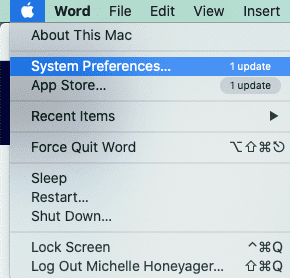
First, make sure your Apple software and other third-party apps are up to date. You can check this by selecting the apple icon at the top left of your Mac screen. That menu will show any required updates. For instance, I have a couple updates showing at the moment:
Third-party apps have different ways of checking for updates. For instance, in Microsoft Office, Check for Updates shows under the Help menu.
If updating everything doesn’t work, reinstall your macOS. There are a number of ways to go about reinstalling your OS. You can check out all the ways to do that in our guide.
What Can Cause Mac Freezes?
There are many issues that can cause Mac freezes, but in general, some of the most common issues include:
Too many active apps running at the same time
Too many background processes that are going
The app itself crashed
Too many active tabs on a browser or simply needing to clear a browser cache
macOS needs an update
You need more hard drive space
Hardware problem
Malware
Cluttered desktop
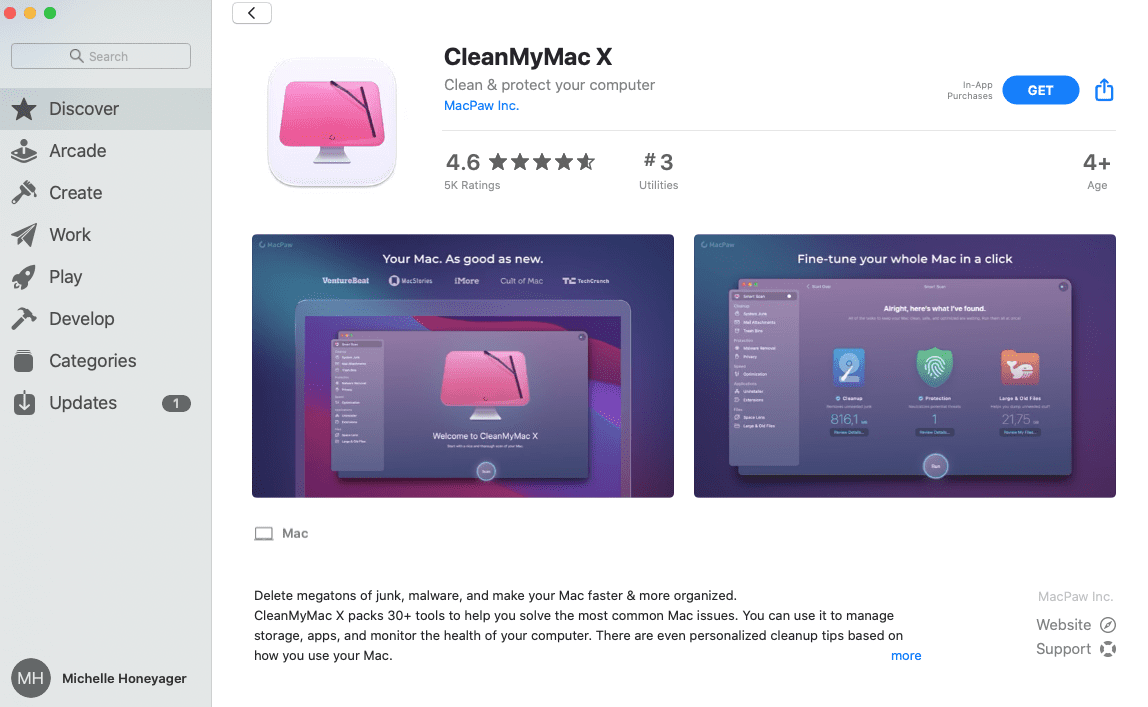
To help your Mac perform at its best, in addition to keeping everything updated to its latest version as mentioned above, you might also want to try the popular CleanMyMac X app. You can find it through the Apple Store:
It’s free, but may require in-app purchases. As you can see above, it removes the junk, malware and other issues in your system. It also helps with storage, helps you manage apps and offers cleanup tips based on your Mac use.












Write a Comment