• Skip to primary navigation
  • Skip to main content
  • Skip to primary sidebar
  • Skip to footer

AppleToolBox

Tools and Fixes for Mac, iPad, iPhone & iWatch

Search posts

  • About
  • Contact

CONNECT WITH US

CATEGORIES

  • iPhone
  • iPad
  • iPod
  • Apple Watch
  • Mac/MacBook
  • AirPods
  • Apple TV
  • News
  • Apple Services
  • HomePod
  • Reviews

SITE

  • Home
  • About Us
  • Contact
  • Advertise

Search posts

You are here: Home / iPhone / How to Make a Photo Collage on iPhone Without App

How to Make a Photo Collage on iPhone Without App

By Mehvish 0 comments Last updated October 3, 2024

Quick Tips
  • It can be done using the pre-installed Shortcuts app, where you must use the Photo Grid shortcut.
  • Or use Apple’s Freeform app to create collages on your iPhone.

Contents

  • Method 1: Using the Shortcuts App
  • Method 2: Using the Freeform App
  • What Are the Best Collage Apps for iPhones?

Method 1: Using the Shortcuts App

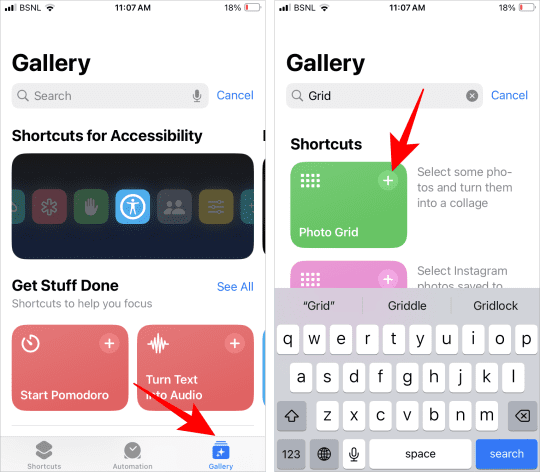
  1. Open the pre-installed Shortcuts app on your iPhone.
  2. Tap on the Gallery tab at the bottom and type Grid in the search bar. Tap the + icon on the Photo Grid shortcut.
 

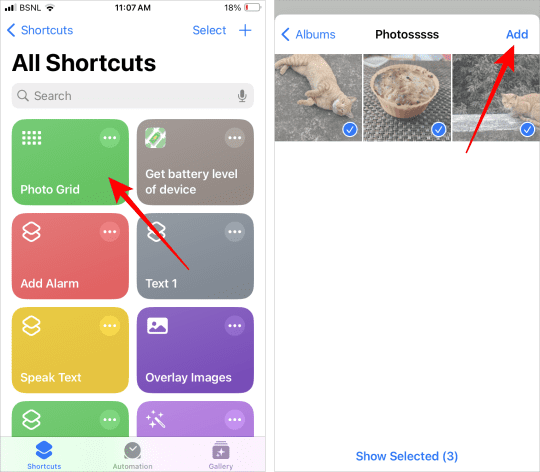
  1. Go to the Shortcuts tab and tap on Photo Grid. Select the photos you want to use in the order in which you want them to appear and tap on Add.
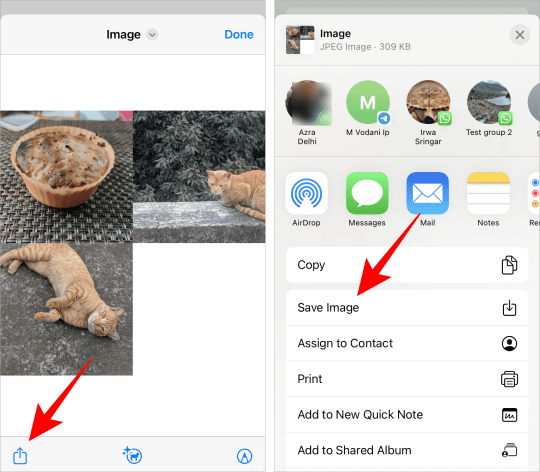
  1. The collage preview will show up. Now, tap on the Share icon and select Save Image. The collage will be saved in the Photos app.
Pros:

  • Can join many pictures
  • Free and fast

Cons:

  • Cannot customize the size
  • Cannot select what part of the image should show in the collage.

Tip: Check out some other useful shortcuts for iPhone users

Method 2: Using the Freeform App

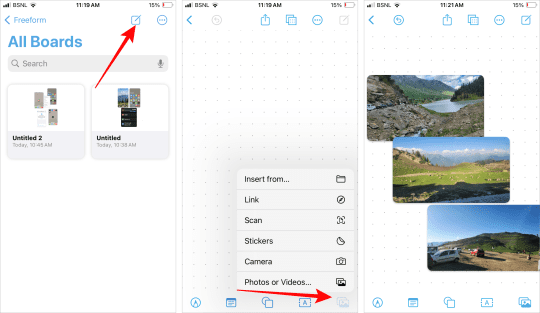
  1. Open the Freeform app on your iPhone if it is pre-installed.
  2. Tap on the Pencil (Edit) icon at the top to open the canvas.
  3. Tap the Photo icon at the bottom and select Photos or Videos. Then, choose the photos for your collage and press the Add button.
  4. Tap anywhere outside the photos to remove the group selection. Then, tap on individual photos and drag to rearrange them on the canvas.
  5. When done, take a screenshot to save the collage. You must crop the screenshot in the Photos app to remove the Freeform app interface.
Pro Tip: Tap on the two square icons at the top and select Hide grid to get a white background.

Pros:

  • Can adjust the size and position of images
  • Free

Cons:

  • Might not be pre-installed
  • Cannot save the collage directly

What Are the Best Collage Apps for iPhones?

If the above two methods do not help create a collage on iPhone, you can try free third-party apps. Here are some good ones:

  • InShot
  • Google Photos
  • Canva
  • PicsArt
  • Layout from Instagram
  • PicCollage
  • PhotoGrid

Related Posts:

  • iPhone 15 Pro Max - 1
    10 Handy Apple Shortcuts You Can Use Every Day
  • pexels-designecologist-1779487
    The Best iPhone And Mac Shortcuts For Beginners
  • Photo of person sleeping after saving so much time with the best Automator routines for Mac
    The Best iPhone Shortcuts (2021 Edition)
  • 15 Essential Safari Extensions for Mac in 2023
    15 Essential Safari Extensions for Mac in 2023
  • 14 Best Mac Cloud Storage for Home, Work, and School in 2023
    14 Best Mac Cloud Storage for Home, Work, and School in 2023
  • 10 Best PowerPoint Alternatives for Mac in 2023
    10 Best PowerPoint Alternatives for Mac in 2023
  • pexels-ola-dapo-3345882
    The Best iPhone And Mac Shortcuts For Pros
  • 10 Best Hidden Camera Detector Apps for iPhone
    10 Best Hidden Camera Detector Apps for iPhone
  • IMG_2654
    How To Start Using The iPhone Shortcuts App
Mehvish
Mehvish

Mehvish Mushtaq is a computer engineer by degree. Her love for Android and gadgets led her to develop the first Android app for Kashmir. Known as Dial Kashmir, she won the prestigious Nari Shakti award from the President of India. She has been writing about technology for 6+ years and her favorite categories include how-to guides, explainers, tips and tricks for iOS/iPadOS, Android, social media, and web apps.

Reader Interactions

Write a Comment Cancel reply

Primary Sidebar

Recent Posts

  • How to Set Up iCloud Passwords on a Windows PC?
  • How to Turn Off Apple Music’s Dark Mode
  • How to Disable Predictive Text in iOS 26
  • How to Stop Sharing Analytics in iOS 26
  • How to Manage Your iPhone Call Log
  • Are Apple’s Safety Precautions Enough for AirTags?

Connect with us

Footer

ABOUT

  • About Us
  • Contact us
  • Advertise
  • Privacy
  • Terms of Use

GUIDES

  • iOS & iPadOS
  • Apple ID
  • iCloud
  • App Store
  • iTunes
  • FaceTime
  • iMessage
  • Siri
  • Books and iBooks
  • Game Center
  • AirPlay

CONNECT

  • Facebook
  • Twitter
  • FeedBurner
  • YouTube

© Copyright 2010-2024 Guiding Tech Media · All Rights Reserved

This site and its content are in no way affiliated or endorsed by Apple, Inc. · Reproduction without explicit permission is prohibited

Last Updated on October 3, 2024 by Nick