• Skip to primary navigation
  • Skip to main content
  • Skip to primary sidebar
  • Skip to footer

AppleToolBox

Tools and Fixes for Mac, iPad, iPhone & iWatch

Search posts

  • About
  • Contact

CONNECT WITH US

CATEGORIES

  • iPhone
  • iPad
  • iPod
  • Apple Watch
  • Mac/MacBook
  • AirPods
  • Apple TV
  • News
  • Apple Services
  • HomePod
  • Reviews

SITE

  • Home
  • About Us
  • Contact
  • Advertise

Search posts

You are here: Home / iPad / Netflix Error 139 on Your Apple Device? How-To Fix

Netflix Error 139 on Your Apple Device? How-To Fix

By Andrew Martin 1 comment Last updated August 4, 2016

Netflix on your iPhone, iPad or iPod shows a message saying that a problem occurred while playing and the notification is error 139.   Error 139 indicates that there may be some problem with Netflix itself or your internet connection.

netflix

Luckily, this error is easily  resolved by trying some troubleshooting measures.

So without further ado, let’s get error 139 resolved!

Contents

  • Check Your Internet Connection Causing Error 139
  • Try a Different Network 
  • Reboot Your Device
  • Troubleshoot Netflix Connection for Error 139
    • If Netflix still isn’t responding, uninstall and then reinstall Netflix
  • Summary

Check Your Internet Connection Causing Error 139

Error 139 most likely is the result of a bad internet connection. Find out by opening some other website. If it does not load or takes a lot of time to load, then you have a connection issue. Disconnect your wifi, wait 30 seconds, and reconnect it.

Then try to play the video on Netflix. If the connection is good, the error should not appear again.

Try a Different Network 

It’s possible that the configuration settings on your network may cause the problem.  Try connecting to a different network to see if the error goes away.

Go to Settings > Wifi and select a different Wifi connection and connect with it by entering password, if it requires one.

Once connected, go back to Netflix and try to run your video.  If the connection is good, the error should not appear again.

Reboot Your Device

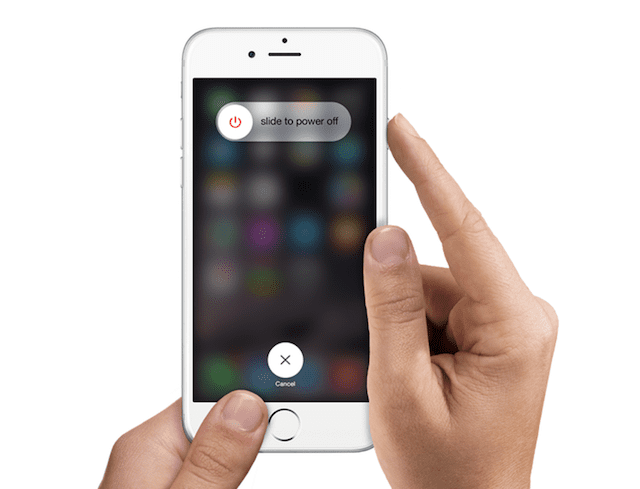
Another simple way to get rid of the error 139 on Netflix is to reboot your device. Simply turn off your Apple device and wait for 30 seconds then turn it back on again.

source: apple
source: apple

Once it reboots, head to Netflix and run your video. You will most likely not run into the error again.

Troubleshoot Netflix Connection for Error 139

If you still see the error, it means that there is a problem connecting to Netflix. To troubleshoot your connection with Netflix, try the following options:

  • Check if the date and time of your device is accurate because if the time and date is off from the current time and date, then video on Netflix might not play. Simply head to Settings > General > Date & Time and adjust time either manually or by choosing a time zone
  • Update to the latest version of Netflix.  See if that works

netflix app icon

If Netflix still isn’t responding, uninstall and then reinstall Netflix

  • Delete the app by holding the icon for few seconds and then removing it
  • Go to the App Store and download and install Netflix
    • You will be generally required to provide your iTunes password
  • Once reinstalled, enter your Netflix credentials and access the video
    • The new version should not have any connection issues and should run videos seamlessly

Summary

Error 139 will most likely resolve with a faster connection and a refresh of the app. Whether you are using an iPhone, iPad or iPod Touch, all these methods should work so you continue to enjoy your shows and movies on Netflix!

Related Posts:

  • Netflix logo on a TV screen
    Netflix App Not Working on iPhone or iPad: How to Fix
  • 2023 Mac Studio lifestyle - 1
    macOS Could Not Be Installed, How-To Fix
  • Netflix logo on a TV screen
    What to Do if Netflix Is Not Compatible with Your iPad
  • pexels-designecologist-1779487
    The Best iPhone And Mac Shortcuts For Beginners
  • sidecar on iPadOS and macOS
    Sidecar not working in iPadOS and macOS? How to fix…
  • Photo of someone using Apple Music on their smartphone
    How to Fix Apple Music Not Working on iPhone / iPad
  • How to Fix iCloud Backup Error An Unknown Error Occurred in 7 Best Ways
    How to Fix iCloud Backup Error: An Unknown Error…
  • pexels-rodnae-productions-7915313
    Trying Out the Best Apple Arcade Games for 2021
  • How to Find Lost AirPods Pro 2 with Precision Finding - Locate earbud
    I Lost My AirPods! How To Find Your Lost AirPods or…

Reader Interactions

Write a Comment Cancel reply

Show 1 Comments

  1. Barbara Robel says

    April 29, 2021 at 5:58 AM

    Netflix and other apps did not come back on my new phone I phone 12

    Reply

Primary Sidebar

Recent Posts

  • Are Apple’s Safety Precautions Enough for AirTags?
  • How to Hide Username and Photo on the Mac Lock Screen
  • Microsoft Resume vs. Apple Handoff – Which Wins for Cross-Device Work?
  • How to Export iTunes Library to New Computer
  • What the Gemini Desktop App Will Bring to Mac
  • What to Do When Windows 11 Won’t Detect Your iPad

Connect with us

Footer

ABOUT

  • About Us
  • Contact us
  • Advertise
  • Privacy
  • Terms of Use

GUIDES

  • iOS & iPadOS
  • Apple ID
  • iCloud
  • App Store
  • iTunes
  • FaceTime
  • iMessage
  • Siri
  • Books and iBooks
  • Game Center
  • AirPlay

CONNECT

  • Facebook
  • Twitter
  • FeedBurner
  • YouTube

© Copyright 2010-2024 Guiding Tech Media · All Rights Reserved

This site and its content are in no way affiliated or endorsed by Apple, Inc. · Reproduction without explicit permission is prohibited