The Debug menu in Safari for macOS is critical for anyone interested in gaining added capabilities. However, you can only enjoy this feature if you see the menu. If you are not seeing the debug menu in Safari for macOS Big Sur (Safari 14+), then you truly have a unique but surmountable problem to contend with.
The good news, as you are about to see below, is that you can fix this issue easily.
Here is a step-by-step guide on what to do.
1. Close Safari
It is rewarding to follow the right procedure. In this regard, you should start with the first things first. To do this, you simply have to go to the Safari app on the macOS device before placing the pointer on one of the tabs on the bar.
Afterward, you could proceed by: a) Clicking the close button, which is on the left side of the tab bar b) Closing all other tabs by control-clicking at least one of them then selecting the “Close Other Tabs” option
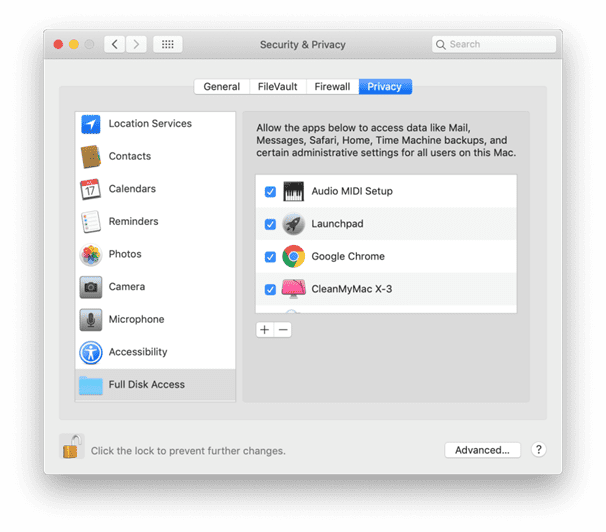
2. Go to System Preferences > Security & Privacy and grant Full Disk Access to Terminal
With the Safari 14+ closed, you are now ready to proceed to the next step. Here, you ought to start by moving to the System Preferences button.
Next, click the “Security and Privacy” option before scrolling down and allowing “Full Disk Access to Terminal.”
Precisely, the steps to follow are:
Click the Apple icon
Select Systems Preferences
Navigate your way to Security and Privacy
Click Privacy tab
Select Full Disk Access, which is right there on the sidebar
3. Open Terminal
You are now ready to open “Terminal” to ascertain that you have done the right thing up to this point.
Remember, the Terminal allows you to access the macOS, control it, and make any changes you deem necessary. Therefore, you cannot and should not avoid it in case you are not seeing the Debug menu in Safari for macOS Big Sur.
It is possible to access the Terminal feature through Spotlight or the Mac Finder. Take extra care while typing any command on the Terminal after opening it, though. Be cognizant of the spaces and each character too.
To open the Terminal through Finder, you would need to:
Look for and click the Finder logo.
Click “Applications” on the left toolbar.
Open the folder marked “Utilities”
Launch “Terminal” by clicking on it twice
4. Type in the command:
At this stage, you are close to fixing the “not seeing the Debug menu in Safari for macOS Big Sur” issue.
You will get even a step closer by typing this command on the open Terminal:
As previously stated, take care to type it as it is without fewer or additional spaces. Essentially, type it exactly like it is.
5. And press enter to run the command
Typing the above command would not do anything for you. The command would start producing wonderful results once you press enter, which allows it to run.
6. Open Safari and verify Debug menu is visible
After typing the command and pressing enter to run it, the next thing to do is to open Safari. You could do this by launching the app from either Finder or Dock.
Then click Safari straight from the menu bar, which you can clearly see on the top left corner of the screen.
Remember, it is better to use the latest version of Safari app. In this case, Safari 14+ is the right one to use.
With Safari app open, you can now verify if the Debug menu is visible. As long as you do everything stipulated above, you should not worry about not seeing the Debug menu in Safari for macOS Big Sur.
Can you reverse this so that the Debug menu is once again not visible? Yes, you can. To do that, you would have to go through the same steps except with a few changes. The primary change here touches on the command, which should now read:
Everything else on the command is the same except for the last digit.
When you are not seeing the Debug menu in Safari for macOS Big Sur, you should type 1 as the last digit on the command.
When you do not want to see the Debug menu, you should type 0 as the last digit on the command.
Conclusion
As shown above, you have no reason for losing sleep if you are not seeing the Debug menu in Safari for macOS Big Sur. The measures to take to fix the issue are quite straightforward. Your only task is to do as advised and the Debug menu would reappear right on your macOS device.
Specifically, these steps are for Safari 14+. Therefore, be sure to let us know in the comments section below whether these tips have removed your headache and given you back control of the app.











Write a Comment