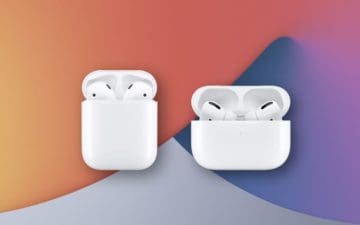
You already have a set of AirPods connected to your iPhone, but you want to connect another set so you and your friend can listen together. Can you even do that? Yes! Apple has now released a feature that allows two people with AirPods or PowerBests Pro to listen to the same audio from one iPhone.
Connecting a second set of AirPods can be done one of two ways. You can do it automatically by proximity or by manually adding the device through the Bluetooth menu. Either of these ways is easy and quick to do.
Say you have a video, podcast, or music that you want to share with a friend. Instead of taking out your AirPods, you can simply pair your friends AirPods with your iPhone and enjoy the audio together.
It also makes it easy so that you do not have to share the audio with everyone else around. You can listen privately without bothering others.
Connecting a Second Set of AirPods
You can connect a second set of AirPods to your iPhone in one of two ways. First, you can do it by proximity by opening the AirPod case near your iPhone. Second, you can do it manually through the Bluetooth menu. Both sets of steps are listed here.
Connect through Proximity
Open the AirPod case next to your iPhone.
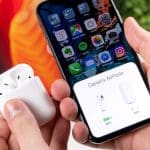
A menu will come up, saying, “Not Your AirPods.”
Tap the blue Connect button at the bottom of the menu.
Press the physical button at the back of the AirPod case to put the AirPods into pairing mode.
The AirPods will connect, and you will see the battery level on the screen of your iPhone.
Tap Done.
Manually Connect AirPods
Open the Settings app.
Tap on Bluetooth.
Press the pairing button that’s on the back of the AirPod case.
When the second set of AirPods shows up under “Other Devices,” tap the name of the AirPods.
Sharing Audio on Two Sets of AirPods
Now that you have two sets of AirPods connected to your iPhone, you can easily allow another person to listen to things on your phone. You can adjust the audio output through any AirPlay menu or by connecting your iPhone to your friend’s iPhone.
Manually Pairing
Swipe down from the top right corner of your iPhone screen to open the Control Center. If you have an iPhone with a Home button, you need to swipe up from the bottom of the screen to open the Control Center.
Tap and hold the Now Playing widget to make it expand.
Tap the AirPlay button.
A new window will open and list all available devices. Your AirPods will be selected as the current output device. The second set will be listed below yours.
Tap on the empty Checkmark button next to the second set of AirPods.
Both pairs of AirPods will now be able to receive the audio.
You can control the volume for the AirPods individually or together as a pair. To change the volume as a pair, just use the volume slider bar at the bottom of the widget. If you want to change the volume on just one set of the AirPods, use the volume slider bar below the name of the individual AirPods.
Proximity Pairing
This feature works on devices that have Bluetooth 5.0. Any iPhone 8 or higher running iOS 13 or higher can support this feature.
Have your friend put his or her iPhone on top of yours.
A pop-up menu will appear on your iPhone, asking if you want to share the audio from your iPhone with your friend’s AirPods.
Tap on Share Audio.
Your friend will be asked to confirm this action on his or her iPhone. Have your friend tap Confirm to start sharing audio.
Both AirPods will automatically show up in the AirPlay menu. You can manage the playback and volume from that menu.
Connecting a second pair of AirPods to your iPhone is easy and quick to complete. Sharing audio with a friend is just as easy. Enjoy sharing audio.









Write a Comment