If you want to run Windows apps as native Mac apps, you can enable Coherence mode. This Parallels Desktop option lets you use both Windows and Mac applications simultaneously, without opening two separate desktop windows. In other words, you can load Windows apps straight from your Dock.
Unfortunately, Coherence Mode may not always work as intended. Sometimes, the option is grayed out and you can’t enable it, or it reverts to normal mode after a few seconds. Let’s explore what you can do to fix the problem.
What to Do if Parallels Desktop Coherence Mode Is Not Working
Update Parallels and Exit Full-Screen Mode
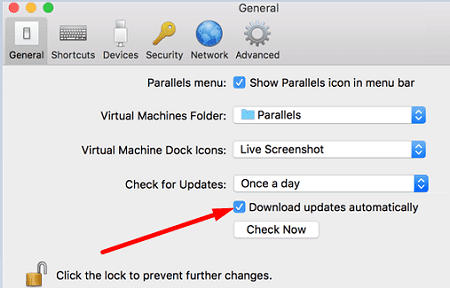
Make sure you’re running the latest Parallels version on your Mac. Click on the Parallels Desktop menu, go to Preferences, and select General. Tick the checkbox that says Download updates automatically. Check for updates once a day.
Speaking of updates, go to System Preferences, click on System Update, and check for macOS updates as well. Restart your computer, launch Parallels again, and check if you can enable Coherence mode.
By the way, don’t forget to exit full-screen mode before enabling Coherence mode. Click on View and select Exit full-screen.
Restart the Parallels Coherence Service
If Coherence Mode still won’t work, ensure the Parallels Coherence Service or prl_cc.exe is working properly. If the service is already running on your machine, restart it and check the results.
Launch Task Manager on your virtual machine.
Click on More details, and go to the Startup tab.
Then look for prl_cc.exe or Parallels Control Center.
Restart the service if it’s already running.
If the service is not available on the list, go to C:/Program Files/Parallels/Parallels Tools.
Then, right-click on prl_cc, and select Send toDesktop (create shortcut).
Go to Modern UI, and type %appdata% in the search field.
Hit Enter to open the C:\Users\UserName\AppData\Roaming folder.
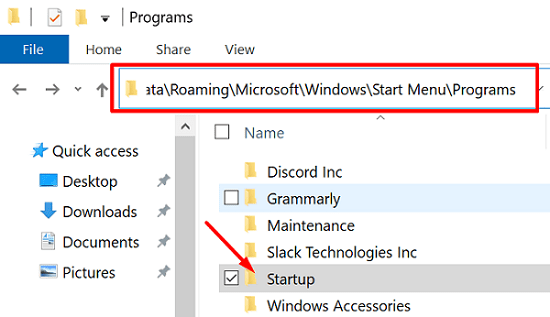
Go to C:\Users\UserName\AppData\Roaming\Microsoft\Windows\Start Menu\Programs\Startup.
Take the prl_cc.exedesktop shortcut and move it into the Startupfolder.
Restart your virtual machine, and check if you can enable Coherence Mode.
Uninstall Display Adapter Driver and Reinstall Parallels Tools
Launch the Device Manager within Windows.
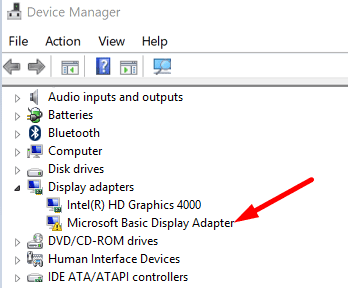
Expand your list of Display Adapters.
Then check if there’s an exclamation mark next to your adapter. If this is the case, right-click on Microsoft Basic Display Adapter or Parallels Display Adapter (depending on your configuration). Select Uninstall device.
Disable your antivirus, go to Control Panel, and click on Programs.
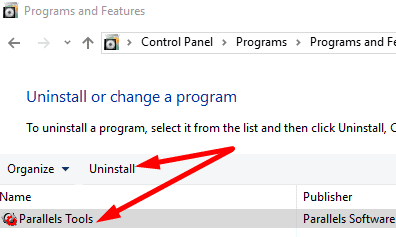
Go to Programs and Features, and select Parallels Tools.
Hit the Uninstall button, and restart Windows.
Then, click on your Mac menu bar, and select Actions.
Click on Install Parallels Tools.
Restart Windows again, turn on your antivirus, and check the results.
Enable Full-Screen Mode on All Displays
If there’s no exclamation mark in Device Manager, and you’re using a multi-monitor configuration, enable full-screen on all your displays.
Click on the Parallels Desktop menu bar, and go to View.
Then enable Use All Displays in Full Screen.
Switch your virtual machine to Full-Screen mode.
After that, go to Control Panel, and select Hardware and Sound.
Navigate to Display, and select Adjust Resolution.
Use the drop-down Multiple displays menu and select Extend these displays.
Exit Full-Screen mode and enter Coherence mode.
If the problem persists, switch your virtual machine into Window mode and drag it to the second monitor. Check if you can enable Coherence mode.
Conclusion
To sum up, if you can’t enable Coherence mode in Parallels Desktop, update the program and exit Full-Screen mode. Then restart the Parallels Coherence service. If the issue persists, uninstall your display adapter driver, and reinstall Parallels Tools. If you’re using a multi-monitor setup, use all the displays in full-screen mode, and then enable Coherence mode on your virtual machine. Did you manage to fix the problem? Let us know in the comments below.
Madalina has been a Windows fan ever since she got her hands on her first Windows XP computer. She is interested in all things technology, especially emerging technologies — AI and DNA computing in particular.
I am running a Windows 10 VM and a Windows XP VM on an Intel iMac (27 inch, 24Gb RAM, 1Tb HD, OS Catalina 10.15.7).
All has been OK, apart from pretty sluggish iMac startup, but probably since upgrading to Parallels Desktop 18 I have lost coherence mode on Windows XP. Windows 10 is still OK.
Apart from the above tips, I had uninstalled and reinstalled Parallels Desktop 18, and also tried reverting to backups of both VMs.
Is this a known problem with Windows XP and Parallels Desktop 18?
I used to be able to switch from Full Screen to Coherence… But for some reason I can’t get it to work anymore??? It wil jump back to Retina Full Screen immediately…
Is it possible an update is causing this issue?? (I updated my Mac to Monterey 12.3.1, and the Windows 10 is also updated to the latest version. Please help me out?? Thanx!


 Hit the Uninstall button, and restart Windows.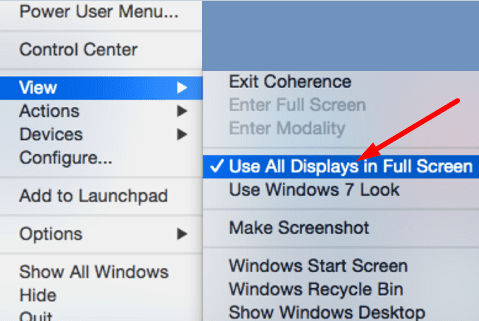









I am running a Windows 10 VM and a Windows XP VM on an Intel iMac (27 inch, 24Gb RAM, 1Tb HD, OS Catalina 10.15.7).
All has been OK, apart from pretty sluggish iMac startup, but probably since upgrading to Parallels Desktop 18 I have lost coherence mode on Windows XP. Windows 10 is still OK.
Apart from the above tips, I had uninstalled and reinstalled Parallels Desktop 18, and also tried reverting to backups of both VMs.
Is this a known problem with Windows XP and Parallels Desktop 18?
Any suggestions?
I used to be able to switch from Full Screen to Coherence… But for some reason I can’t get it to work anymore??? It wil jump back to Retina Full Screen immediately…
Is it possible an update is causing this issue?? (I updated my Mac to Monterey 12.3.1, and the Windows 10 is also updated to the latest version. Please help me out?? Thanx!
Restarting the Parallels Coherence Service worked perfectly. Very straight forward solution to my problem. Great instructions as well