• Skip to primary navigation
  • Skip to main content
  • Skip to primary sidebar
  • Skip to footer

AppleToolBox

Tools and Fixes for Mac, iPad, iPhone & iWatch

Search posts

  • About
  • Contact

CONNECT WITH US

CATEGORIES

  • iPhone
  • iPad
  • iPod
  • Apple Watch
  • Mac/MacBook
  • AirPods
  • Apple TV
  • News
  • Apple Services
  • HomePod
  • Reviews

SITE

  • Home
  • About Us
  • Contact
  • Advertise

Search posts

You are here: Home / iPhone / There Was a Problem With the eSIM Transfer Request

There Was a Problem With the eSIM Transfer Request

By Madalina Dinita 0 comments Last updated January 18, 2022

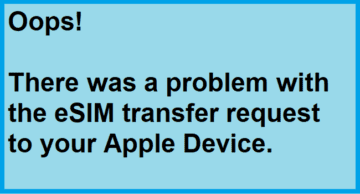
When you try to transfer your eSIM plan from your old iPhone to your new device, you may sometimes get an alert that says the transfer failed due to an unexpected problem. Unfortunately, you can’t scan the QR code associated with your eSIM more than once. Let’s see what else you can do to troubleshoot the problem.

Contents

  • How to Solve eSIM Transfer Issues on iPhone
    • Reset Network Settings
    • Contact Support
    • Conclusion

How to Solve eSIM Transfer Issues on iPhone

Reset Network Settings

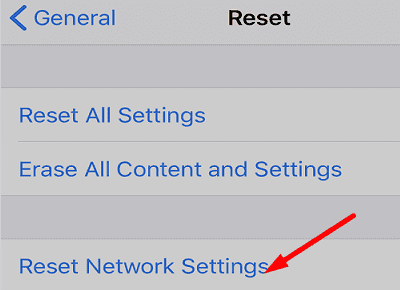
Try resetting your network settings, and check if anything changes. Navigate to Settings, select General, tap Reset, and then select Reset Network Settings.

ios-reset-network-settings

Needless to say, your new iPhone needs to be unlocked if the second SIM is from a different carrier. Additionally, your carrier must support Dual SIM with eSIM. Do check this detail if you recently switched to a new carrier. Make sure there are no billing-related issues affecting your account and ensure cellular plans are set up properly.

Additionally, update your iPhone to the latest iOS version and try again. If you’re not using the physical SIM, remove it from your device while setting up eSIM. Equally important, make sure you have a strong Internet connection.

Contact Support

If you still can’t use the eSIM option on your iOS device, contact your carrier’s support team. Let them know what solutions you tried so far. The support agents may need to tweak a few additional settings on their end to enable eSIM on your new device. For example, they may need to save your new iPhone’s IMEI number in their system. Some carriers require you to use a new eSIM QR code when switching to a new iPhone.

Conclusion

eSIMs are still fairly new to iPhones and QuickStart may sometimes fail to transfer the option to your new iOS device. Try resetting your network settings, check for any billing-related issues, and restart your device. If the issue persists, contact your carrier’s support team.

Did you manage to solve the problem? Which method saved the day? Comment down below.

Related Posts:

  • pexels-tima-miroshnichenko-6860464
    How To Start Using Regex With The Shortcuts App
  • pexels-cottonbro-5474033
    How To Navigate Folders Using The Mac Terminal
  • pexels-hana-mara-3650616
    The Best Homebrew Apps For Mac
  • Photo of an iPhone being taken out of its box
    How To Use Dual SIM and eSIM on Your iPhone
  • pexels-cottonbro-5474033
    How To Use The Mac Terminal: The Basics
  • 2023 Mac Studio lifestyle - 1
    macOS Could Not Be Installed, How-To Fix
  • pexels-mockupeditorcom-205316
    10 Mac Terminal Tips And Tricks For Pro Users
  • pexels-adam-fejes-5702341
    How To Download YouTube Videos To Mac Safely (and…
  • photo of an iphone with ios 16 downloaded on it
    iOS 16 Tips and Tricks: The Definitive List
Madalina Dinita

Madalina has been a Windows fan ever since she got her hands on her first Windows XP computer. She is interested in all things technology, especially emerging technologies — AI and DNA computing in particular.
Reader Interactions

Write a Comment Cancel reply

Primary Sidebar

Recent Posts

  • Microsoft Resume vs. Apple Handoff – Which Wins for Cross-Device Work?
  • How to Export iTunes Library to New Computer
  • What the Gemini Desktop App Will Bring to Mac
  • What to Do When Windows 11 Won’t Detect Your iPad
  • Outlook Outage 2026: iPhone Fixes for Sign-In Chaos
  • Guide to Changing iMessage Backgrounds on iPhone and Mac

Connect with us

Footer

ABOUT

  • About Us
  • Contact us
  • Advertise
  • Privacy
  • Terms of Use

GUIDES

  • iOS & iPadOS
  • Apple ID
  • iCloud
  • App Store
  • iTunes
  • FaceTime
  • iMessage
  • Siri
  • Books and iBooks
  • Game Center
  • AirPlay

CONNECT

  • Facebook
  • Twitter
  • FeedBurner
  • YouTube

© Copyright 2010-2024 Guiding Tech Media · All Rights Reserved

This site and its content are in no way affiliated or endorsed by Apple, Inc. · Reproduction without explicit permission is prohibited

Last Updated on January 18, 2022 by Mitch Bartlett