• Skip to primary navigation
  • Skip to main content
  • Skip to primary sidebar
  • Skip to footer

AppleToolBox

Tools and Fixes for Mac, iPad, iPhone & iWatch

Search posts

  • About
  • Contact

CONNECT WITH US

CATEGORIES

  • iPhone
  • iPad
  • iPod
  • Apple Watch
  • Mac/MacBook
  • AirPods
  • Apple TV
  • News
  • Apple Services
  • HomePod
  • Reviews

SITE

  • Home
  • About Us
  • Contact
  • Advertise

Search posts

You are here: Home / iPhone / Quickly View All Apple Music Shared With You in Your Text Messages

Quickly View All Apple Music Shared With You in Your Text Messages

By Nelson Aguilar 0 comments Last updated October 4, 2021

When you find an amazing new song, it’s only right to share it with the world. The first place you might go is to your messages, where you can quickly shoot out a text with a link to your friends and family. However, when you’re on the receiving end of these messages, it can be quite easy to lose track of these songs and completely forget about them.

If you primarily share Apple Music links, a new feature on iOS 15 makes it easy to keep track of every song sent to you via Messages. In a few seconds, you can quickly find all the music sent to you in Apple Music. Here’s how:

Contents

  • How Shared With You Works
  • How to Find Music Shared With You in Apple Music
  • Conclusion

How Shared With You Works

In the last few years, Apple has placed an emphasis on building connectivity between the applications on your iPhone. The better your apps are able to communicate amongst themselves, the easier it becomes to perform actions and find important information…faster.

With Shared with You, new to iOS 15, Apple is connecting your applications like never before. Using enhanced on-device intelligence, Shared with You recognizes music, photos, articles, and other files sent to you in Messages, and makes them easily accessible in other applications where you need them most.

For example, if a co-worker sends you a New York Times article in Messages, the link to that article might appear in a new tab in Safari. If you’re sent a TV show link, it might pop up anytime you open the Apple TV appl. And if you receive songs and albums via text, they might appear Apple Music.

How to Find Music Shared With You in Apple Music

If you’ve received an Apple Music link in Messages — either as an iMessage or simple SMS/MMS — you’ll find all that music in the Apple Music application to play and share.

  1. Open Music.
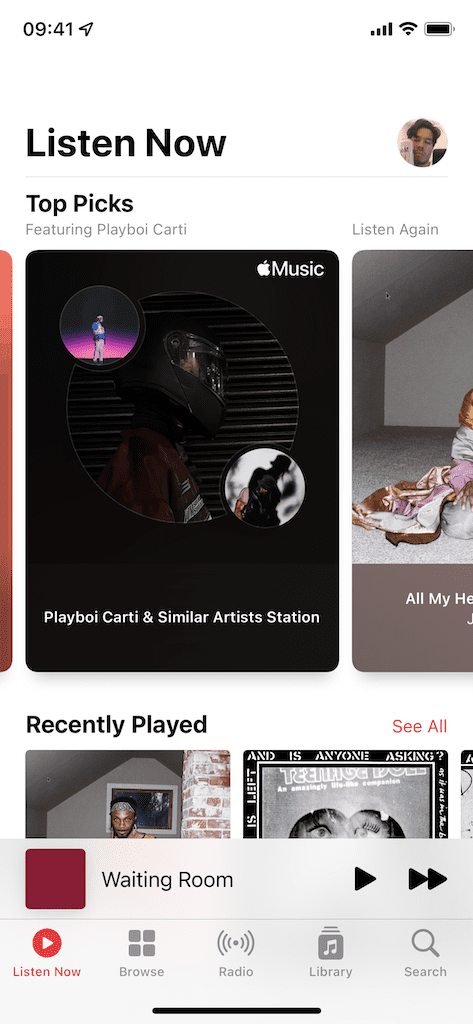
  2. Tap on Listen Now.
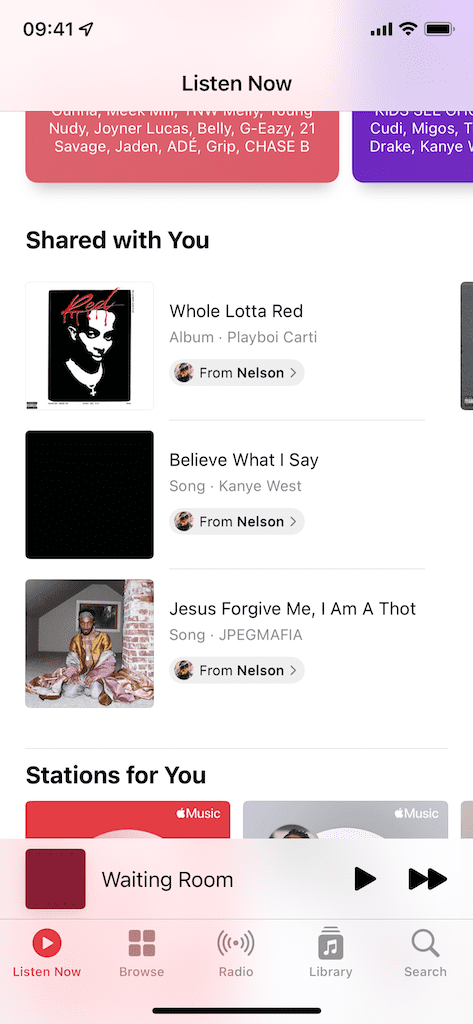
  3. Find Shared with You.

Under the Shared with You section you should see the music shared with you via Messages, along with the artist name, album title, and song title. On each track you’ll also see the person who shared the song or album with you.

If you tap on the artwork, you’ll be sent to the specific song or album in Apple Music. If you click on the contact name on the track, it will redirect you to the original text in Messages where the song/album was sent.

Conclusion

Shared with You works great with finding music sent to you, but it also works in applications like Safari, Photos, News, Podcasts, and Apple TV. If you’re updated to iOS 15, do you use Shared with You, and if so, how do you like it? Ramble off in the comments below!

Related Posts:

  • Photo of someone using Apple Music on their smartphone
    How to Fix Apple Music Not Working on iPhone / iPad
  • pexels-designecologist-1779487
    The Best iPhone And Mac Shortcuts For Beginners
  • pexels-cottonbro-5082579
    Getting Started With iOS 15: Everything Good And Bad
  • pexels-tima-miroshnichenko-6860464
    How To Start Using Regex With The Shortcuts App
  • photo of an iphone with ios 16 downloaded on it
    iOS 16 Tips and Tricks: The Definitive List
  • 0E4A6A0B-65E8-4184-B0C9-16C2179A1256
    The Best Weight Loss Apps For iPhone In 2021
  • 2022 Mac Mini with Studio Display and Accessories
    Mac Tips For New Users In 2023
  • iPhone 15 Pro Max - 4
    Best iPhone Lock Screen Widgets for iOS 17
  • iphone and airpods on a table
    These Apps Have the Best iOS 17 Widgets
Nelson Aguilar

i like to write stuff.

Reader Interactions

Write a Comment Cancel reply

Primary Sidebar

Recent Posts

  • Microsoft Resume vs. Apple Handoff – Which Wins for Cross-Device Work?
  • How to Export iTunes Library to New Computer
  • What the Gemini Desktop App Will Bring to Mac
  • What to Do When Windows 11 Won’t Detect Your iPad
  • Outlook Outage 2026: iPhone Fixes for Sign-In Chaos
  • Guide to Changing iMessage Backgrounds on iPhone and Mac

Connect with us

Footer

ABOUT

  • About Us
  • Contact us
  • Advertise
  • Privacy
  • Terms of Use

GUIDES

  • iOS & iPadOS
  • Apple ID
  • iCloud
  • App Store
  • iTunes
  • FaceTime
  • iMessage
  • Siri
  • Books and iBooks
  • Game Center
  • AirPlay

CONNECT

  • Facebook
  • Twitter
  • FeedBurner
  • YouTube

© Copyright 2010-2024 Guiding Tech Media · All Rights Reserved

This site and its content are in no way affiliated or endorsed by Apple, Inc. · Reproduction without explicit permission is prohibited

Last Updated on October 5, 2021 by Mitch Bartlett