• Skip to primary navigation
  • Skip to main content
  • Skip to primary sidebar
  • Skip to footer

AppleToolBox

Tools and Fixes for Mac, iPad, iPhone & iWatch

Search posts

  • About
  • Contact

CONNECT WITH US

CATEGORIES

  • iPhone
  • iPad
  • iPod
  • Apple Watch
  • Mac/MacBook
  • AirPods
  • Apple TV
  • News
  • Apple Services
  • HomePod
  • Reviews

SITE

  • Home
  • About Us
  • Contact
  • Advertise

Search posts

You are here: Home / Mac / Safari: Operation Couldn’t Be Completed. No Space Left on Device

Safari: Operation Couldn’t Be Completed. No Space Left on Device

By Madalina Dinita 0 comments Last updated March 12, 2024

Many Safari users have reported that the browser sometimes pops up an error message indicating there is no space left on the device when they open more than two tabs.

It’s as if the browser fails to find enough resources to run, despite users having plenty of free space on their MacBooks.

Of course, you can always switch to a third-party browser such as Chrome, but that’s only a temporary solution.

Let’s explore what you can do to get rid of this error.

Contents

  • Update Safari and macOS
  • Disable IP Privacy Settings
  • Ease Security Settings
  • Disable Safari Extensions

Update Safari and macOS

You can quickly troubleshoot many glitches by updating Safari and restarting your device.

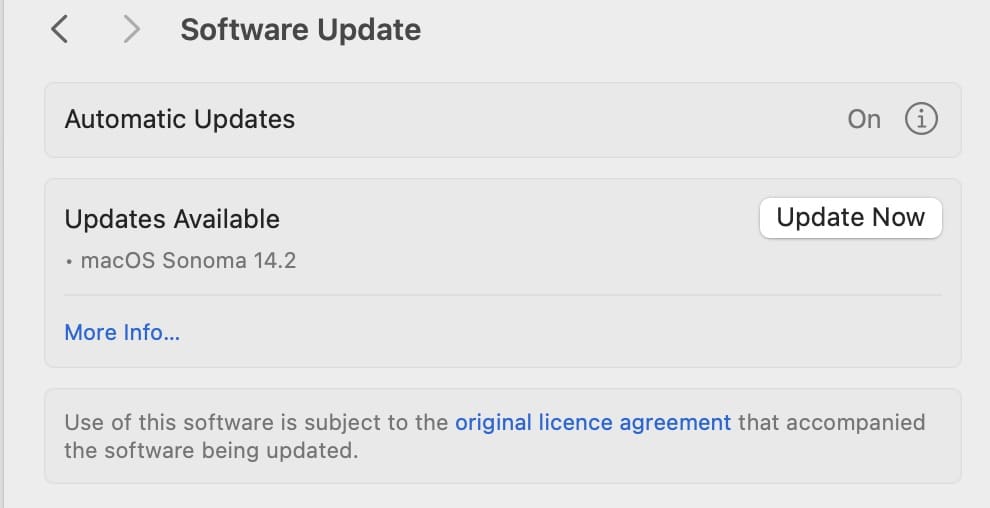
To update Safari on Mac, you need to update your OS. Go to Settings, select General and click Software Update.Update your software on Mac

After installing the latest macOS version, restart your computer once more and check the results.

Disable IP Privacy Settings

Yes, this is not the best solution if privacy is really important to you. However, many users have confirmed they got Safari to load multiple webpages by turning off IP privacy.

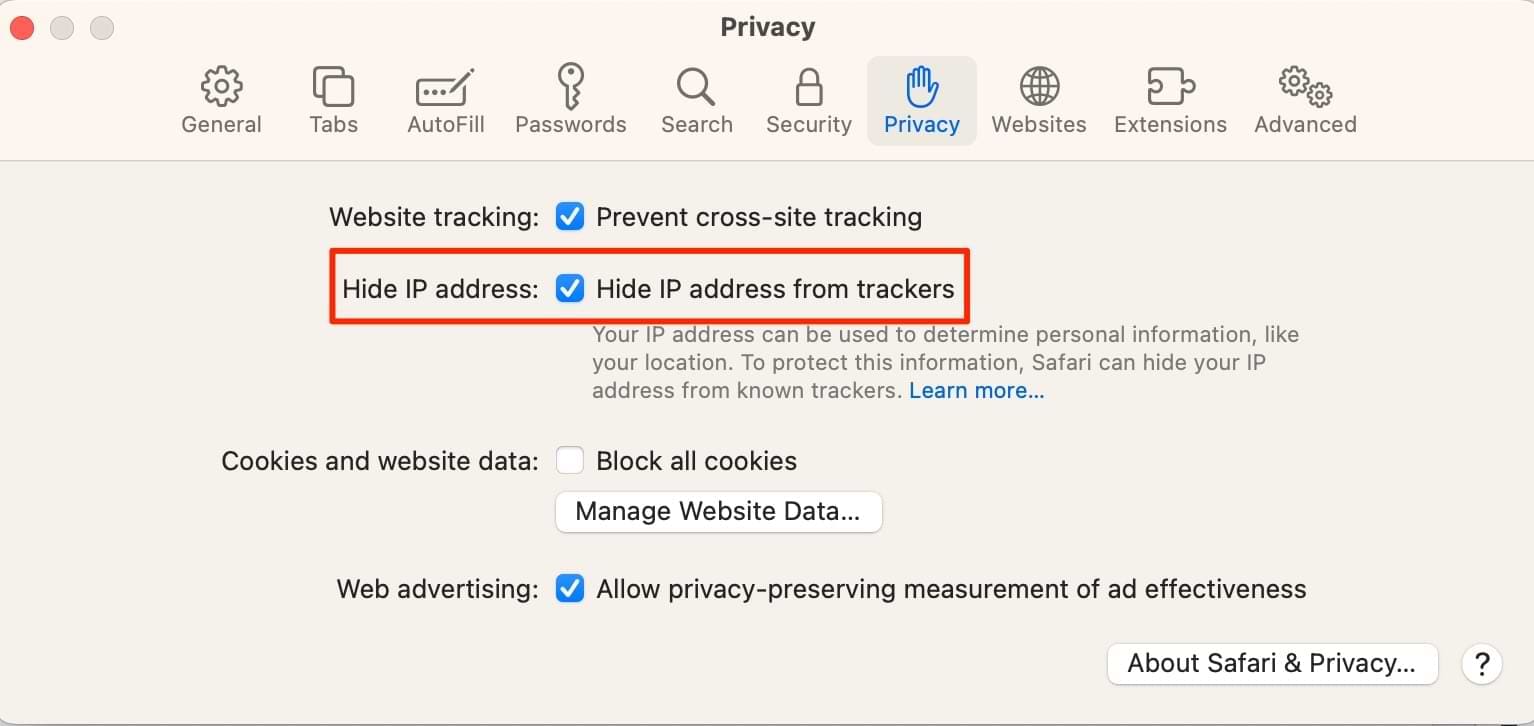
Go to Safari Settings, select Privacy and disable the option that reads Hide IP address from trackers.

Restart Safari and check if you can load multiple tabs simultaneously.

If the error persists after disabling the “Hide IP address from trackers” option, jump to the next solution.

Ease Security Settings

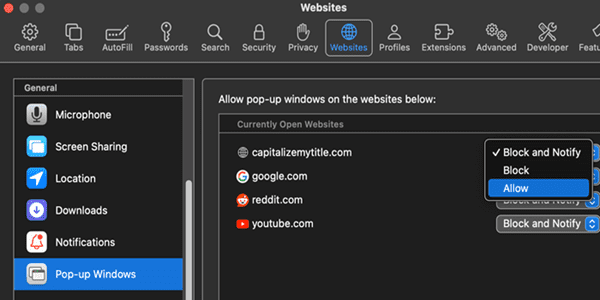
Go to Safari Settings, select Websites, and scroll down to Pop-Up Windows in the left-hand pane. Allow pop-up windows when visiting  websites.Safari-Pop-Up-Windows-Settings

If this change doesn’t do the trick, select Allow for all websites.

Many users who had enabled the Block and Notify option confirmed that allowing pop-up windows solved the problem. While it’s not the ideal setting, it could do the trick.

Disable Safari Extensions

Browser extensions can sometimes trigger various glitches due to conflicts with browser updates, or resource consumption.

Go to Safari, select Safari Extensions and turn off all your extensions.

If the error disappears, update your extensions and re-enable them one by one to identify the culprit.

Have you managed to stop this error? Which of these solutions worked for you? Let us know in the comments below.

Related Posts:

  • 2023 Mac Studio lifestyle - 1
    macOS Could Not Be Installed, How-To Fix
  • Delete Chrome From Your Mac and Enjoy the Increase in Speed Hero
    How to Install Chrome Extensions Manually
  • How to Install Windows 11 on Mac
    Want iMessage on Your Windows PC? How-To
  • Google Chrome App Icon iPhone 13 Pro
    How to Use Chrome as a Password Manager on iPhone and iPad
  • Google Chrome on iPhone 13 Pro 2
    How to Use Face ID With Incognito Tabs in Chrome on iPhone
  • pexels-marc-mueller-380769
    macOS vs Linux: An In-depth Comparison
  • pexels-rfstudio-3825585
    How To Pick A Repair Shop For Apple Devices
  • pexels-designecologist-1779487
    The Best iPhone And Mac Shortcuts For Beginners
  • photo of an iphone with ios 16 downloaded on it
    iOS 16 Tips and Tricks: The Definitive List
Madalina Dinita

Madalina has been a Windows fan ever since she got her hands on her first Windows XP computer. She is interested in all things technology, especially emerging technologies — AI and DNA computing in particular.

Reader Interactions

Write a Comment Cancel reply

Primary Sidebar

Recent Posts

  • How to Stop Your Pointer From Moving to Other Macs and Apple Devices
  • What Will Siri AI Bring to Apple Devices?
  • How to Check if Your Device Is Compatible With Siri AI
  • How to Get Rid of Reading List in Safari
  • Gaming Alternatives to Whisky: Which Is Better for Running Windows Games on Mac?
  • How to Hide App Results From Spotlight

Connect with us

Footer

ABOUT

  • About Us
  • Contact us
  • Advertise
  • Privacy
  • Terms of Use

GUIDES

  • iOS & iPadOS
  • Apple ID
  • iCloud
  • App Store
  • iTunes
  • FaceTime
  • iMessage
  • Siri
  • Books and iBooks
  • Game Center
  • AirPlay

CONNECT

  • Facebook
  • Twitter
  • FeedBurner
  • YouTube

© Copyright 2010-2024 Guiding Tech Media · All Rights Reserved

This site and its content are in no way affiliated or endorsed by Apple, Inc. · Reproduction without explicit permission is prohibited