If you have been paying attention as of recently, you may have noticed a bigger focus on Apple Music. Today, we’re taking a look at how you can move your playlists from Spotify with SongShift and Houdini.
As expected, this isn’t exactly easy if you’re attempting to perform this task manually. Opting for this route requires you to create and manually find every song that you want to use in your favorite playlists.
If you recently bought a HomePod and would like to try out the free 3 month Apple Music subscription to get the best out of Apple Music, this article will help you with tips to move your spotify playlists to Apple Music.
Thankfully, there are some options on the App Store which makes life much easier.
The first option we’re taking a look at is SongShift and a personal favorite. I recently made the move from Spotify to Apple Music but had countless playlists I didn’t want to lose.
Additionally, I didn’t want to spend hours and days searching, finding, and creating playlists in Apple Music. SongShift makes this process MUCH easier and less painful.
The app is free to download and after it’s downloaded, these are the steps you need to follow:
Open SongShift
Connect Apple Music
Sign into your Music account
Select Spotify and sign into your account
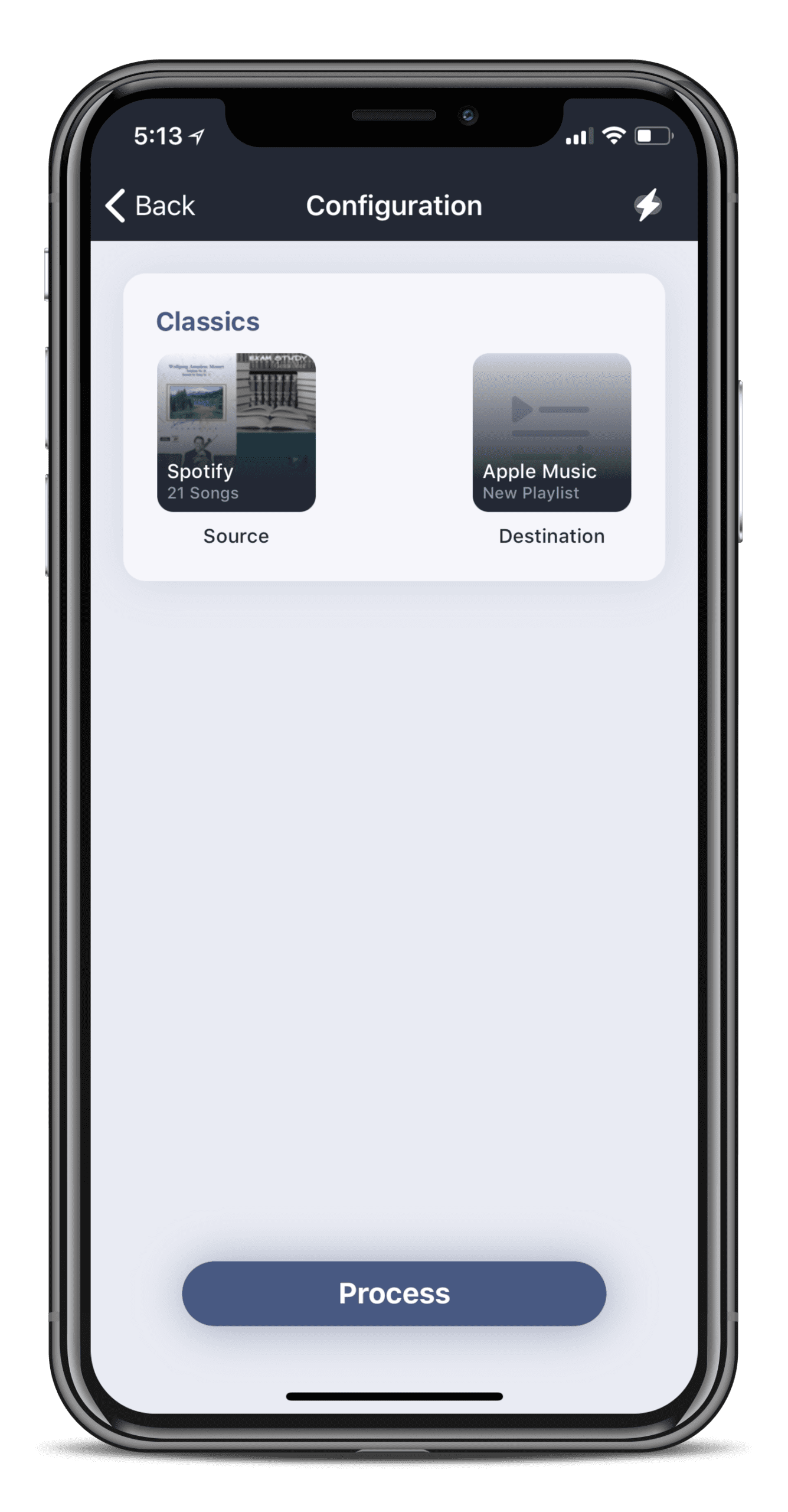
After that has been completed, you’ll want to select ‘Start New Shift’. However, you’ll want to pick Spotify then Apple Music. This will ensure the playlists are moving from the right service.
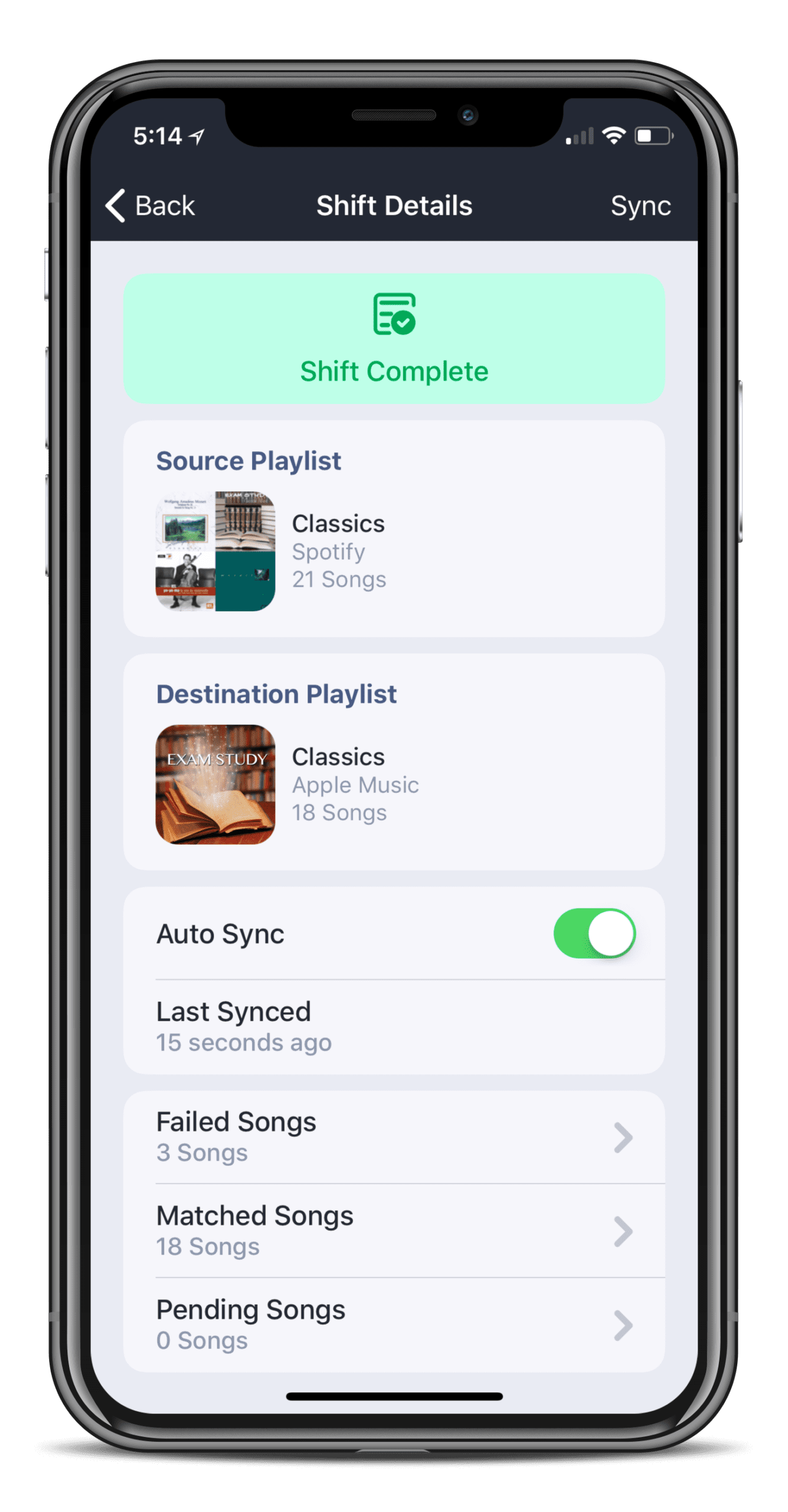
Once the Shift has been initiated, you will need to leave SongShift open while it does its job. After it has been completed, you can head over to the ‘Recent’ section.
From here, you can determine whether any songs have been missed. If this is the case, you’ll want to head over to Apple Music and manually search for and add them.
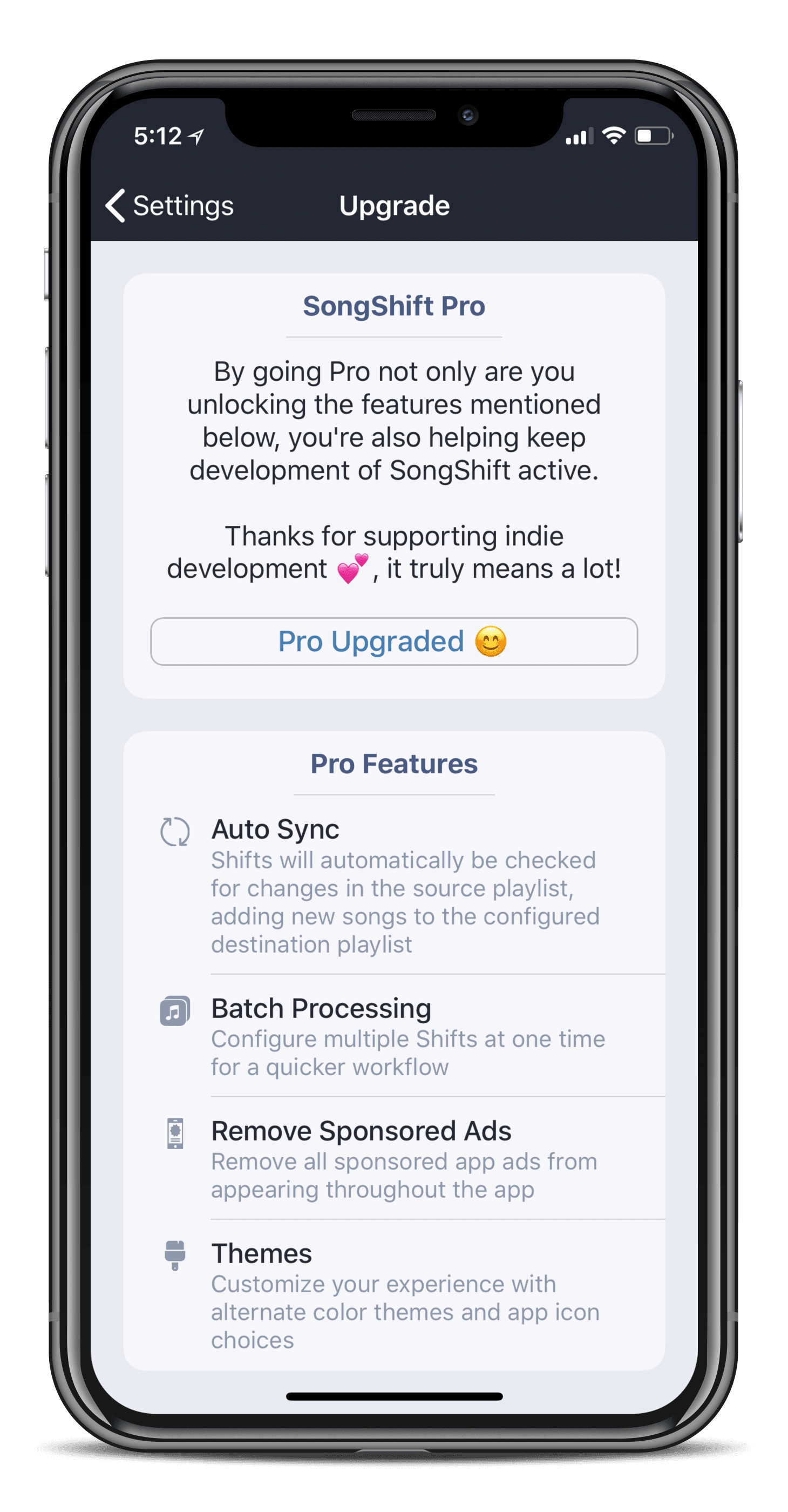
SongShift is free to download but there is an in-app purchase of $3.99. This unlocks all of the app’s features, including the following:
Auto Sync –Shifts will automatically be checked for changes in the source playlist, adding new songs to the configured destination
Batch Processing –Configure multiple Shifts at one time
Remove Sponsored Ads – Remove all sponsored ads from appearing throughout the app
Themes – Customize your experience with alternate color themes and app icon choices
It’s also important to note that SongShift is not limited to Apple Music and Spotify. Instead, the app offers playlist porting from the likes of Deezer, Google Play Music, YouTube, and other streaming services.
Houdini
While SongShift is a personal favorite, Houdini is another option that continues to appear. Instead of opting for an in-app purchase, Houdini is priced at $2.99 in the App Store.
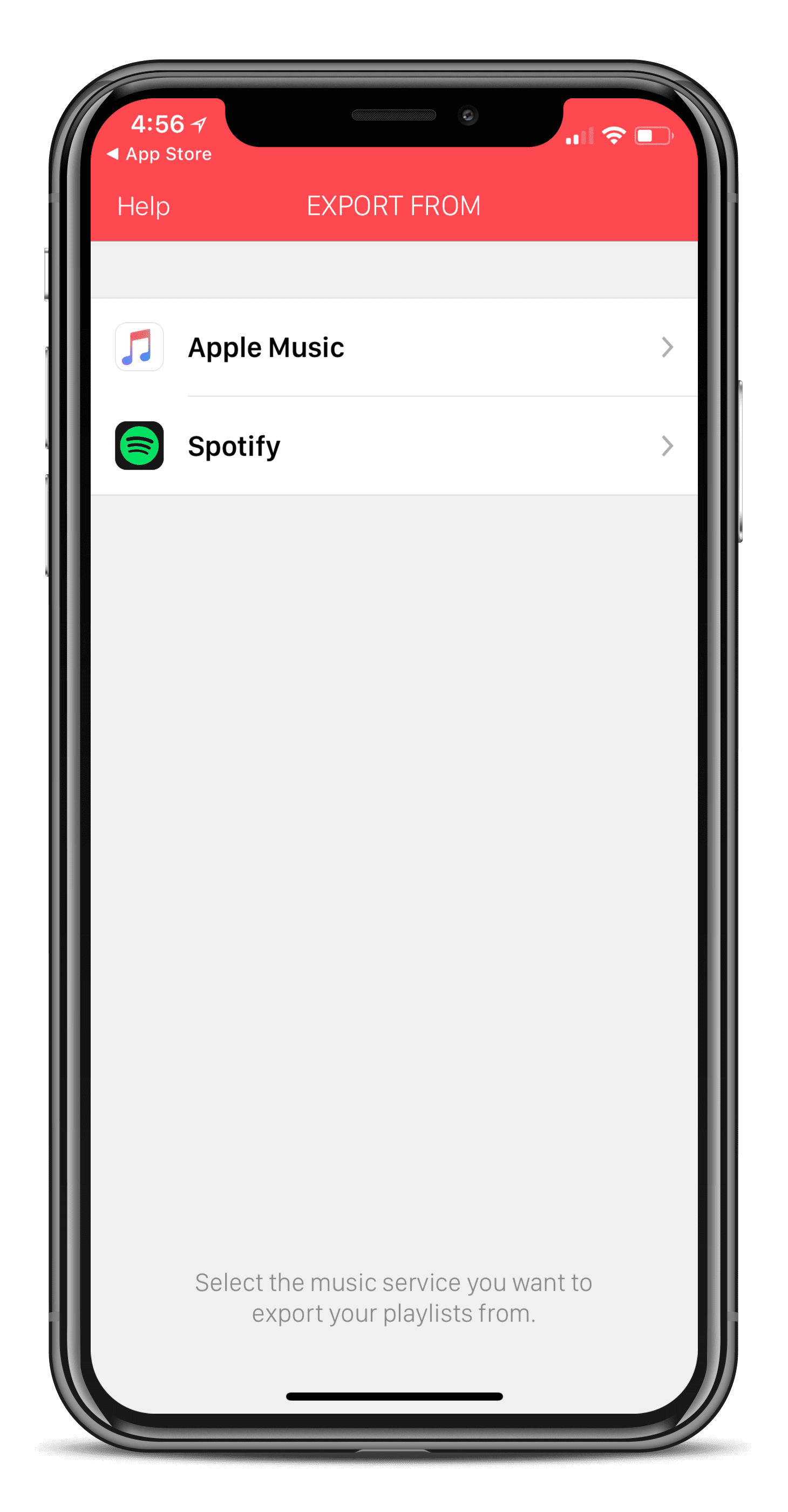
Unlike SongShift, Houdini is designed to only work between Apple Music and Spotify. When starting the app for the first time, you are presented with the option of which service to export from.
Since we’re moving from Spotify to Apple Music, we’ll want to select Spotify in this screen. If Spotify is installed on your iPhone, Houdini will request to open the app. This is to provide verification before proceeding.
Allow Houdini to open the app, and select ‘Okay’ on the ‘Authorize’ page. After completed, a screen named ‘Import To’ will appear.
Since we’re moving our playlists to Apple Music, select that option. A pop-up will appear asking permission for Houdini to access Apple Music. Select ‘Ok’.
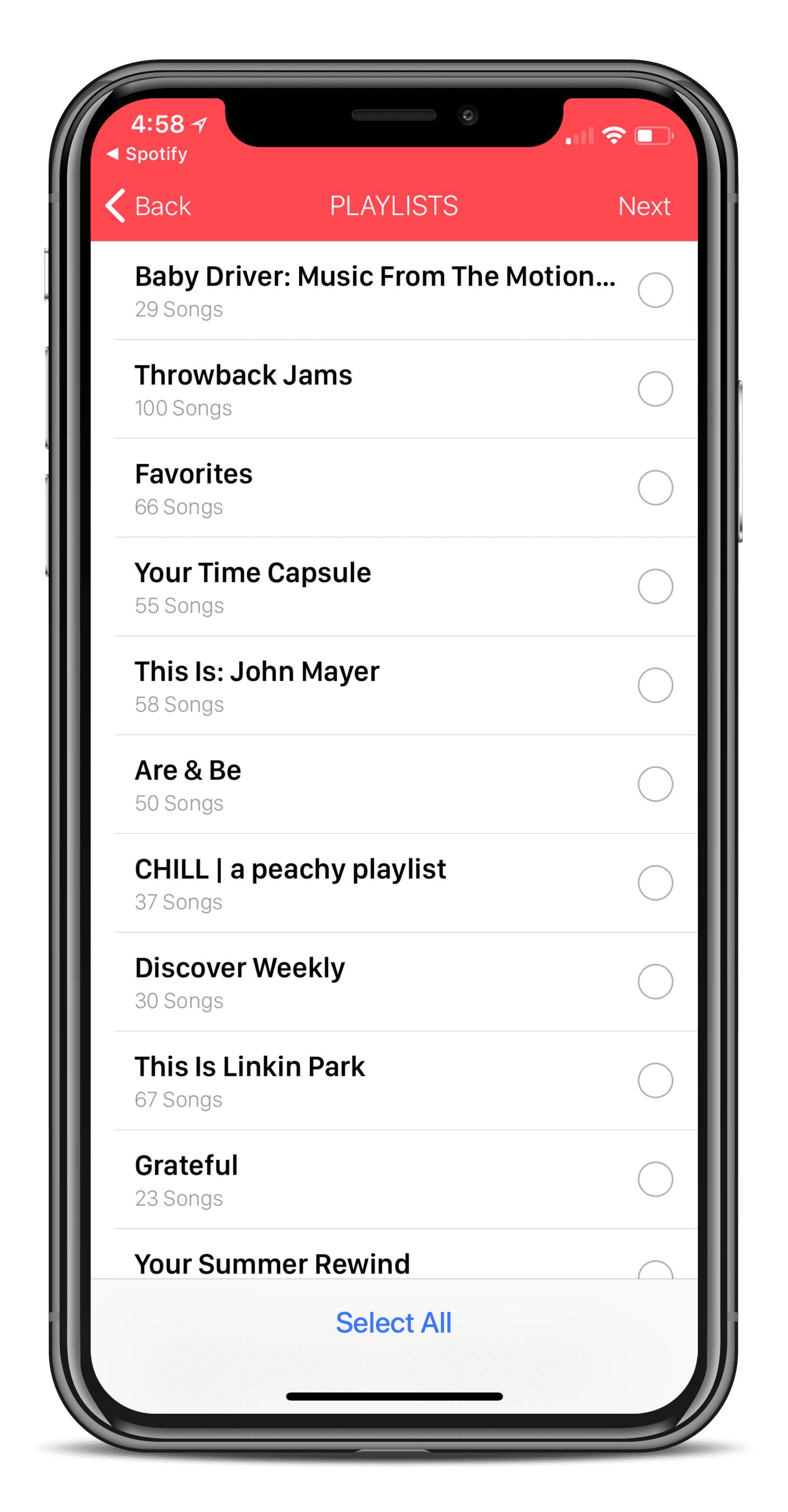
After you have authorized access to Apple Music, the fun begins. A list of your Spotify playlists will appear. You can scroll through and select specific options, or you can tap the ‘Select All’ button at the bottom.
After selecting your playlists, Houdini will match up as many songs as possible. A screen will tell you that the matching is complete.
If there are any songs that were not matched, a message will appear at the bottom. You will want to take note of these songs so that you can manually search for them later.
Now we’re ready for Houdini to start transferring. Simply tap ‘Start Transfer Process’ and the fun will begin.
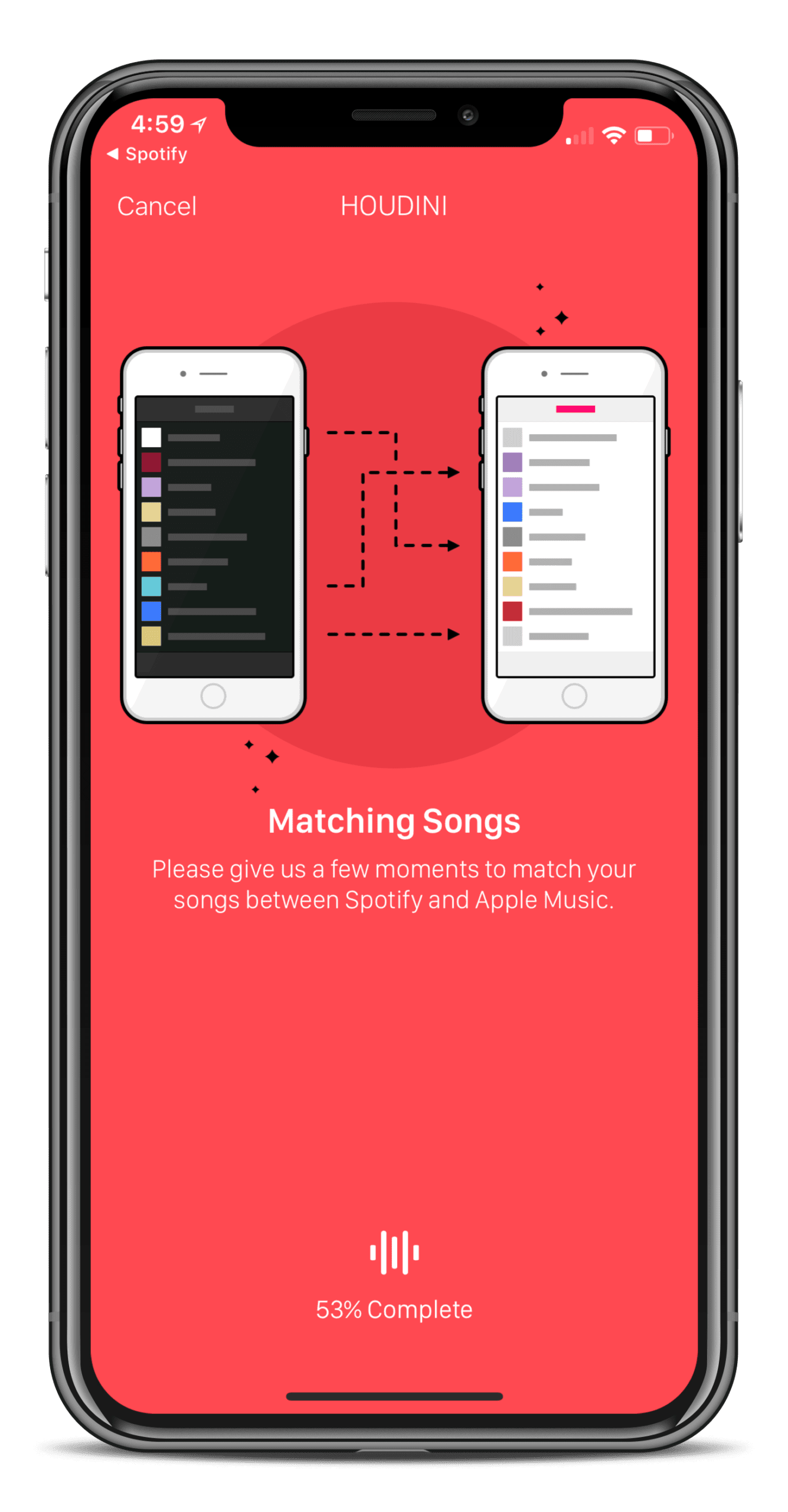
This could take some time, but a progress screen is shown. This tells you that this could take several minutes, while also showing a completion percentage at the bottom.
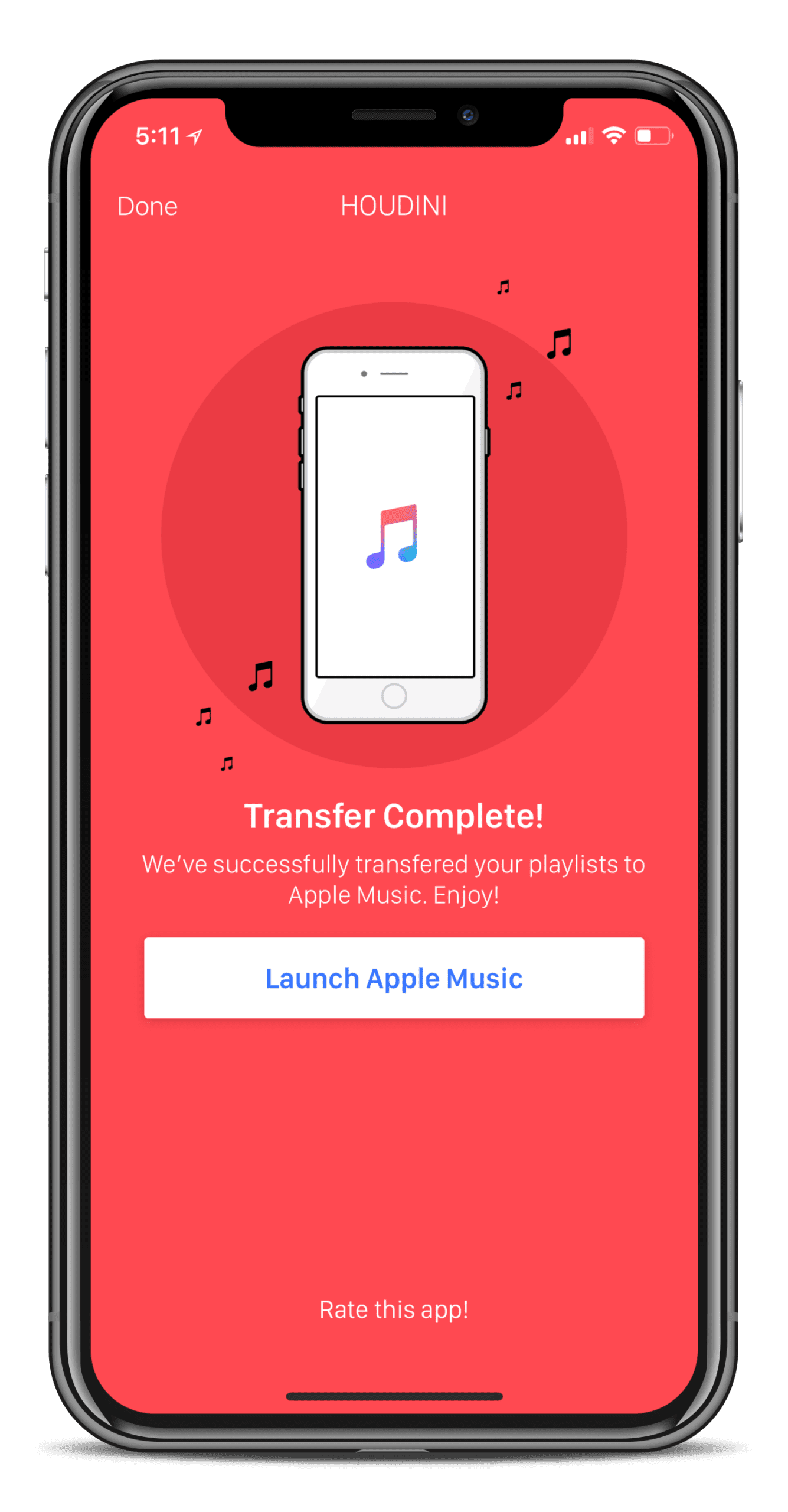
After the transfer has been completed, your selected playlists will be created in Apple Music. Houdini has a button which will allow you to quickly launch Apple Music.
If you want to continue transferring playlists, you’ll want to head back to Houdini and repeat the process until your playlists have been transferred.
Conclusion
Thanks to the sheer number of different apps on the App Store, we don’t have to worry about performing these tedious tasks. Instead, we have apps like SongShift and Houdini which will do all of the work for us.
If you have experience with either of these apps, let us know in the comments below. Be sure to let us know which of these apps have saved your precious time when switching from Spotify to Apple Music.
Andrew Myrick is a freelance writer based on the East Coast of the US. He enjoys everything to do with technology, including tablets, smartphones, and everything in between. Perhaps his favorite past-time is having a never-ending supply of different keyboards and gaming handhelds that end up collecting more dust than the consoles that are being emulated.
To transfer from Spotify to Apple Music, except for using the tool in this passage, I use Tunelf Spotibeat Music Converter to do this. It can convert Spotify songs to MP3 and other common formats. After the conversion, you can load the Spotify songs you like to Apple Music easily.
You can use MusConv to transfer songs between apple music and spotify, I’ve been using it and i think it has been the easier way to transfer playlist from one to another.
It also has interesting features like:
-Transfering unlimited tracks.
-Transfering unlimited playlists.
-Supports over 20 playlist file formats.
MusConv is the best way to listen to music, also you can import music from Spotify to Google Music/Apple music / etc. or vice versa.
I use it and it works for me!
When it comes to moving Spotify playlists to Apple Music, the only thing you should do is to download Spotify songs as iTunes supported audio formats like MP3 and M4A.
To make it possible, you can use things like TunesKit Spotify Music Converter with which you can get Spotify MP3 or M4A audio files and easily transfer them to iTunes library.
What about Stamp? I’ve read it’s a great last resort, but honestly I gave it the first go since it allows to move playlists between any music streaming platforms out there. Stamp not only did exactly that, but all it took was click and have a cup of coffee. All my playlists from Spotify were copied over to Apple Music. ALL the track I feared I’d have to search for ages!:) I’d go for Stamp any time.
Yes, Stamp is another great option to transfer between Spotify and Apple Music. Stamp also works with a bunch of other providers including Tidal, Spotify, Pandora, and so forth.
For folks interested, Stamp offers both free and paid plans (usually $9.99 USD)–the good news is that you pay only ONCE and get lifetime updates and support.












To transfer from Spotify to Apple Music, except for using the tool in this passage, I use Tunelf Spotibeat Music Converter to do this. It can convert Spotify songs to MP3 and other common formats. After the conversion, you can load the Spotify songs you like to Apple Music easily.
You can use MusConv to transfer songs between apple music and spotify, I’ve been using it and i think it has been the easier way to transfer playlist from one to another.
It also has interesting features like:
-Transfering unlimited tracks.
-Transfering unlimited playlists.
-Supports over 20 playlist file formats.
Also supports more than 30 music services.
MusConv is the best way to listen to music, also you can import music from Spotify to Google Music/Apple music / etc. or vice versa.
I use it and it works for me!
You can try AudFree Spotify converter. I always use it to move Spotify playlists to Apple Music.
When it comes to moving Spotify playlists to Apple Music, the only thing you should do is to download Spotify songs as iTunes supported audio formats like MP3 and M4A.
To make it possible, you can use things like TunesKit Spotify Music Converter with which you can get Spotify MP3 or M4A audio files and easily transfer them to iTunes library.
You can use MusConv.
I used it and I didn’t have any problem.
It’s a great tool you just need to choose source, playlist, and destination. It’s really very easy to use.
It sounds like a new way to transfer a playlist.
I guess more people may use “Move to Apple Music” or “Stamp” or “converter” to transfer playlist from Spotify to Apple Music.
Personally, I prefer to finish the transferring on the mobile phone directly as I mainly use the Spotify and Apple Music with my phone.
We developed a new tool just for this job, it’s called Tune My Music
It’s a web app, that means you don’t need to install any app and it takes you just a few minutes to transfer all your music.
What about Stamp? I’ve read it’s a great last resort, but honestly I gave it the first go since it allows to move playlists between any music streaming platforms out there. Stamp not only did exactly that, but all it took was click and have a cup of coffee. All my playlists from Spotify were copied over to Apple Music. ALL the track I feared I’d have to search for ages!:) I’d go for Stamp any time.
Hi Bart,
Yes, Stamp is another great option to transfer between Spotify and Apple Music. Stamp also works with a bunch of other providers including Tidal, Spotify, Pandora, and so forth.
For folks interested, Stamp offers both free and paid plans (usually $9.99 USD)–the good news is that you pay only ONCE and get lifetime updates and support.
Sam
I would recommend to use MusConv tool.
I would recommend to use MusConv tool.