Try this: Open a folder on your iOS device. Go to rename it and delete all of the characters in the folder name. Tap Done.
At this point, you’ll see the original name of the folder pop right back where it started. This is because Apple doesn’t allow for blank folder names on iOS — or any of its operating systems, for that matter.
For the most part, this isn’t really a problem. It’s handy to have labels on folders as it makes it easier to know what is stored where.
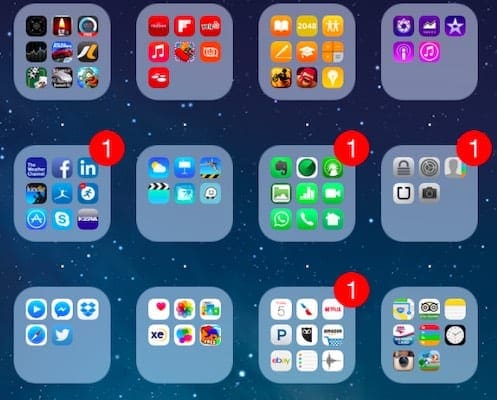
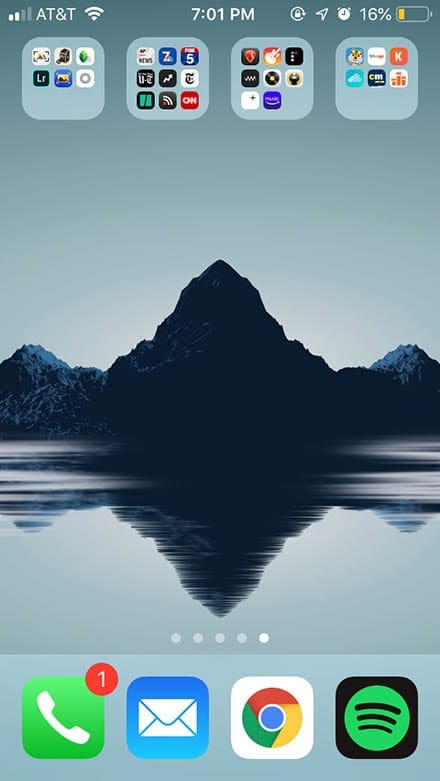
But there are the minimalists and design-savvy among us who would much rather have the option to use blank folder labels. It’s hard to argue that an app grid full of blank folders is a rather clean and sleek look.
Every now and then, a bug or “hack” will come along that allows people to actually blank out folder names. Those bugs do eventually get patched, however.
Luckily for us, there is an unpatched way to get “blank” folder names within iOS — and without jailbreaking your iOS device, either. Best of all, it’s probably here for the long term.
How to Get Invisible Folder Names
While there have been a variety of methods to get “blank” folder names over the years, they usually require a bit of finagling. That isn’t the case with this workaround.
On your iOS device, tap and hold the blank space between these brackets: [⠀]
When it’s selected, tap on Copy.
Now, go to the Home screen and tap on any folder.
Tap and hold the folder name to bring up the editing mode.
Delete all of the characters in the current folder name.
Then, paste the blank character you copied earlier into the folder name field.
Hit Done.
On a similar note, the special bank space will also work on macOS. Just copy it on your Mac and paste it into a folder name input field. You should be left with a blank macOS folder.
Why This Works
You’re able to use the “blank space” to create invisible folder names because it isn’t technically a blank space. That’s right, while space between the brackets [⠀] looks like a blank space, it won’t be treated as such by operating systems.
Instead, the blank space between the brackets above is actually a special Unicode character. It’s a “bank space” in Braille, Unicode character U+2800.
Because it isn’t the typical blank space you’d get from tapping on a space bar, iOS and macOS actually register it as a normal character like any other letter or number.
On a similar note, this isn’t necessarily a bug. Unlike some other iOS “hacks” related to blanking out folder names, the Braille Unicode character will persist through device restarts and software updates. It’s also been tested on all old and recent versions of iOS, including the latest iOS 12.1.4 update and the iOS 12.2 betas.
Also, because it’s the knowledge around special Unicode characters is pretty niche and obscure, Apple isn’t very likely to take the time to “fix” this bug. In fact, it may not be worth the effort to even change the behavior of the blank Braille space
Of course, there’s also no guarantee that the workaround will remain unpatched forever. But in the interim, it may be a good long-term solution for blanking out folder names.
Mike is a freelance journalist from San Diego, California.
While he primarily covers Apple and consumer technology, he has past experience writing about public safety, local government, and education for a variety of publications.
He’s worn quite a few hats in the journalism field, including writer, editor, and news designer.











Write a Comment