If you’re a video game fan, we’re sure you installed Twitch on all your devices. Twitch is Netflix for gamers and it’s highly addictive. Time feels like it’s flying by when watching your favorite Twitch streamers playing popular games. The only thing that breaks Twitch’s spell is the app not working properly. If your Twitch app stopped working on your iPhone, don’t panic and please don’t throw your phone at the wall in anger. Instead, take a deep breath and follow the steps below. We’ll help you troubleshoot the issue in no time.
Why Is My Twitch Mobile App Not Working on My iPhone?
⇒ Quick Fix: If you don’t have the time to fix your Twitch app now or you don’t really want to miss that stream, you should be able to access the platform on your mobile browser.
Update Your App and iOS Version
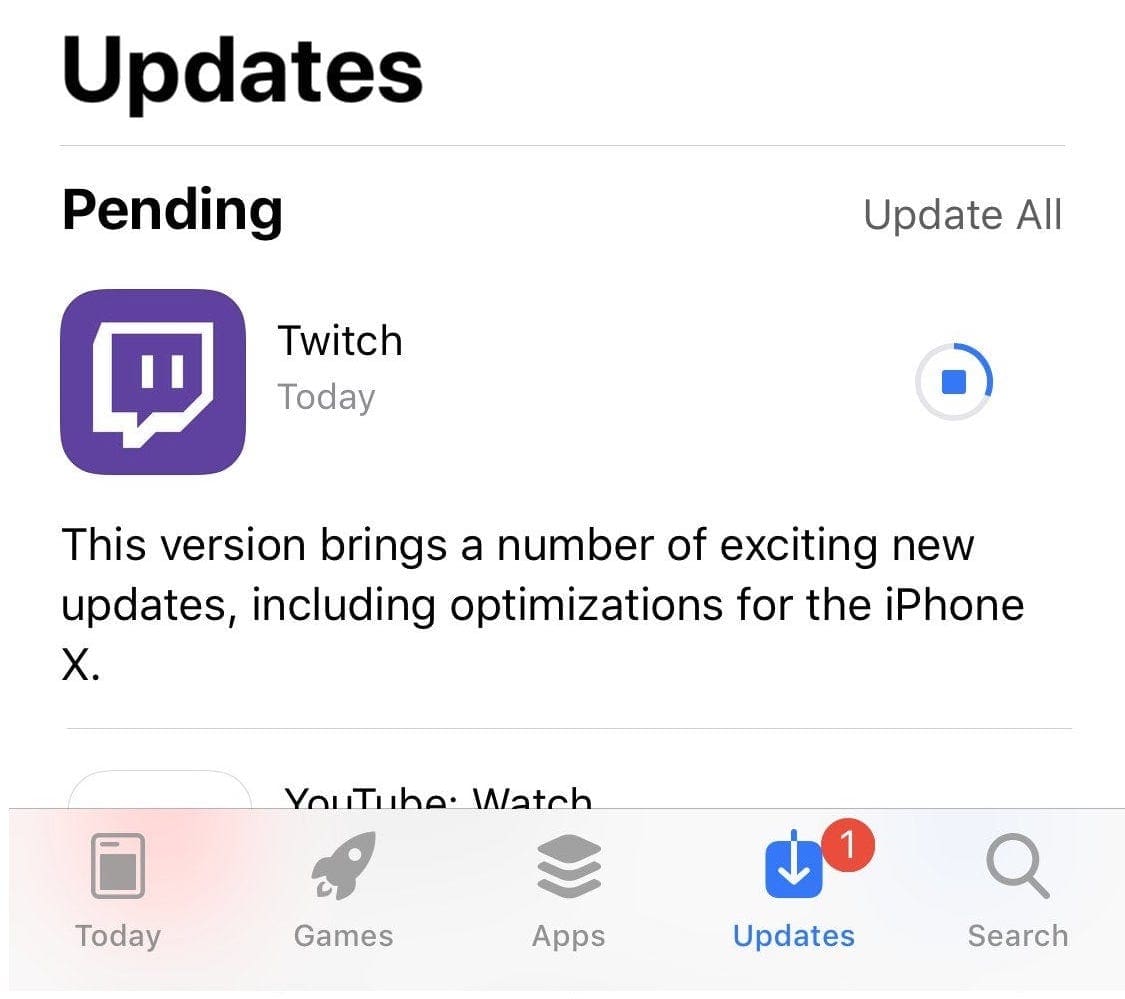
If you already installed the latest Twitch and iOS updates on your iPhone, skip this step and go to the next solution. But if you haven’t done that already, launch the App Store, tap your profile picture and check if there are any pending updates. Simply tap the Update button next to Twitch. Alternatively, if you want to update all your apps in one go, tap Update All.
Then go to Settings, select System, go to General and tap Software Update. Download and install the latest iOS version available for your device. Restart your iPhone and check if the app is working properly.
Clear the Cache
As you continue to use your Twitch app, your iPhone may get clogged with various temporary files. The same is valid for all the other apps you’re running on your phone. Ultimately, all the files that keep on pilling up in the cache section may slow down your device or interfere with the apps you’re running.
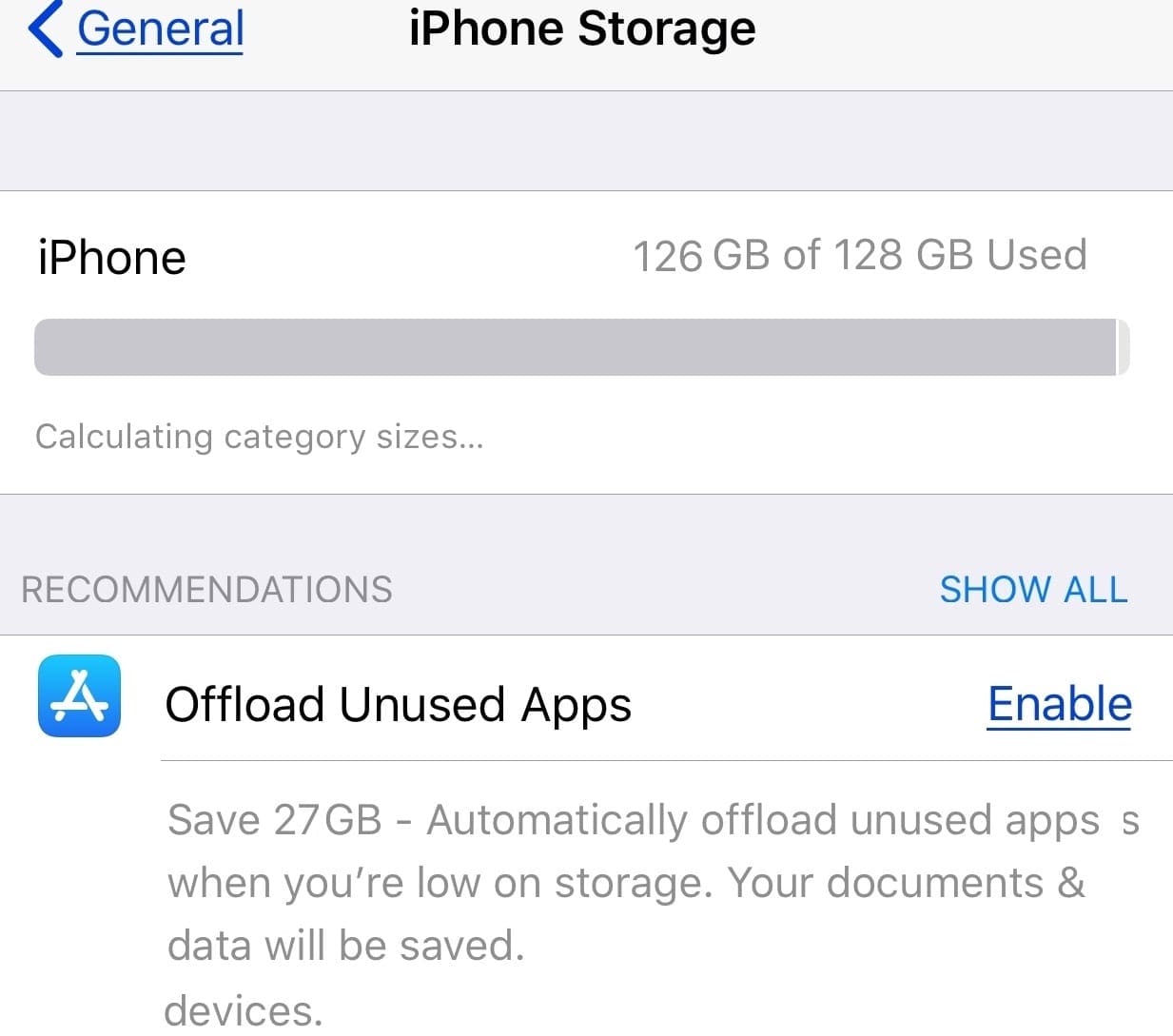
Navigate to Settings, tap General and go to iPhone Storage and enable Offload unused apps.
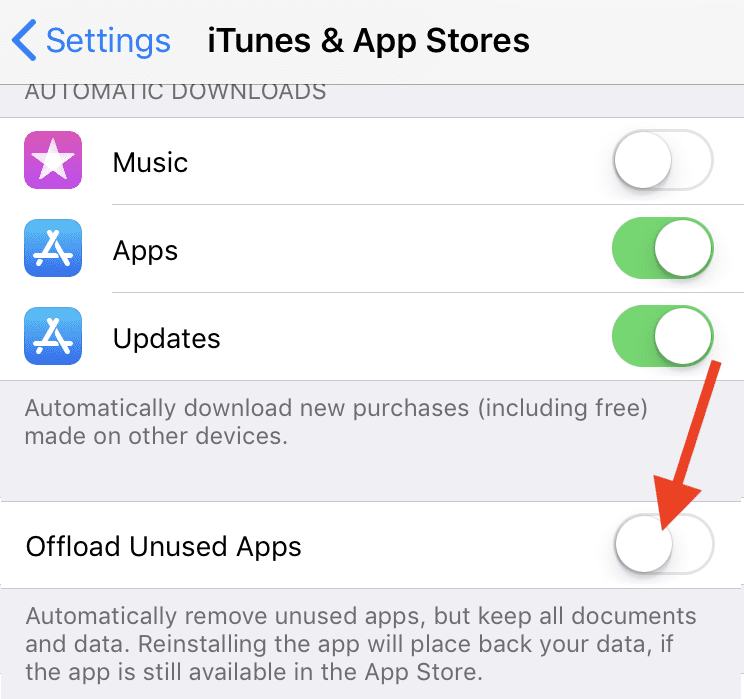
Or go to Settings, select iTunes and App Store and toggle on this option.
Then go to back to Settings, select Safari and then tap Clear History and Website Data. Restart your phone and check the results.
Select Audio Only and Tweak Video Settings
A number of users confirmed they fixed this problem by selecting Audio only in the app settings. Then select the video quality you want to use for your streaming session. The key is to do that while still in Audio only mode. Tweak the video quality options and enable Source instead of Auto.
Set Date and Time Settings to Automatic
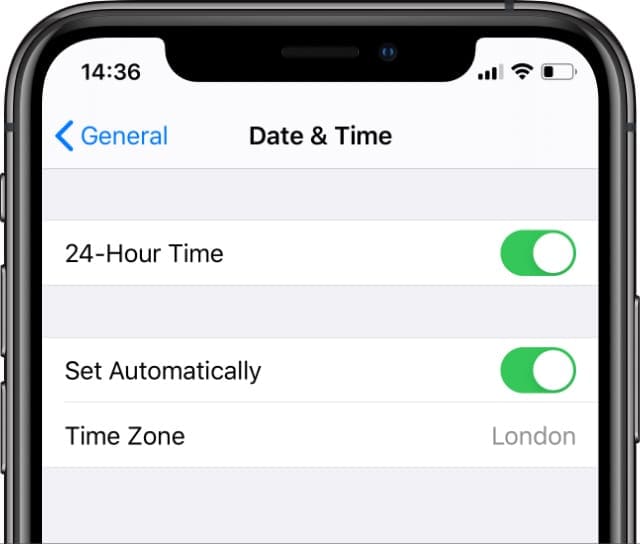
If your iPhone’s date and time settings are incorrect, the Twitch servers may block the connection due to security reasons. Go to Settings, select General, and tap Date and Time. Toggle on the Automatic option and launch the app again.
Turn on ‘Set Automatically’ and select your Time Zone.
If Twitch still won’t work as intended, uninstall the app and restart your iPhone. Then go to the App Store and download a fresh copy of the app.
Conclusion
If Twitch stopped working on your iPhone, update the app and install the newest iOS version. Then clear the app cache and set your date and time settings to Automatic. Changing your video quality settings while in Audio only mode may do the trick as well. If nothing worked, reinstall the app. Did you find other ways to troubleshoot this Twitch issue? Share your ideas in the comments below to help other fellow Twitch users.
Madalina has been a Windows fan ever since she got her hands on her first Windows XP computer. She is interested in all things technology, especially emerging technologies — AI and DNA computing in particular.









Thank you for this info. I hope it solves the problem I am having.