If only you could access Apple Maps on your Windows PC. It’s so much cleaner than the alternatives – Google Maps is so cluttered – and you’re already used to it because you have a Mac or iPhone. It would mean no more Google Maps and no more messing around with map apps that don’t give you what you want.
But you can’t use Apple Maps on Windows, right?
You can – these two methods show you how.
Method 1 – Use the DuckDuckGo Browser
DuckDuckGo is an awesome web browser that is ideal if you want a little more privacy in your internet experience. But there’s something that many don’t know about it – DuckDuckGo uses Apple’s MapKit JavaScript framework for its default browser maps.
In other words, you get to use Apple Maps on Windows if you have the DuckDuckGo browser installed.
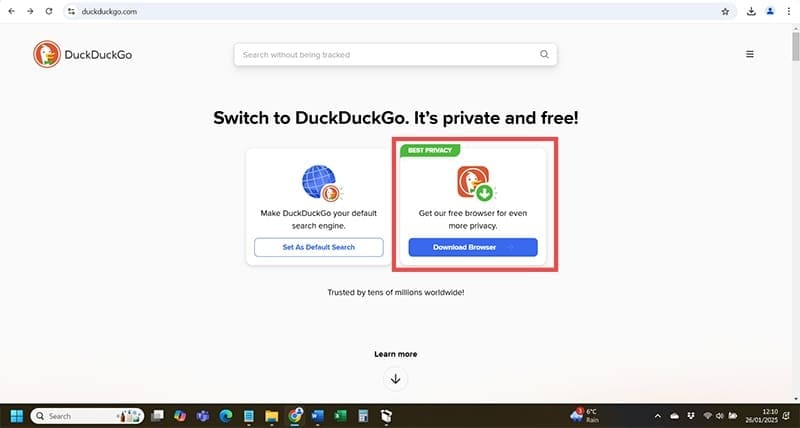
Step 1: Head to the DuckDuckGo website and select “Download Browser” from the home page.
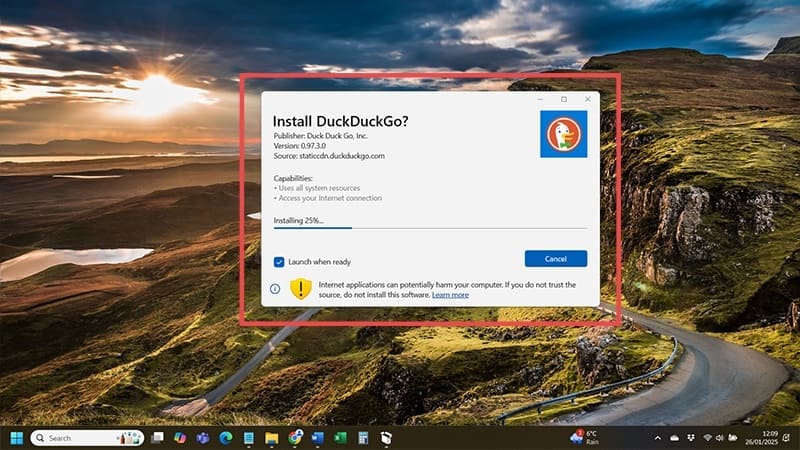
Step 2: Once the download is complete, open the downloaded .exe file, grant the permissions the browser requests, and click the Install button. You’ll need to wait a while for everything to unpack.
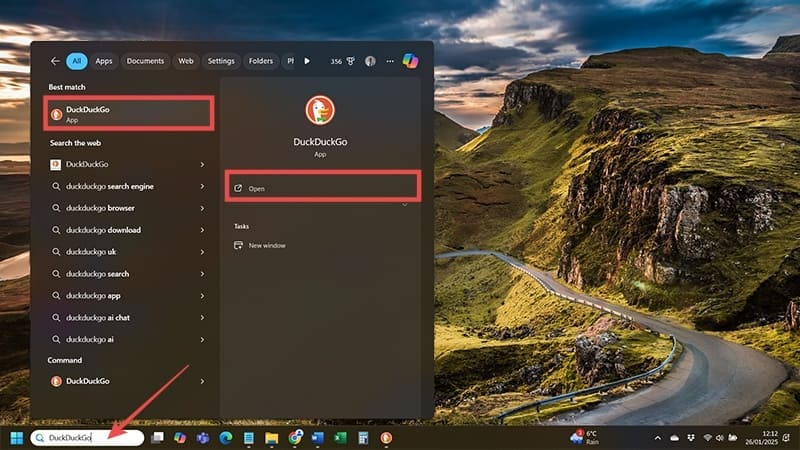
Step 3: Open DuckDuckGo, either by typing “DuckDuckGo” into your Windows search bar and clicking the icon or via the icon the browser installs onto your desktop.
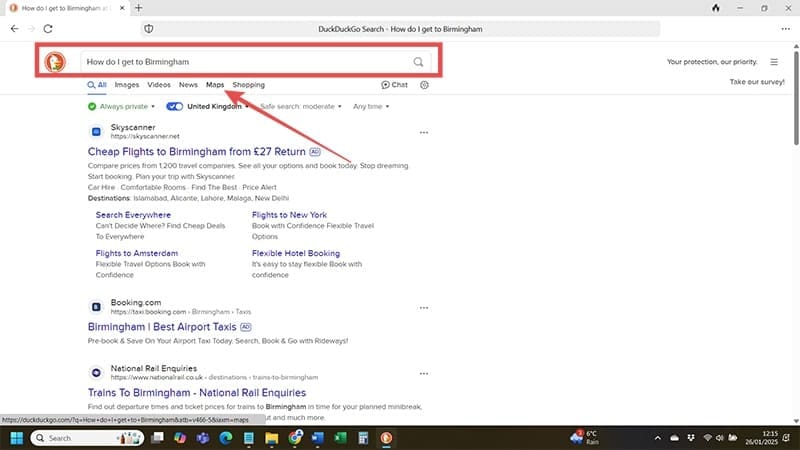
Step 4: Go through all of the browser setup – it’ll highlight DuckDuckGo’s privacy features and let you transport data from other browsers across – to arrive at the browser’s search bar. Type the destination you’d like to go to and hit “Enter”. On the results screen, hit the “Maps” button under the search bar.
Step 5: That’s it – you should see that DuckDuckGo opens Apple Maps so you can plot a route to your destination.
You’ll notice there are a few features missing from this version of Apple Maps. You can’t save your favorite places to iCloud – a consequence of DuckDuckGo being a privacy-first non-Apple browser – and you can’t sync this version of the app to other Apple devices. But it works. You get Apple Maps satellite and map views, though you do miss out on the “Look Around” feature.
Method 2 – Use a Virtual Machine
Maybe DuckDuckGo’s version of Apple Maps isn’t for you. Too many features are missing and you want the full experience. You can get that if you use a virtual machine to run MacOS on a Windows PC. Better yet – you don’t need a Mac to do it.
This is a more long-winded process that requires you to have a virtual machine software – such as VMware Player or VirtualBox – and a virtual image of the macOS. It’s so long-winded, in fact, that it would take an entire article to explain how to do it.
Once you have that virtual machine up and running, you’ll also have access to the entire library of Apple apps. That includes Apple Maps, with all of the features accessible that you can’t get via the DuckDuckGo version of the app. That means access to iCloud (you’ll need an Apple account) and the map features that are missing from DuckDuckGo.
As an avid gamer, I’ve run into my fair share of error codes and weird faults that have forced me to find fixes to problems I never anticipated. That gave me a passion for sharing those fixes with others so we can all game without feeling like our hardware is rebelling against us.













Write a Comment