Your internet connection is terrible, but you have a project you have to finish up on your laptop. In times like these, it can be really helpful to share your iPhone’s internet with your PC or other devices. It’s even better if you do this using a simple USB connection. Your iPhone can be a fantastic device to set up your WiFi hotspot access.
This feature allows you to share your iPhone’s cellular data connection with other devices, providing them with internet access when Wi-Fi isn’t available. In this blog post, we’ll guide you through the process of setting up and using your iPhone’s hotspot feature.
Setting up a hotspot on your iPhone is a straightforward process. Here’s a step-by-step guide:
Open the Settings app on your iPhone.
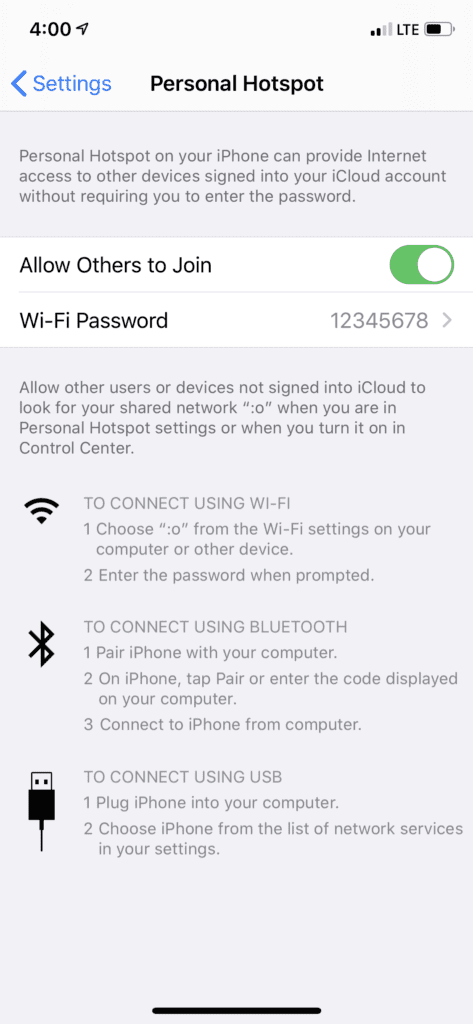
Scroll down and tap on Personal Hotspot.
Tap the slider next to Allow Others to Join. When the slider turns green, your hotspot is active.
Under Wi-Fi Password, set a password for your hotspot. This will prevent unauthorized users from connecting to your hotspot.
Now that your hotspot is set up, you can connect other devices to it. Here’s how:
On the device you want to connect, open the Wi-Fi settings.
Under the list of available networks, you should see the name of your iPhone. Tap on it.
Enter the password you set for your hotspot, then tap ‘Join’.
Tips for Using Your iPhone’s Hotspot
While using your iPhone’s hotspot is a great way to stay connected, it’s important to keep a few things in mind:
Data Usage: Using your hotspot uses cellular data. If your data plan has a limit, keep an eye on your usage to avoid any extra charges.
Battery Life: Using your iPhone as a hotspot can drain the battery faster than usual. If you’re planning to use your hotspot for a while, make sure you have a way to charge your iPhone.
Security: Just like with any Wi-Fi network, make sure you set a strong password for your hotspot to prevent unauthorized access.
Advantages of Using the iPhone Hotspot With USB Connection
When connected using a USB cable, your connection can stay at peak efficiency. And there are a few other pros to using your iPhone to access the internet with a USB cable.
First, after using the hotspot, your iPhone won’t wind up with a dead battery. Secondly, using the iPhone and USB for hotspot access can help you avoid the perils of using public WiFi. You can conveniently avoid the dangers of mingling in a crowded place with multiple WiFi connections that aren’t secure.
If you work remotely, you’ll find this feature handy as a backup. And if you have to work in a hotel, a trade show location, or a conference center, your device will generally perform better, working with improved speed.
You can enjoy the added advantages of connecting to the internet via USB and the iPhone whenever you use the feature at home as a “family hotspot.” After all, during these Covid-19 days, it is likely that the whole family is working online. So you can keep your data usage lower – just use it when you need it.
Let’s talk about how to set up a USB-only hotspot on your iPhone.
Requirements for the USB to iPhone Hotspot Connection
First, make sure your phone plan allows you to utilize the Personal Hotspot using your WiFi. This might not be free if you are using a prepaid phone or want to simultaneously use unlimited data at the same time. To be sure, check with your online account or call your carrier.
The First Method
Download the most updated iTunes version that can work with a Windows PC.
Install and run the program. Once you have installed the required drivers, a dialogue box will appear.
Select the Public Network.
The iPhone should automatically connect to the PC. A network indicator will signal a complete connection.
You can then plug the iPhone into your PC while outputting other device’s WiFi. For you to achieve this, select the first option. This activates the WiFi and creates a wireless network.
Click on Password as indicated on the screen for Personal Hotspot (tap on WiFi password).
Activate the hotspot on the device. From the home screen, simply tap the settings, then “Personal Hotspot.”
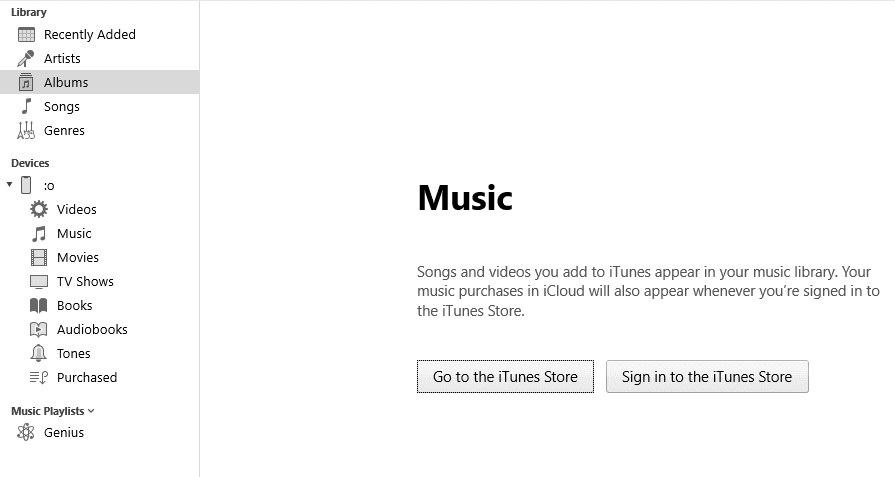
Using your USB cable, connect your iPhone to the PC. Once you do this, the iPhone will instantly get listed to the left of the iTunes window. This will appear under devices.
In case you have done everything, and the iPhone is still undetected, you can take the following action:
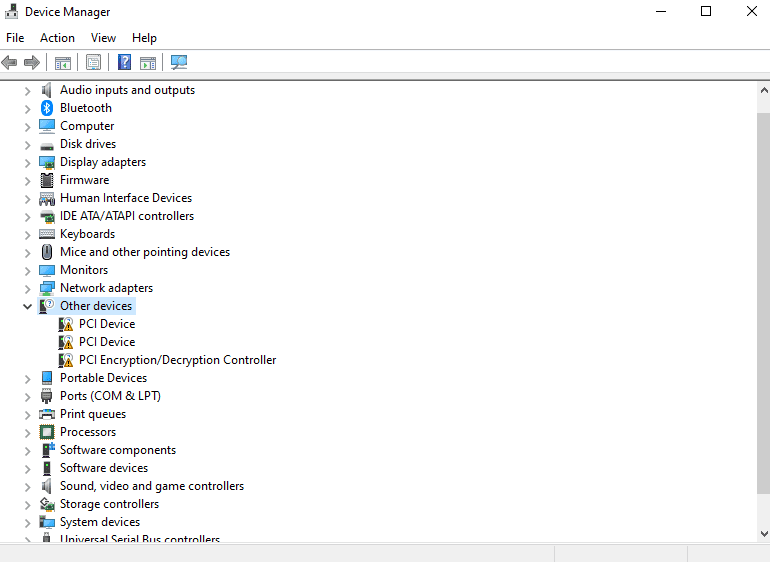
Click on the Device Manager on the PC.
Go to Other Devices then iPhone.
After right-clicking on the iPhone, select Update Driver then Search Automatically. Once you do this, the latest driver should now be installed by Windows.
In case iTunes is still unable to detect your iPhone, restart the PC and repeat the process.
Important Precautions
Check whether the PC is successfully connected to the tethered iPhone. To do this, go to your PC.
You will find the tethered connection appearing in the form of a wired connection. This is located on the lower right side of the systray or taskbar. Tap on this icon.
A wired connection, known as “Network X,” will soon appear. This works as the tethered iPhone.
The process is now complete.
The Second Method
Here is the second method to set up the same process:
Click on Settings.
Tap on Personal Hotspot. If you are doing this the first time, start by going to cellular settings to locate the Personal Hotspot.
Having tapped on Personal Hotspot, activate and turn it on.
Next, set the WiFi option password. Do this regardless of whether you wish to use your iPhone as a Personal Hotspot USB.
Change the password by clicking on it.
Make sure the Personal Hotspot is turned on by tapping the toggle.
In case the WiFi is off, you will receive a message notifying you that you are only allowed to use the USB and Bluetooth, with a choice to turn on WiFi. This means you may leave the WiFi turned off. You can set it on whenever you’re using the iPhone and USB hotspot.
Connect your iPhone to the PC with a USB cable as soon as you activate the Personal Hotspot using the slider. Use the USB cable that ordinarily charges your iPhone. Sync it with iTunes.
To use the hotspot with the USB and Bluetooth, click on option Two — any connected devices will work, not just with the regular WiFi.
Lastly, from the PC-provided network options, select the iPhone and voila!
You’re done! You can now use the iPhone to connect to the internet with the USB.
USB Hot Spot on iPhone
It’s really useful to have your iPhone hotspot while connected to a simple USB. Once you set up the process, you will be able to connect to the internet wherever you are, using a cellular signal.
This means you can use your laptop anywhere and enjoy connectivity with the iPhone and a USB. You can get faster connectivity than what public WiFi offers. It’s also much safer than public WiFi, which is usually unsecured.
Yes, you can enjoy inexpensive internet services together with the family or while working away. Use the tips above to set up the Hotspot successfully using your iPhone and the USB.
Conclusion
The ability to set up a personal hotspot is one of the many features that make the iPhone a powerful tool for staying connected. Whether you’re working remotely, traveling, or just out and about, your iPhone’s hotspot can provide a reliable internet connection for your devices.
Remember, while using your iPhone’s hotspot is a convenient option, it’s important to monitor your data usage and battery life. Always ensure you have a sufficient data plan and a way to charge your iPhone if you plan to use your hotspot for extended periods.










Write a Comment