With macOS, Apple added a number of features to bring the Mac closer to the iCloud, and enable users to use increasingly smaller capacity drives.
These set of storage optimization features are centrally located in macOS and make it easy to help with space.
If you happen to use a MacBook with a small SSD, you know the problems of storage all too well.
macOS (all versions) brings new features that help you save space on your mac via optimized storage. At a fundamental level, macOS basically moves older files such as ebooks that you may not have read in a while to your iCloud drive and helps you free space on your local drive on your MacBook.
By incorporating seamless integration between your local drive and the cloud storage, it allows you to access these files very easily on your iCloud storage.
The operating system digs deep automatically to uncover all your full-resolution photos, mail attachments, iOS device backups that you may have on your MacBook, system files such as IPSW files and unused MAS apps to optimize the free space on your MacBook.
You can choose to incorporate this feature or not use it.
If you do plan on using this feature, consider buying some additional iCloud storage.
All about storage recommendations and optimization in macOS
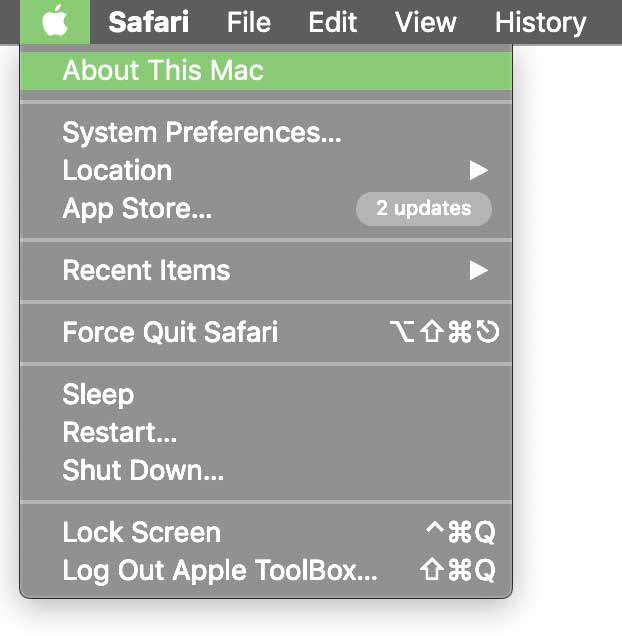
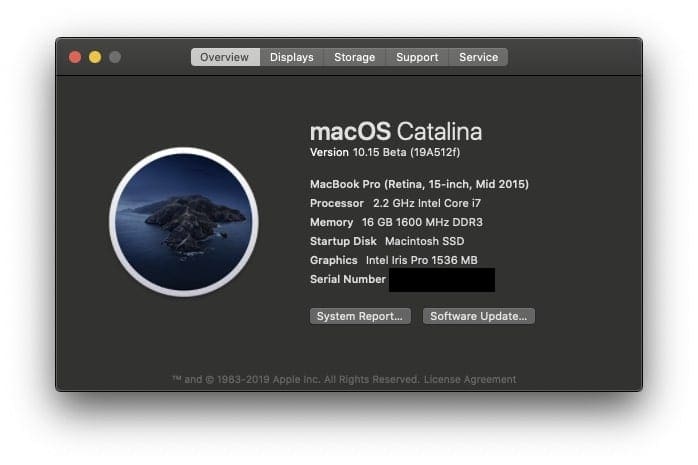
First, on your Mac, head over to the Apple is the top left corner and select ‘About this Mac‘.
A menu pop-ups. Click ‘storage’.
Next, head over to your drive, and click ‘manage‘.
You’ll be brought into an application with a number of options for optimizing storage.
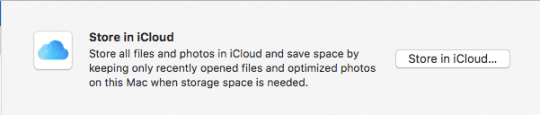
The first option allows you to store files in iCloud
With macOS, iCloud can store full folders from your Mac on the cloud.
This option stores all your filed in your Desktop and Documents folder in iCloud, as well as store your Photos.
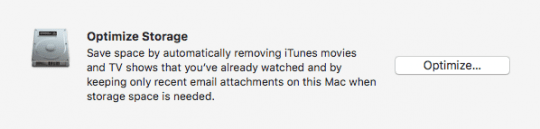
The next option is to optimize storage
This option will automatically delete viewed movies and TV shows from iTunes, as well as give you the option to only download Mail attachments from recent messages, or not at all.
The third is Trash empty
This one is pretty simple: turn it on, and your trash will automatically delete every thirty days.
The final option is to reduce clutter
This option allows you to sort through large and old files, and easily delete them from the app.
This icloud storage of local files from your hdd is all very well if you live in a country that has fast internet (USA) Optimise my drive does not work from South Africa. So my hdd gets filled up and constantly i get the message that my hdd is full. Outlook stops working daily as it has to stop because of no hdd space. I have to turn off optimise Mac storage.
I went to the Mac store where I bought my Mac and they did not have an answer.
I have been trying to work this out for months.
This makes it more complicated because I want to use the sync of icloud drive but don’t want all the files and folders in icloud drive stored on my Mac. My icloud drive is bigger than my Mac drive.
I also want to use the desktop and documents.
I kind of want the NO SYNC option the other way around i.e no sync folders in icloud drive not on my Mac.
Sean













This icloud storage of local files from your hdd is all very well if you live in a country that has fast internet (USA) Optimise my drive does not work from South Africa. So my hdd gets filled up and constantly i get the message that my hdd is full. Outlook stops working daily as it has to stop because of no hdd space. I have to turn off optimise Mac storage.
how can i get around this? Sean
Thank you for clearing this up.
Finally!
I called Apple Support and did not get an answer.
I went to the Mac store where I bought my Mac and they did not have an answer.
I have been trying to work this out for months.
This makes it more complicated because I want to use the sync of icloud drive but don’t want all the files and folders in icloud drive stored on my Mac. My icloud drive is bigger than my Mac drive.
I also want to use the desktop and documents.
I kind of want the NO SYNC option the other way around i.e no sync folders in icloud drive not on my Mac.
Sean