• Skip to primary navigation
  • Skip to main content
  • Skip to primary sidebar
  • Skip to footer

AppleToolBox

Tools and Fixes for Mac, iPad, iPhone & iWatch

Search posts

  • About
  • Contact

CONNECT WITH US

CATEGORIES

  • iPhone
  • iPad
  • iPod
  • Apple Watch
  • Mac/MacBook
  • AirPods
  • Apple TV
  • News
  • Apple Services
  • HomePod
  • Reviews

SITE

  • Home
  • About Us
  • Contact
  • Advertise

Search posts

You are here: Home / iPhone / Use this workaround to save and rename a Trimmed Video in iOS 13 or iPadOS

Use this workaround to save and rename a Trimmed Video in iOS 13 or iPadOS

By Sudz Kar 1 comment Last updated October 17, 2019

With the release of iOS 13 and iPadOS, Apple added many new and clever features to the Photos app. There is one small function in Photos /Videos editing side of things where it may have overlooked an essential. There is no intuitive way to save and rename a trimmed video from the editing screen in iOS 13.

Related:

  • How to use Capture Outside the Frame on iPhone 11 Pro models
  • Is Deep Fusion the iPhone 11 camera’s blockbuster feature?
  • How to backup your iPhone or iPad photos to an external drive with iOS 13 and iPadOS
  • Here’s everything new in Photos and Camera in iOS 13
  • 13 hidden features you probably won’t find for yourself in iOS 13

Once you have completed your edits and trimmed the video using the Photos App, it saves it automatically to your albums without giving you the option to “Save as”. Some users also found that when they share the trimmed video, it ends up sharing the original un-trimmed version.

Essentially, you end up sharing a 5 min video to your messenger instead of the trimmed and short section.

We hope that this issue is resolved in a meaningful way in the upcoming iOS 13.2. In the meantime, we are leveraging this workaround to save and send trimmed videos in iOS 13 and iPadOS.

Trim, Save and Rename Videos in iOS 13 and iPadOS

  1. Open Photos App and tap on the video thumbnail that you want to edit
  2. Tap on the Edit icon on the top right corner of the screen to enter editing modeStart editing videos using Photos app on iOS 13
  3. You should see the familiar editing tools at the bottom of the screenSave trimmed videos in iOS 13 and iPadOS using Photos app
  4. To trim the video, drag either end of the frame viewer and adjust
  5. Tap ‘Done’ at the bottom right corner of the screen
  6. You will see the ‘Saving Video’ progress on the screenSave trim videos in iOS 13
  7. On this next screen, tap on the Share-sheet at the bottom left cornerSave video edits in iOS 13 and iPadOS
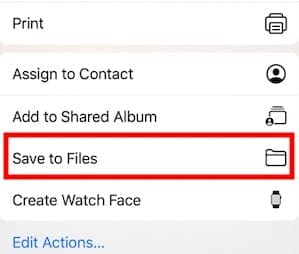
  8. Choose ‘Save to Files’ at the bottomSave and rename trimmed videos ion iPhone to share with messenger
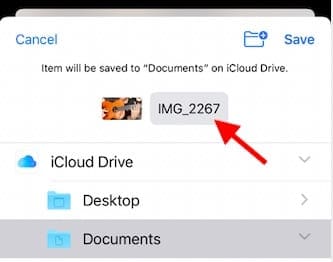
  9. Click on the default file name Rename Trim video on iOS 13 and iPadOS
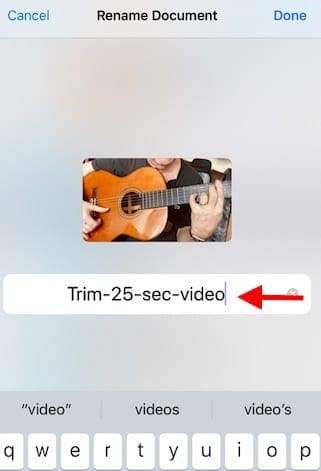
  10. Rename it as per your preference and tap Done.Save and Rename trimmed videos in iOS 13
  11. Choose the location and tap on ‘Save’ to store the video
  12. Open Files app and share the saved video from there instead of Photos app

On Step 8, you can also choose ‘Save to an Album’ and create a new album for your trimmed videos, so that it is easier to locate and differentiate from the original video in the general Videos album.

The major advantage of this workaround is that it allows you to ‘rename’ the trimmed video to your liking using the Files app. The disadvantage is that you end up saving the trimmed video twice; once in Photos (By default) and then on Files. You may have to go back and delete the footage from Photos if you are worried about storage on your device.

How are you saving your trimmed videos today? Do you use a third party app for managing your video edits? We would love to hear your thoughts and would appreciate if you can share your favorite tips or tricks when it comes to editing videos on the iPhone using Apple’s Photos app.

Related Posts:

  • iPhone 15 Pro Max - 6
    How to Record ProRes Video to an External Drive on…
  • iPhone 15 Pro Max - 4
    Best iPhone Lock Screen Widgets for iOS 17
  • iPhone camera taking photo of a street
    Every iPhone Camera Mode Explained
  • iPhone 15 event - iPhone 15 Pro and iPhone 15 Pro Max A17 Pro Video Recording Promo
    iPhone 14 vs. iPhone 15: Should You Upgrade?
  • An iPhone, Mac, and MacBook on a table
    Can You Use Time Machine to Back up Your Mac to…
  • MacBook Pro 2021 iPad Mini iPhone 13 Pro AirPods 3 Beats Fit Pro iPad Pro Best Apple Products - 2
    The Best Apps and Games Of 2022, According to Apple
  • 2023 Mac Studio lifestyle - 1
    macOS Could Not Be Installed, How-To Fix
  • How to Install Windows 11 on Mac
    How to Install Windows 11 on Mac
  • Apple Vision Pro at desk
    Everything to Know About Apple Vision Pro
sudz - apple
Sudz Kar

Obsessed with tech since the early arrival of A/UX on Apple, Sudz (SK) is responsible for the original editorial direction of AppleToolBox. He is based out of Los Angeles, CA.

Sudz specializes in covering all things macOS, having reviewed dozens of OS X and macOS developments over the years.

In a former life, Sudz worked helping Fortune 100 companies with their technology and business transformation aspirations.

Reader Interactions

Write a Comment Cancel reply

Show 1 Comments

  1. Rocketgirl says

    December 27, 2020 at 6:49 PM

    I noticed that saving a trimmed or edited video as a film project on iMovies seems to help, tho the file renaming doesn’t seem to hold. Does that help?


    Reply

Primary Sidebar

Recent Posts

  • What to Do When Windows 11 Won’t Detect Your iPad
  • Outlook Outage 2026: iPhone Fixes for Sign-In Chaos
  • Guide to Changing iMessage Backgrounds on iPhone and Mac
  • Has Apple Killed Vision Pro? (Insane Sales Flop Explained)
  • 5 Great Apps for Staying Organized on Your iPhone
  • What Are iPhone Antennas and Do You Need One?

Connect with us

Footer

ABOUT

  • About Us
  • Contact us
  • Advertise
  • Privacy
  • Terms of Use

GUIDES

  • iOS & iPadOS
  • Apple ID
  • iCloud
  • App Store
  • iTunes
  • FaceTime
  • iMessage
  • Siri
  • Books and iBooks
  • Game Center
  • AirPlay

CONNECT

  • Facebook
  • Twitter
  • FeedBurner
  • YouTube

© Copyright 2010-2024 Guiding Tech Media · All Rights Reserved

This site and its content are in no way affiliated or endorsed by Apple, Inc. · Reproduction without explicit permission is prohibited

Last Updated on October 17, 2019 by Sudz Kar