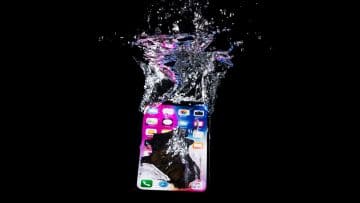
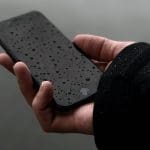
Your iPhone is a very advanced device that can do plenty, but it’s not and likely never will be waterproof. Dunking it in a bowl of water for an hour will, in all likelihood, completely stop your device from working. So, why does Apple tout the iPhone as a water-resistant device?
It’s because water-resistant and waterproof are two different concepts. iPhone water resistance helps your device cope with bad weather days, light water exposure, and the occasional accidental dip. Read on to discover just how safe it is to take your iPhone near damp environments.
Every iPhone since the iPhone 7 has what’s called an IP, or Ingress Protection, rating. Ingress means “a way in,” and in this context, refers to how easy it is for dust and water to get inside your smartphone.
The IP rating has two numbers: the first is dust-resistance, with 6 meaning “dust-tight.” The second number rates how long the device can, in lab conditions, remain underwater. The number 8 means that the device should be able to withstand immersion in water 2-6 meters deep for 30 minutes. Most modern iPhones are rated IP68, with some older models rated IP67, indicating they can’t withstand water immersion beyond 1 meter.
For an iPhone with water resistance, there are advanced seals and engineering to prevent water ingress, but it’s not infallible. That’s why water damage is never covered under the manufacturer’s guarantee.
What Your iPhone Can and Can’t Handle
According to Apple, your iPhone should be able to handle:
Liquid splashes
Brief immersion in water
Spills of soda, coffee, beer, or juice
The manufacturer makes it clear that dropping, damaging, or disassembling your device will reduce the effectiveness of the water resistance.
Your iPhone cannot handle:
High-velocity water, e.g., from a shower, jet wash, or during water sports
Saunas or steam rooms
Swimming pools
Being intentionally immersed in water for an extended period
Liquids other than water, sunscreen, and insect repellent can also cause additional damage to your phone.
Tips for Cleaning and Drying an iPhone
If your iPhone gets a liquid on it other than water, rinse it off immediately with tap water and wipe the whole device with a lint-free cloth.
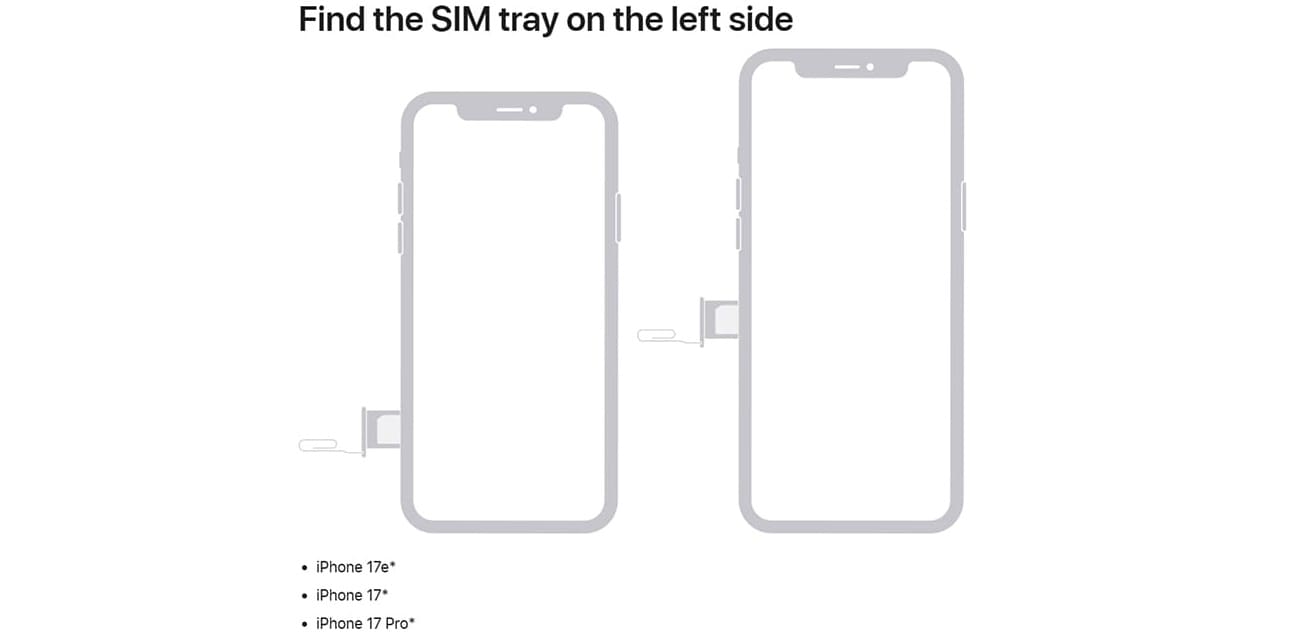
Ensure the iPhone is completely dry, then use your SIM removal tool to take the SIM tray out. This will allow airflow into the SIM area to promote drying. Current iPhones have the SIM tray on the left, as shown, but iPhone 11 models and older have the SIM tray on the right.
With the SIM tray out, turn the phone so the charging point (Lightning connector port or USB-C port) is facing down. Gently tap the device against your hand, which should shake out excess droplets of water. Place the device on a flat, dry surface in a room with good airflow. Leave it for at least 30 minutes before attempting to charge it, as charging a device with moisture in it can damage it.
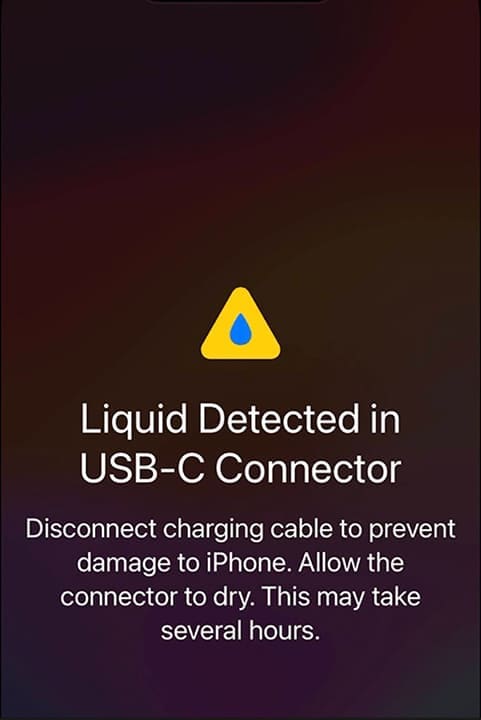
You may see a message stating that there is water in the charging port. If you see this, try leaving your iPhone to dry for 24 hours before trying to charge it again.
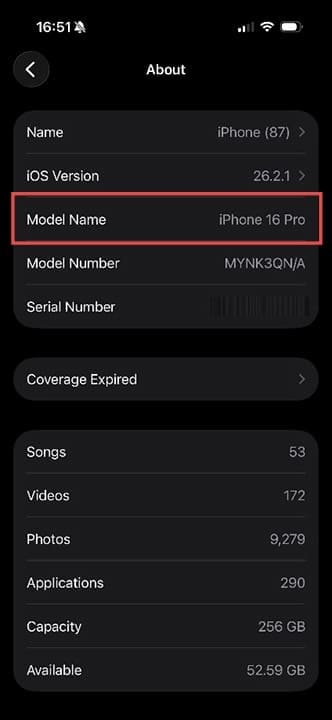
To understand the exact water-resistance rating of your iPhone, visit Apple.com and check your model against the online list. Not sure what model of iPhone you have? Head to Settings > General > About and look for Model Name.
As an avid gamer, I’ve run into my fair share of error codes and weird faults that have forced me to find fixes to problems I never anticipated. That gave me a passion for sharing those fixes with others so we can all game without feeling like our hardware is rebelling against us.








Write a Comment