• Skip to primary navigation
  • Skip to main content
  • Skip to primary sidebar
  • Skip to footer

AppleToolBox

Tools and Fixes for Mac, iPad, iPhone & iWatch

Search posts

  • About
  • Contact

CONNECT WITH US

CATEGORIES

  • iPhone
  • iPad
  • iPod
  • Apple Watch
  • Mac/MacBook
  • AirPods
  • Apple TV
  • News
  • Apple Services
  • HomePod
  • Reviews

SITE

  • Home
  • About Us
  • Contact
  • Advertise

Search posts

You are here: Home / iPhone / What Are iPhone Antennas and Do You Need One?

What Are iPhone Antennas and Do You Need One?

By Louis Roundtree 0 comments Last updated April 29, 2026

Things to Know
  • Without iPhone antennas, these devices can’t connect to the internet or cellular network.
  • The antennas are usually very small and hard to see, and in some cases, virtually invisible.
  • Problems with iPhone antennas are usually software- or setting-related and easily fixed.

Ever wondered how your iPhone makes a call or connects to the internet? It’s all to do with tiny antennas in your iPhone that pick up wireless and RF signals, connecting you to the relevant network. So, in short, yes, you do need iPhone antennas. But don’t worry, every iPhone comes with them pre-installed.

Learn how iPhone antennas work and what to do if your signal isn’t as expected.

How Do iPhone Antennas Work?

Antennas are necessary because phones are largely made of metal, which can block RF, Bluetooth, and wireless signals. To get around this, iPhones have tiny areas made of plastic or other non-conductive materials, like glass, that allow signals into the device. These are called antenna windows.

Inside the device, there are antennas specific to different types of signals – for example, 5G signals. The phone uses these antennas to receive and decode information. Some transmitters send data packets, which also leave the device via the antenna windows.

That’s how every message, email, or internet page comes to your iPhone.

Where to Find iPhone Antennas and Windows

What Are iPhone Antennas and Do You Need One 1

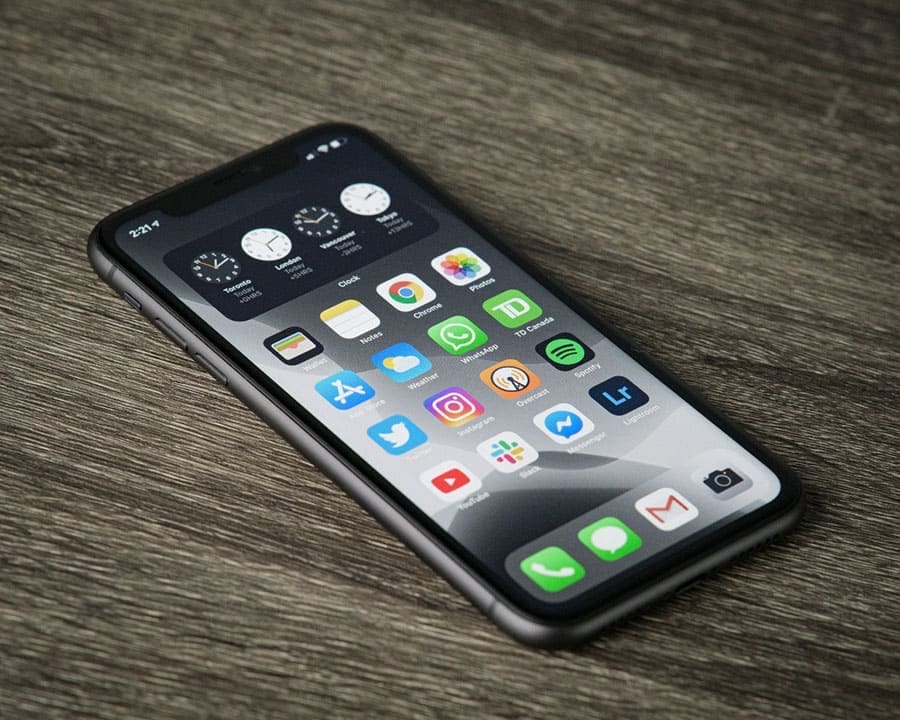
If you look at the outer casing of your iPhone, you can often see where the antenna windows are. The bulk of the case is metal or glass, but some tiny lines disrupt the otherwise smooth aesthetic. These lines usually run around the edge from front to back, and are very small. In the above image, you can see one above the “Ring/silent” button and at the bottom of the left-hand edge of the phone.

In the latest iPhone models, a combination of glass and other materials for the case means that there are fewer visible antenna windows. The glass allows signals to penetrate the phone case, reaching the antennas that are deeply integrated into the device.

Do I Need External iPhone Antennas?

It is possible to get external signal boosters, but these are usually plugged into a fixed power source and not mobile. In most cases, you can improve the quality of your iPhone’s cellular signal by following these steps:

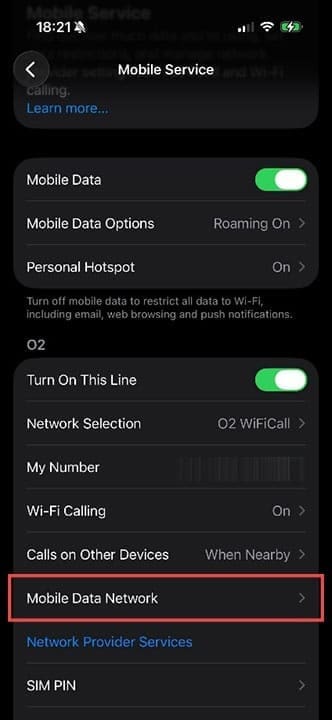
Step 1. Head to Settings > Cellular Service (or Mobile Service) > Cellular Data Network (or Mobile Data Network).

What Are iPhone Antennas and Do You Need One 2

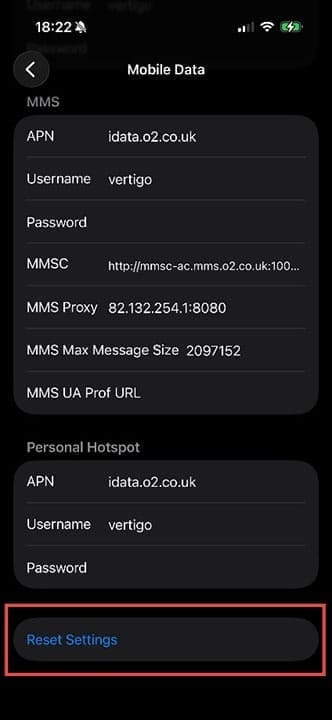
Step 2. In this screen, scroll to the bottom and tap Reset Settings. This resets all your cellular network settings, downloading the latest settings from your phone network provider.

What Are iPhone Antennas and Do You Need One 3

Restart your phone after you’ve done this, and you should find that your cellular connection is working fine. For Wi-Fi issues, try switching Wi-Fi on and off or resetting your internet router.

Related Posts:

  • iPhone 15 event - iPhone 15 Pro and iPhone 15 Pro Max A17 Pro Video Recording Promo
    iPhone 14 vs. iPhone 15: Should You Upgrade?
  • iphone SE 2022
    iPhone SE Review 2022: Everything You Need to Know
  • pexels-tranmautritam-696899
    iPhone Tips for New Users In 2023
  • Bluetooth Control Center close up on iPhone screen
    10 Ways to Fix Bluetooth Not Working on Your iPhone or iPad
  • iPhone 15 Pro Max - 4
    Best iPhone Lock Screen Widgets for iOS 17
  • photo of an iphone with ios 16 downloaded on it
    iOS 16 Tips and Tricks: The Definitive List
  • 2023 Mac Studio lifestyle - 1
    macOS Could Not Be Installed, How-To Fix
  • 2022 Mac Mini with Studio Display and Accessories
    Mac Tips For New Users In 2023
  • Photo of an iPhone being taken out of its box
    How To Use Dual SIM and eSIM on Your iPhone
Louis Roundtree
Louis Roundtree

As an avid gamer, I’ve run into my fair share of error codes and weird faults that have forced me to find fixes to problems I never anticipated. That gave me a passion for sharing those fixes with others so we can all game without feeling like our hardware is rebelling against us.

Reader Interactions

Write a Comment Cancel reply

Primary Sidebar

Recent Posts

  • Are Apple’s Safety Precautions Enough for AirTags?
  • How to Hide Username and Photo on the Mac Lock Screen
  • Microsoft Resume vs. Apple Handoff – Which Wins for Cross-Device Work?
  • How to Export iTunes Library to New Computer
  • What the Gemini Desktop App Will Bring to Mac
  • What to Do When Windows 11 Won’t Detect Your iPad

Connect with us

Footer

ABOUT

  • About Us
  • Contact us
  • Advertise
  • Privacy
  • Terms of Use

GUIDES

  • iOS & iPadOS
  • Apple ID
  • iCloud
  • App Store
  • iTunes
  • FaceTime
  • iMessage
  • Siri
  • Books and iBooks
  • Game Center
  • AirPlay

CONNECT

  • Facebook
  • Twitter
  • FeedBurner
  • YouTube

© Copyright 2010-2024 Guiding Tech Media · All Rights Reserved

This site and its content are in no way affiliated or endorsed by Apple, Inc. · Reproduction without explicit permission is prohibited

Last Updated on April 29, 2026 by Louis Roundtree